
Table of contents
- Why you need to connect offline data to digital spend
- The challenge: why GA4 data import is so difficult
- Step-by-step: preparing offline data for import with Quadratic
- Uploading your cleaned data to Google Analytics 4
- Analyzing the results: the blended view
- Conclusion: closing the loop
- Use Quadratic to Import Offline Sales into Google Analytics
As a modern marketer, you likely face a persistent blind spot in your data. You can track every click, scroll, and cart addition on your website, but the moment a customer picks up the phone or walks into a physical store, the digital trail goes cold. You know your digital ad spend is driving those offline conversions, but your dashboard tells a different story. To bridge this gap and prove the true value of your campaigns, you must learn how to import google analytics offline conversions.
Most resources on this topic focus heavily on the "why" or suggest purchasing expensive enterprise connectors like Salesforce or HubSpot integrations. While valid, these solutions often overlook the "messy middle" of the process: the technical execution of manually preparing, cleaning, and validating CSV data. If your google analytics data model doesn't match Google’s strict requirements perfectly, the upload fails, or worse, you pollute your analytics with inaccurate data.
This guide focuses on the engineering rigor required to handle offline events. We will look at how to use Quadratic as a staging environment to clean raw exports, map identifiers for identity resolution, and validate schemas before you ever click "upload" in GA4.
Why you need to connect offline data to digital spend
For a strategic marketer, "offline" represents more than just brick-and-mortar retail transactions. It encompasses a wide variety of conversion events that happen away from the website pixel, including call center sales, trade show lead capture, and backend CRM closures (such as a B2B contract signed weeks after the initial lead form submission).
Connecting these data points is critical for two reasons. First, it provides a 360-degree view of the customer journey, allowing you to calculate ROAS (return on ad spend) based on actual revenue rather than just proxy metrics like lead volume.
Second, and perhaps more importantly, this data trains the artificial intelligence behind modern advertising platforms. Tools like Google’s Performance Max rely on feedback loops. If you only feed the algorithm e-commerce transaction data, it will optimize for cheap online conversions. By importing high-value offline wins, you train the algorithm to hunt for the types of customers who actually drive bottom-line revenue.
The challenge: why GA4 data import is so difficult
If the strategic value is clear, the execution is often where teams stumble. Google Analytics 4 data import is notoriously strict. To successfully join offline data with online user sessions, GA4 requires precise schemas involving Key IDs (such as client_id or user_id), Transaction IDs, and timestamps.
The problem is that raw exports from Point of Sale (POS) systems, legacy CRMs, or event platforms are rarely formatted for analytics. You are often dealing with:
- Inconsistent date formats (e.g., 12/01/23 vs. 2023-12-01).
- Currency fields mixed with text symbols.
- Missing or unmapped User IDs.
The risk of uploading unverified data is significant. A slight mismatch in formatting can result in a "0 matches" report, wasting your time. Even worse, uploading duplicate transaction IDs can artificially inflate your revenue numbers, breaking your attribution model. To solve this, you need a validation layer—a staging environment between your raw source and GA4.
Step-by-step: preparing offline data for import with Quadratic
This section outlines a workflow for a retail or B2B marketer using Quadratic to bridge the gap between a raw CSV export and a clean GA4 upload.
1. Centralize your raw exports
The first step is moving your data into a workspace where it can be manipulated without the lag often associated with large datasets in traditional spreadsheets. In Quadratic, you can import your raw CSV files—whether they are dumps from Salesforce, a POS system, or a call tracking platform—directly into the grid.
Because Quadratic allows for infinite canvas space and handles large row counts efficiently, you can bring in the raw data on one side of the sheet while reserving space on the right for your clean, computed tables, effectively creating a powerful spreadsheet google analytics workflow.
2. Identity resolution and key mapping
The core of offline attribution is identity resolution. You must match the offline transaction to an identifier that GA4 recognizes.
If you are uploading "Offline Event Data," you generally need a client_id (the device cookie ID) or a user_id (if you have a logged-in user system). If you are using "Customer Match" lists, you may need to rely on hashed user data (email or phone).
In a standard spreadsheet, hashing personal information like emails into SHA256 format—a requirement for Google's privacy standards—is difficult or requires external tools. In Quadratic, you can use Python directly in the cells.
You can write a simple Python script within the sheet to iterate through your "Customer Email" column, normalize the text (lowercase and trim whitespace), and apply SHA256 hashing. This creates a secure, mapped key column instantly, ensuring your data is ready for matching without sending PII (Personally Identifiable Information) insecurely.
3. Structuring the schema (cleaning the data)
Once your keys are mapped, you must transform the remaining data into the specific schema GA4 demands. This usually involves strictly formatted dates and clean numerical values.
Date formatting:
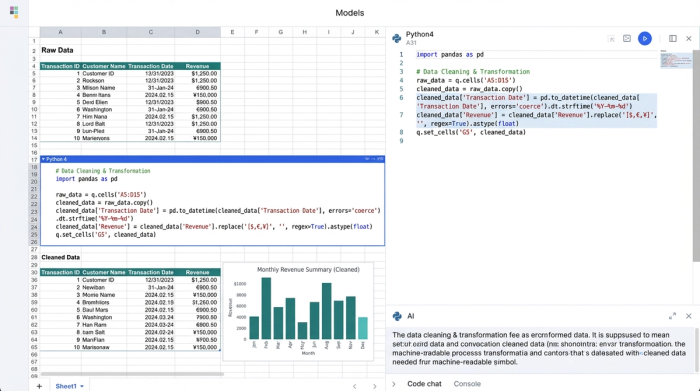
GA4 typically requires ISO 8601 format (YYYY-MM-DD or YYYY-MM-DDTHH:MM:SS). If your POS system exports dates as MM/DD/YYYY, a simple formula or Python script in Quadratic can batch-convert the entire column.
Currency cleaning:
Exports often include currency symbols (e.g., "$1,200.00"). GA4 requires a float value (e.g., 1200.00). Using Python or SQL within Quadratic, you can strip non-numeric characters from the entire dataset in one operation, rather than finding and replacing manually.
4. Building a validation sheet (the "prevention" mechanism)
This is the most critical step that most guides skip. Instead of uploading and hoping for the best, you should build a "Validation View" in Quadratic. This is a separate area of your spreadsheet designed to audit your data before export.
Using SQL queries or Python logic, you can run automated checks against your clean data table:
- Check 1: Are there duplicate Transaction IDs? (Duplicates will cause reporting errors).
- Check 2: Does every row have a valid Join Key (client_id or user_id)?
- Check 3: Are the transaction dates within the processing window (usually the last 7 to 60 days, depending on your tier)?
You can set up a conditional formatting rule or a status column that flags rows as "Green/Pass" or "Red/Fail." This ensures that you only export clean, valid data for your data validation process.
Uploading your cleaned data to Google Analytics 4
With your dataset cleaned, hashed, and validated in Quadratic, the actual Google Analytics 4 data import becomes a straightforward administrative task.
1. Export your validated table from Quadratic as a CSV.
2. Navigate to your GA4 Property.
3. Go to Admin > Data Collection > Data Import.
4. Create a new data source. Depending on your goal, you will likely select "Offline Event Data" (to track specific purchases) or "Cost Data" (if importing ad spend).
5. Upload your CSV.
Because you have already validated the schema in Quadratic, the mapping stage in GA4—where you match your CSV headers to Analytics fields—should align perfectly.
Analyzing the results: the blended view
Once the data is processed (which can take up to 24 hours), you can move into the analysis phase, perhaps using a google analytics pivot table for deeper insights. In GA4, navigate to Explore > Path Exploration.
Here, you can finally see the blended view. You will be able to trace a user who clicked a Google Ad, browsed the site, and then—days later—triggered the "Offline Purchase" event you just imported. This allows you to attribute revenue to the correct campaign and keyword, proving that your digital spend is driving real-world results, which can then be visualized in a custom dashboard google analytics.
Conclusion: closing the loop
Offline attribution is often considered the gold standard for calculating true ROAS, but data quality remains the highest barrier to entry. If you rely on messy exports and manual formatting, the process will be frustrating and prone to error.
By treating your data preparation with engineering rigor, you close the loop effectively. Don't let formatting errors break your analytics. Use Quadratic to structure, validate, and import offline sales into Google Analytics with confidence, ensuring your marketing decisions are based on the complete financial picture.
Use Quadratic to Import Offline Sales into Google Analytics
- Efficiently centralize raw offline sales data: Import large CSVs from POS, CRM, or call centers directly into an expansive grid for seamless manipulation, eliminating the lag of traditional spreadsheets.
- Automate identity resolution and PII hashing: Use native Python in cells to normalize customer emails and securely convert them to SHA256, meeting GA4's privacy standards for accurate user matching.
- Rigorously clean and structure data for GA4: Batch-convert inconsistent date formats (e.g., MM/DD/YYYY to ISO 8601) and strip currency symbols using Python, SQL, or formulas directly in the grid to meet GA4's strict schema requirements.
- Build a robust pre-upload validation layer: Implement automated checks for duplicate transaction IDs, valid join keys, and correct date ranges with Python or SQL, ensuring only clean, accurate data is exported to GA4.
- Gain a complete 360-degree view of customer journeys: Confidently upload validated offline conversions to GA4 to accurately calculate ROAS and optimize ad platform AI for bottom-line revenue.
Ready to connect your offline sales to digital campaigns? Try Quadratic.
