Table of contents
You have likely faced the frustration of dealing with a messy export of vendor names or invoice IDs in a spreadsheet, a common issue contributing to the impact of poor data quality on business operations. You need to clean the data to make it usable, but you are worried about accidentally deleting the wrong row or losing the original sorting order that provides context to the data. Standard spreadsheet buttons that offer to "remove duplicates" are often opaque; these data cleaning tools delete data instantly without showing you exactly what was removed or why. On the other hand, writing a script in an external IDE disconnects you from the data you are trying to clean.
There is a better way to handle data hygiene that combines the visibility of a spreadsheet with the precision of code. By using Quadratic, you can use python to remove duplicates from a list directly inside the grid. This approach ensures you keep the original order of your data and, crucially, creates an automated audit log of exactly what was cut. This transforms a risky manual task into a transparent, repeatable workflow.
The challenge: why standard methods fall short
When technical operators search for how to remove duplicates from list in python, they usually encounter a standard coding tutorial suggesting the use of the set() function. While converting a list to a set is a fast way to eliminate duplicates, it comes with a major downside: sets are unordered collections. This means the operation shuffles your data, destroying any chronological or priority-based sorting inherent in your original export.
On the business side, the standard "Remove Duplicates" feature in Excel or Google Sheets is a destructive action. It deletes rows permanently and rarely provides a record of what was lost. For financial records like a Vendor Master File, blindly deleting data is a compliance risk, particularly in processes like transaction reconciliation. You need a middle ground. By using the Pandas library within Quadratic, you get the best of both worlds: the logic to script the cleanup precisely and the spreadsheet interface to verify the results visually.
Step 1: the setup (vendor master data)
Imagine a scenario where you have pasted a raw, messy list of vendors and their associated IDs into the Quadratic grid. This data might have come from multiple CSV exports combined together, resulting in overlapping entries.
The goal is to create a clean master list for downstream lookups. However, we must respect the "first-seen" rule. If a vendor appears three times, we want to keep the first instance (which might be the original record) and remove the subsequent duplicates. In a standard script, this requires careful coding, but in Quadratic, we can reference the raw data cells directly and visualize the output immediately.
Step 2: Python remove duplicates from list (preserving order)
To clean the list, we will use a Python code cell in Quadratic. Instead of using the basic list methods that shuffle data, we will utilize the Pandas library, which is built into Quadratic. The drop_duplicates function allows for granular control over how duplicates are handled.
To execute the remove duplicates from list python logic, we select the data from the grid and apply the function with a specific parameter: keep='first'.
import pandas as pd

df = cell("A1:B100", headers=True)

clean_list = df.drop_duplicates(subset='VendorID', keep='first')

clean_list
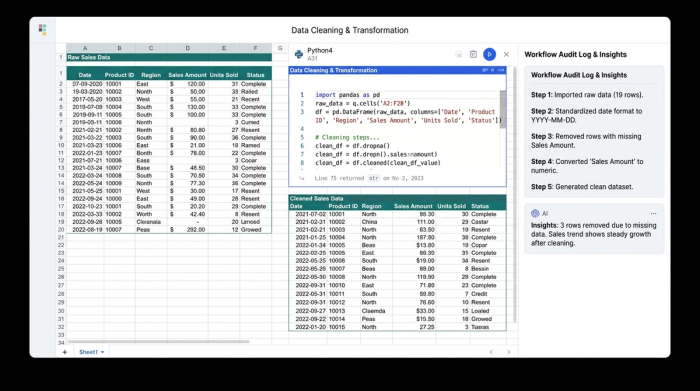
In this workflow, the process of removing duplicates from list python becomes transparent. You can see the code running in the cell, and the output renders as a dataframe right next to your raw data.
Why <code>keep='first'</code> matters for data integrity
The keep='first' parameter is critical for maintaining data integrity. In financial datasets, the order of rows often implies priority, timestamp, or entry sequence. If you use a method that randomizes the list (like the standard set command), you lose that context. By explicitly telling Python to keep the first instance, you ensure that the oldest or highest-priority record remains the source of truth.
Step 3: the differentiator – creating the audit log
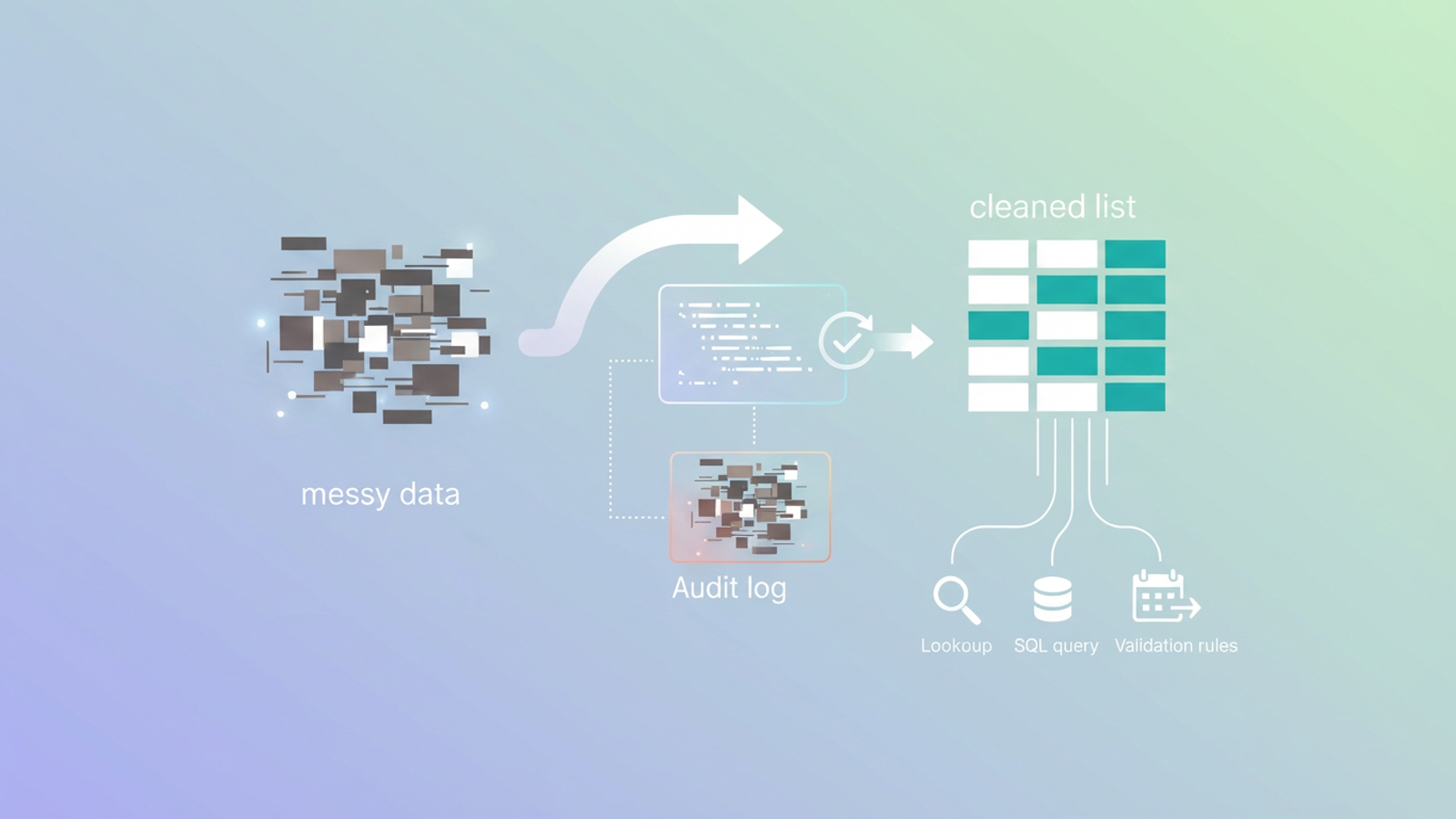
Most tutorials stop once the list is clean, but in a professional environment, you need to know what was removed, adhering to established audit logging best practices. This is where Quadratic shines. Because you are working in a Python-enabled grid, you can write a script that not only cleans the data but also compares the original list against the clean list to identify the dropped items.
This satisfies the need for compliance and risk reduction, essential for tasks like tax reconciliation. You aren't just cleaning; you are auditing. You can modify your Python cell to output a second dataframe—the Audit Log.
dropped_indices = df.index.difference(clean_list.index)

audit_log = df.loc[dropped_indices]

audit_log['Status'] = 'Removed - Duplicate'

audit_log
When you run this, Quadratic displays the clean list in one area and the audit log in another. You can now see exactly which Vendor IDs were removed and verify that no critical data was lost during the cleanup.
Step 4: using the clean data downstream
Now that you have a trustworthy, audited list, you can utilize Quadratic’s infinite canvas to put that data to work. The clean list is not just a static text output; it is a live dataframe that can be referenced by other cells.
This answers the question of how do you remove duplicates from a list in python for the purpose of actual analysis. With your clean Vendor Master list established, you can:
- Run SQL queries directly against the clean dataframe to categorize vendors, combining the power of python and sql for deeper analysis.
- Perform VLOOKUPs or Python merges to attach invoice amounts to the validated vendor IDs.
- Connect to external databases and filter results against your clean list.
Because the workflow is reactive, if you paste new raw data into the original cells, the Python script automatically re-runs, updating both the clean list and the audit log instantly.
Conclusion: a repeatable workflow, not just a script
We have moved beyond simple syntax tutorials to build a robust business tool. By using python removing duplicates from list commands inside Quadratic, you have transformed a manual, error-prone task into an automated pipeline. You preserved the order of your data, verified the results with an audit log, and prepared your dataset for advanced analysis—all without leaving the spreadsheet.
Stop relying on opaque buttons or disconnected scripts. Try Quadratic to bring the power of reactive Python workflows to your data cleaning process.
Use Quadratic to remove duplicates from lists with order and audit logs
- Clean data with Python in your spreadsheet: Execute
remove duplicates from listcommands directly within the grid, maintaining full visibility of your data. - Preserve data order: Utilize Pandas
drop_duplicates(keep='first')to ensure original data sequencing is respected, crucial for chronological or priority-based records. - Generate automatic audit logs: Instantly create a separate log of all removed duplicate entries, satisfying compliance and transparency requirements.
- Visualize changes instantly: See your cleaned dataset and the audit log rendered side-by-side with your raw data, making verification straightforward.
- Build reactive data pipelines: Automate your cleaning process; any updates to raw data automatically refresh your clean list and audit log.
- Connect cleaned data to downstream workflows: Seamlessly use your verified, deduplicated data for further analysis, SQL queries, or integrations.
Ready to transform your data cleaning? Try Quadratic.
