Table of contents
Freelancing offers incredible freedom, but it comes with a hidden cost: the administrative burden. You likely started your business because you are a talented designer, developer, or consultant, not because you love data entry. Yet, for many independent contractors, financial management becomes a source of low-grade anxiety that spikes into panic every April 15th, especially concerning their federal tax obligations. The fear of a surprise tax bill or the realization that a project cost more to deliver than it earned can be paralyzing.
The traditional solution is often a simple expenses and income tracker spreadsheet where you are expected to manually type in every coffee purchase, software subscription, and client payment. This approach usually fails because it relies on willpower. When you are busy with client work, data entry is the first thing to slip.
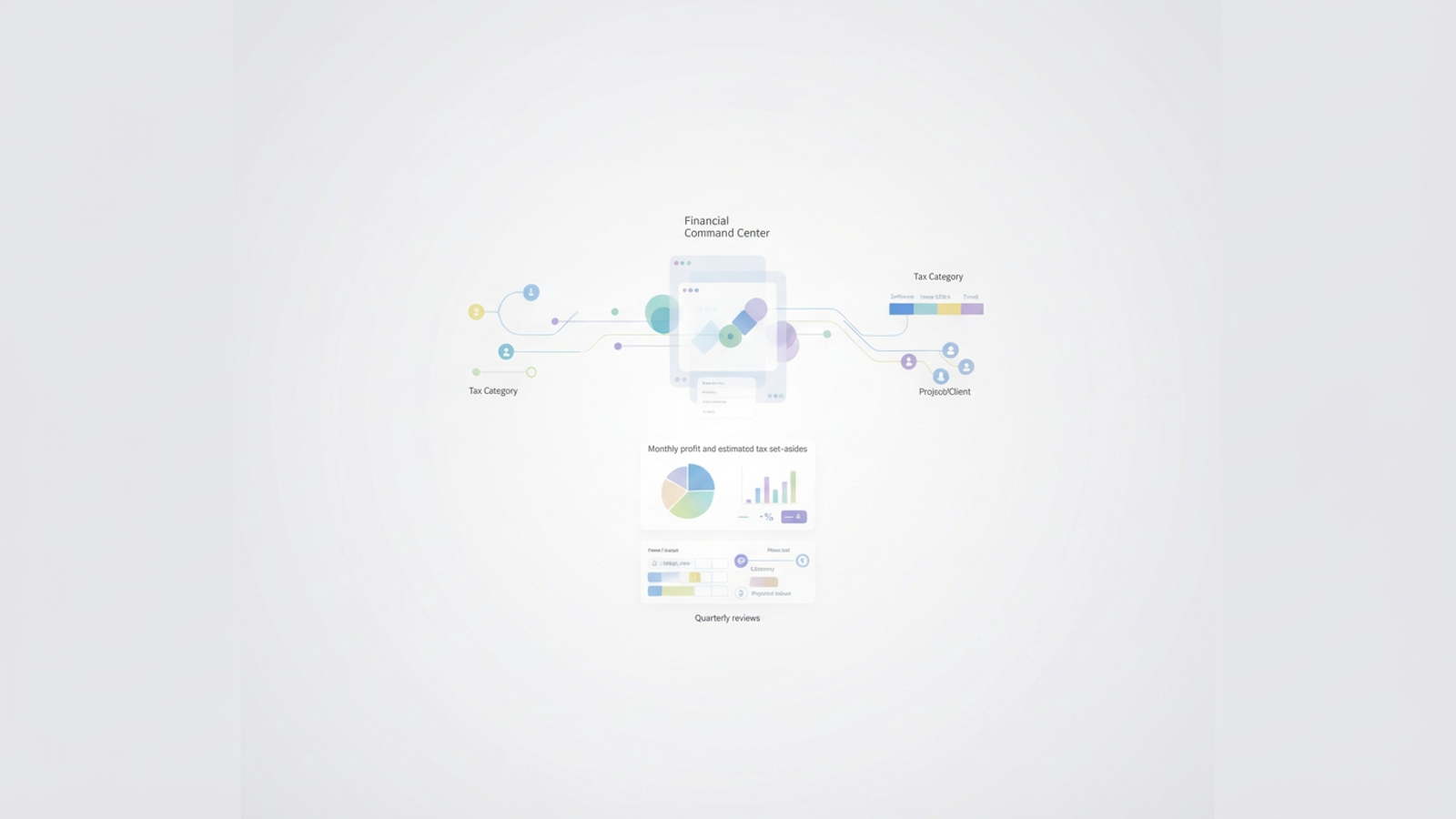
There is a better way. Instead of a static list, you can build a "Financial Command Center" in Quadratic. By moving away from manual entry and toward a system that consolidates your scattered data, you can transform your expense and income tracker from a chore into a profit engine that calculates your real-time tax obligations automatically.
Why freelancers need a dedicated system (beyond bank statements)
Many new solopreneurs make the mistake of treating their bank account balance as their business profit. This is dangerous because it ignores the inevitable tax bill and upcoming expenses. Even if you haven't opened a separate business bank account yet, you need a strict digital separation of your finances.
While some people search for an income and expense tracker printable to physically write down transactions, this method is obsolete for modern freelancing. A piece of paper cannot automatically calculate 30% of your net income for taxes, nor can it filter expenses to show you how much you spent on a specific client.
Learning how to keep track of business expenses and income digitally is about more than just organization; it is about compliance and strategy for your business operations. A dedicated system ensures you capture every valid business deductions—lowering your taxable income—and provides an audit-proof trail that protects you if the IRS ever has questions, aligning with IRS digital record-keeping requirements.
Step 1: Consolidating financial data (the "data mess" solution)
The reality of modern freelancing is that your money lives in different places. You might receive payouts via Stripe, direct deposits into a bank account, and payments through platforms like Upwork or Fiverr. Meanwhile, your expenses are scattered across credit card statements and PayPal transaction logs.
Most templates fail here because they expect you to transcribe this data. In Quadratic, the workflow starts with consolidation, not typing. You can export CSV files from your bank, Stripe, and credit cards, and bring them directly into the spreadsheet.
Because Quadratic is built to handle data flexibly, you can copy and paste these diverse datasets into a single "Master Ledger" tab. This eliminates the risk of typos and ensures you never miss a transaction. While you can use a free business income and expense tracker you find online, ensure it allows you to bulk import data rather than forcing you to enter rows one by one.
Step 2: Categorizing for tax and project clarity
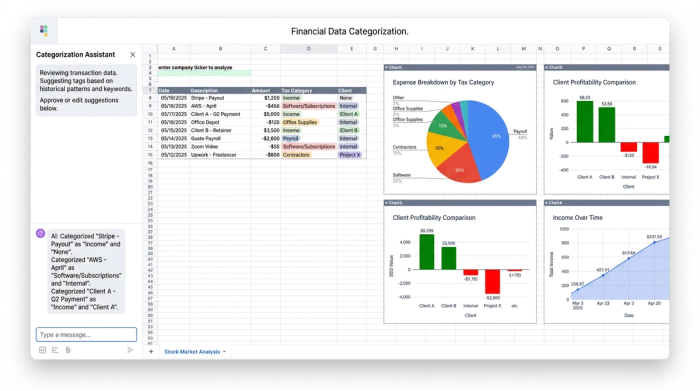
Once your data is in one place, the next step is adding context. A raw bank statement tells you that you spent $500, but it doesn't tell you why. In your Quadratic workflow, you can add two distinct "tag" columns to your data that serve two very different purposes.
The first tag is your Tax Category. This is for the government. You tag rows as "Software," "Home Office," "Travel," or "Meals." This makes filling out your Schedule C at the end of the year a matter of simple addition.
The second tag is your Project or Client. This is for you. By tagging expenses to specific projects (e.g., "Website Redesign" or "Client A Retainer"), you can conduct a profitability analysis to see if a project is actually profitable, and gain a broader understanding of profitability analysis.
If you have used an income and expense tracker excel template before, you are likely familiar with dropdown menus. Quadratic improves on this by allowing you to filter and sort your imported data rapidly, letting you copy-paste tags across dozens of transactions at once. This turns hours of categorization into a few minutes of work.
Step 3: Automating profit and tax calculations
This is where your tracker evolves from a list of past transactions into a forward-looking tool. Once your income and expenses are consolidated and tagged, you can set up formulas to calculate your financial reality automatically.
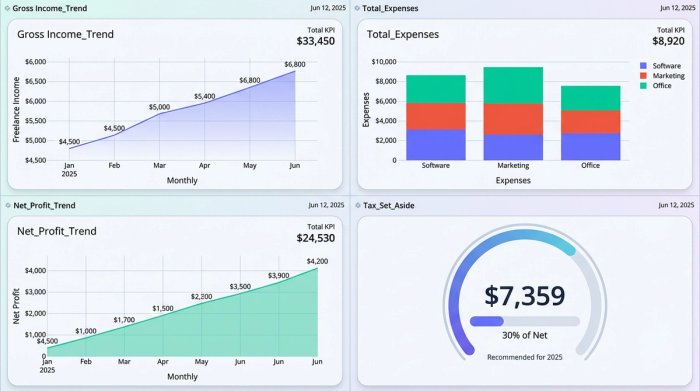
The core formula is simple: Total Income - Total Expenses = Net Profit. However, for a freelancer, Net Profit is not spending money. A robust income and expense tracker doesn't just look backward; it helps you plan for future tax bills, essentially becoming an automated budget.
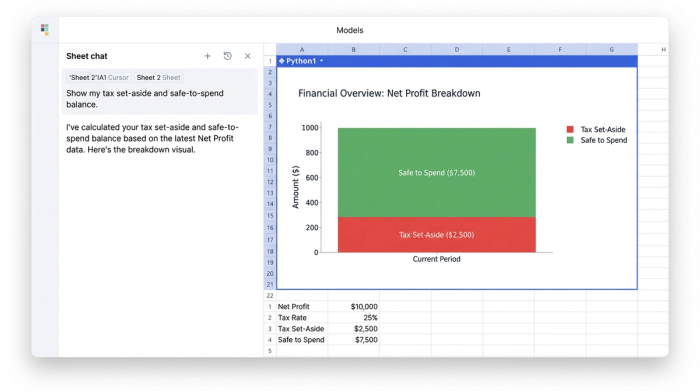
In Quadratic, you can create a summary view that takes your Net Profit and automatically calculates a "Tax Set-Aside." For example, you can set a rule that takes 30% of every dollar of profit and displays it as "Owed to IRS," reflecting a common recommended tax set-aside percentage for self-employed individuals. This gives you a "Safe to Spend" number. When you look at your tracker, you aren't seeing a vanity metric; you are seeing exactly how much money is yours to keep. This eliminates the terror of quarterly tax payments because the money has already been accounted for mentally.
Step 4: Quarterly reviews and filtering
A static spreadsheet is often ignored until tax season, but a dynamic system is useful year-round. By using filters, you can perform quarterly reviews to check the health of your business.
You can filter your master list by "Payment Status" to instantly see which invoices are overdue, allowing you to follow up with clients immediately and manage your client billing more effectively. You can also filter by "Client" to compare who pays you the most versus who requires the most expensive resources to serve.
You might be used to an income and expense tracker google sheets template for this, and while Sheets is excellent for collaboration, it can struggle when you start filtering thousands of rows of data or applying complex logic. Quadratic allows you to slice and dice larger datasets smoothly, ensuring your formulas don't break just because you wanted to hide a few rows to get a better view. When you track income and expenses with granular filters, you can make better business decisions, such as firing a high-maintenance client or doubling down on a profitable service offering.
Conclusion: From chaos to clarity
The goal of a financial system isn't to create a colorful spreadsheet; it is to buy you peace of mind. When you have a reliable system that consolidates your data, categorizes it for both the IRS and your own insights, and automatically tells you what you owe in taxes, the anxiety of freelancing disappears.
Instead of dreading a week of "forensic accounting" every spring, your tax preparation becomes a ten-minute task of exporting a summary. By moving beyond static templates and building a dynamic workflow in Quadratic, you turn your financial data into a tool that serves your business, rather than a mess that holds you back.
Try Quadratic, the AI spreadsheet that does your work for you
Use Quadratic to track expenses and income
- Consolidate all freelance income and expenses from various sources (bank, Stripe, credit cards) into one "Master Ledger" with bulk CSV imports, eliminating manual data entry.
- Tag transactions instantly for tax categories (e.g., "Software," "Home Office") and specific clients or projects, streamlining Schedule C preparation and enabling profitability analysis.
- Automate real-time calculations for net profit and estimated tax set-asides, giving you a clear "safe to spend" number and preventing surprise tax bills.
- Conduct dynamic financial reviews by filtering data to track overdue invoices, compare client profitability, and make informed business decisions year-round.
- Transform tax preparation from a stressful, time-consuming chore into a quick summary export, ensuring compliance and peace of mind.
Ready to take control of your freelance finances? Try Quadratic.
