Convert PDF to Excel
Import PDF data into an Excel-compatible spreadsheet with AI. Quadratic extracts tables, numbers, and structured content from your PDF — preserving formatting so you can start using formulas immediately. No plugins, no desktop software.
No install required. Works in your browser. SOC 2 & HIPAA compliant.
PDF to Excel with AI
Upload a PDF and let Quadratic's AI extract the data into a spreadsheet with formulas, charts, and Python. A smarter AI PDF to Excel workflow than traditional converters.
How to import a PDF to Excel
Learn how to import a PDF into Excel in minutes — no reformatting required.
Upload your PDF
Upload one or more PDFs to Quadratic's AI assistant to import PDF files into Excel-ready spreadsheets. It reads the document and identifies tables, financial data, line items, and structured content.
AI extracts the data
Tell the AI what to extract in plain English. It extracts tables and structured data from your PDF into Excel format, with proper column headers, data types, and formatting — ready for Excel formulas.
Analyze with formulas, Python, and charts
Your data lands in a spreadsheet with Excel-compatible formulas. Build models, create charts, and write Python — all without leaving Quadratic.
Export to Excel (optional)
Already have an Excel workflow? Export your extracted data as a .csv or .xlsx file to convert your PDF into an Excel file instantly. Or keep working in Quadratic — it supports the same formulas and functions.
Import multiple PDFs to one spreadsheet
Import multiple PDF documents into Excel at once, consolidating all extracted data into a single spreadsheet. — ready for formulas and analysis.
Smarter than a PDF to Excel file converter
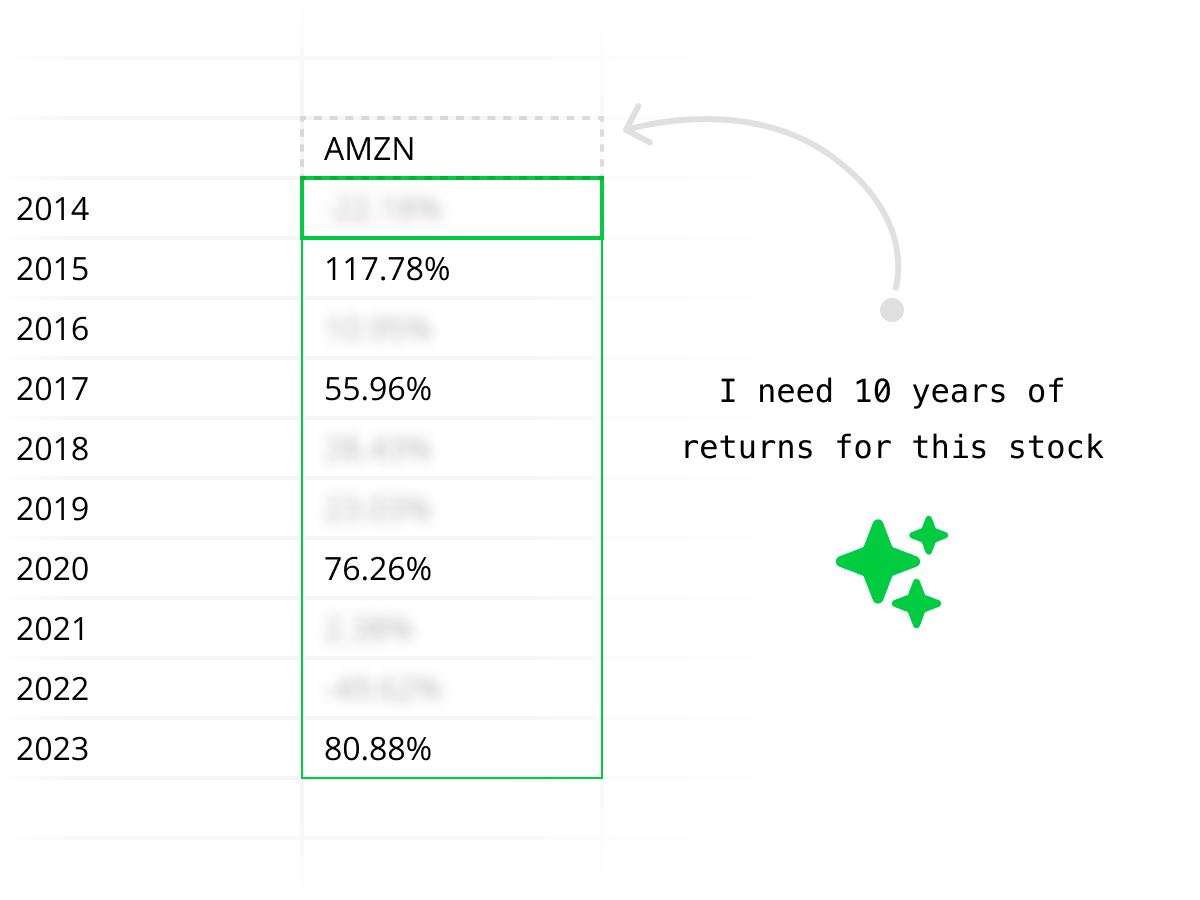
Traditional PDF to Excel tools dump the entire document into an Excel file and leave you to clean it up. Quadratic uses AI to extract exactly the data you need, with structure preserved — so you can start building formulas and models immediately.

Enterprise-grade security
Your PDF documents and extracted data are handled securely. Quadratic is SOC 2 and HIPAA compliant, with self-hosting available for enterprises that need full control over document processing.
Quadratic vs other PDF to Excel tools
Most PDF to Excel converters give you a file that needs heavy cleanup. Quadratic gives you clean data in a working spreadsheet.
| Feature | Quadratic | Other PDF to Excel tools |
|---|---|---|
| Conversion quality | AI understands table structure — clean, formatted output | Automated conversion that often breaks formatting |
| Selective extraction | Tell AI exactly which data to pull from the PDF | Converts the entire document |
| Analysis tools | Formulas, Python, charts, and AI in the same spreadsheet | You get an Excel file — analysis is your problem |
| Complex PDFs | Multi-page tables, scanned docs, merged cells, nested tables | Works for simple tables, breaks on complex layouts |
| Batch processing | Upload multiple PDFs, extract into one spreadsheet | Usually one file at a time |
| Price | Free to start | Free tiers with strict page limits, paid for anything serious |
Import your next PDF to Excel
Stop reformatting broken Excel conversions. Upload a PDF, let AI extract the data, and get a working spreadsheet in seconds. Free to start.
PDF to Excel FAQ
How do I convert a PDF to Excel?
Upload your PDF to Quadratic's AI assistant and ask it to extract the data. The AI reads the PDF, identifies tables and structured content, and places the data directly in a spreadsheet with formulas, charts, and Python built in. It's the fastest way to convert PDF to Excel without reformatting.
Can I import a PDF to Excel?
Yes. Quadratic imports PDF data into a spreadsheet that works like Excel — with formulas, cell references, and data analysis tools. Once extracted, you can work with the data exactly as you would in Excel, plus use Python and AI for more advanced analysis.
Does it preserve table formatting when converting PDF to Excel?
Yes. Quadratic's AI preserves column headers, row alignment, data types, and table structure when extracting data from PDFs. Numbers stay as numbers, dates stay as dates, and currencies are properly formatted — so you can start using formulas immediately.
Can I convert multiple PDFs to Excel at once?
Yes. Upload multiple PDFs and the AI extracts data from all of them into one spreadsheet. This is useful for consolidating invoices, financial statements, or reports into a single Excel-compatible workbook.
What types of PDFs can I convert to Excel?
Quadratic can convert virtually any PDF to Excel — invoices, financial statements, reports, receipts, contracts, data exports, and any document with tabular data. The AI handles native PDFs, scanned documents, and complex multi-page layouts.
How is this different from Adobe's PDF to Excel converter?
Adobe and similar tools do a one-step file conversion that often produces messy output. Quadratic uses AI to understand your PDF's structure and lets you specify exactly which data to extract. The result lands in a full spreadsheet where you can analyze it immediately — not just an Excel file you need to clean up.
Is it free to convert PDF to Excel?
Yes. Quadratic is free to start. Upload PDFs, extract data with AI, and work with it in a spreadsheet — no credit card or subscription required.
Do I need Excel installed?
No. Quadratic runs in your browser and gives you a full spreadsheet with Excel-compatible formulas. You don't need Excel, Microsoft Office, or any desktop software installed.
