AI PDF Data Extraction
Turn any PDF into structured spreadsheet data with AI. Extract data from PDF documents automatically with AI-powered PDF data extraction - no manual formatting required.
No install needed. Works in your browser. SOC 2 & HIPAA compliant.
Use AI to extract tables from your PDFs
Upload a PDF and let Quadratic's AI automatically extract data from PDF files, including tables, line items, and structured fields.
How to extract data from PDFs
Extract data from PDF documents in three steps — no setup, no manual cleanup.
Give your PDF to AI
Upload a PDF to the AI assistant in Quadratic. The AI reads the document and extracts structured data from the PDF, identifying tables, text, and key fields automatically.
Upload one or more PDFs to the AI chat
Tell the AI what to extract
Ask for exactly the data you need in plain English. Extract entire tables, specific columns, line items from invoices, or financial figures from specific pages. The AI handles the PDF data extraction and structures it for you.
Work with your data instantly
Extracted data populates directly into your spreadsheet — structured, labeled, and ready to use. Analyze with formulas, create charts, run Python, or export as CSV. No formatting, no copy-pasting.
| A | B | C | D | |
|---|---|---|---|---|
| 1 | Vendor | Invoice # | Date | Amount |
| 2 | Acme Corp | INV-001 | 2025-01-15 | $12,500 |
| 3 | CloudHost | INV-002 | 2025-01-18 | $3,200 |
| 4 | DataFlow | INV-003 | 2025-02-01 | $890 |
| 5 | Office Plus | INV-004 | 2025-02-10 | $456 |
| 6 | TechParts | INV-005 | 2025-02-15 | $8,750 |
PDF data extraction for every workflow
From simple documents to complex reports, data extraction from PDF files works across every workflow.
Convert PDF to CSV
Give a PDF to Quadratic's AI and convert it to CSV-ready data in seconds. AI extracts tables, lists, and structured content from any PDF and outputs clean rows and columns you can export as CSV.
Learn morePDF to Excel
Import PDF data directly into an Excel-compatible spreadsheet. Extract tables, numbers, and text from PDFs and work with the data using formulas, charts, and Python — no plugins required.
Learn morePDF to Google Sheets
Convert PDF data into a Google Sheets-compatible spreadsheet with AI. Extract tables and structured content, then collaborate with your team — no add-ons required.
Learn moreExtract tables from PDF
AI identifies and extracts every table in your PDF — preserving column headers, row structure, and data types. Works with scanned documents, multi-page tables, and complex layouts.
Learn moreExtract any data from any PDF
From tables and invoices to financial statements and contracts — Quadratic's AI extracts structured data from PDFs and puts it directly in your spreadsheet. This includes extracting data from PDFs for analysis, reporting, and automation workflows.
Extract tables from PDF to spreadsheet
Upload a PDF containing any table and Quadratic AI will extract it as structured data. Convert PDF tables to CSV or work with them directly in the spreadsheet — no manual copy-paste required.
| # | Product | Q1 Sales | Q2 Sales | Q3 Sales | Q4 Sales | Total |
|---|---|---|---|---|---|---|
| 1 | Widget A | $42,300 | $48,100 | $51,200 | $55,800 | $197,400 |
| 2 | Widget B | $31,500 | $29,800 | $33,400 | $36,100 | $130,800 |
| 3 | Widget C | $18,200 | $21,600 | $24,900 | $27,300 | $92,000 |
| 4 | Service X | $65,000 | $68,500 | $72,100 | $78,400 | $284,000 |
| 5 | Service Y | $22,800 | $25,100 | $23,700 | $28,900 | $100,500 |
| 6 | License | $120,000 | $120,000 | $120,000 | $120,000 | $480,000 |
Extract data from your next PDF in seconds.
Popular PDF to spreadsheet workflows
Most people converting PDFs to spreadsheets want to do one of a few things: extract a table, convert PDF to CSV, import data to Excel or Google Sheets, or pull numbers from a financial report. Quadratic handles all of them.
Convert PDF tables to CSV
Upload a PDF with tables to Quadratic's AI, let it extract the structured data, then export it as a clean CSV file. Works with sales reports, data exports, inventory lists, and any tabular PDF.
Learn moreImport PDF to Google Sheets
Upload a PDF and extract the data into a spreadsheet that works like Google Sheets. Edit with formulas, share with your team, and collaborate — without manually reformatting anything.
Learn moreImport PDF invoices to Excel
Batch-import PDF invoices and extract line items, totals, dates, and vendor details into spreadsheet rows. Consolidate data from dozens of invoices in minutes instead of hours.
Learn moreExtract financial data from PDF reports
Pull income statements, balance sheets, and key metrics from PDF financial reports. Get the numbers into a spreadsheet where you can build models and comparisons immediately.
Learn moreBuild a receipt database from PDFs
Extract merchant, date, amount, and category data from receipt PDFs. Consolidate expense data into one spreadsheet for budgeting, reconciliation, or reimbursement workflows.
Extract data from multiple PDFs at once
Process a batch of PDFs in one go with automated PDF data extraction, consolidating results into a single structured spreadsheet. No more extracting PDF data one file at a time.
Analyze extracted PDF data instantly
Once you extract data from a PDF, use formulas, Python, and charts to analyze it immediately. Build summaries, create visualizations, and export to CSV or Excel — all in the same file.Learn more.
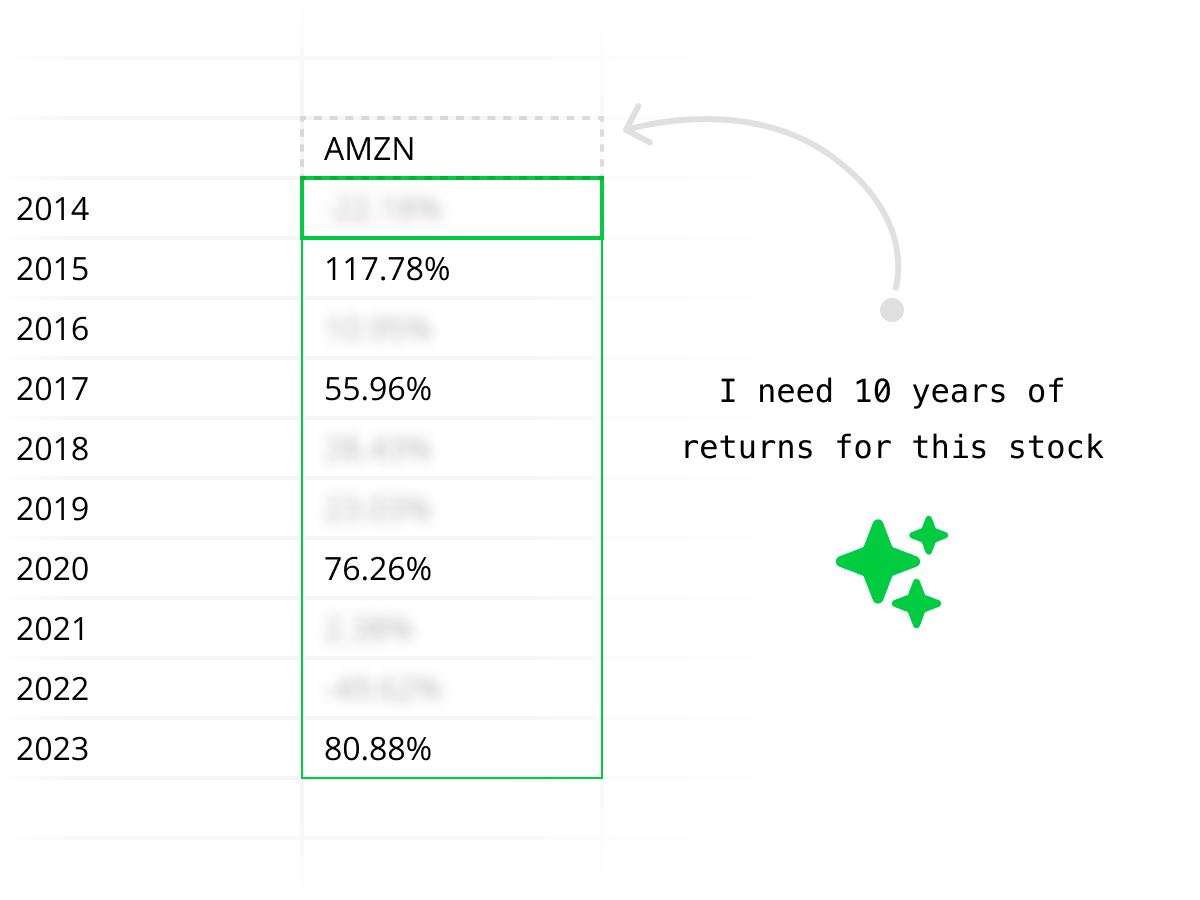
AI-powered PDF data extraction
Quadratic's AI uses advanced models for accurate PDF data extraction, understanding tables, headers, and multi-page document structures. Tell it what to extract in plain English and get clean, structured spreadsheet data.
Enterprise-grade security for PDF processing
Quadratic handles your PDF documents and extracted data securely. We're SOC 2 and HIPAA compliant, and support self-hosting for enterprises that need full control over their document processing and data extraction pipelines.
Quadratic vs other PDF to spreadsheet tools
Most PDF data extraction tools — whether PDF to CSV converters or PDF to Google Sheets importers — stop at getting data out of the PDF. Quadratic extracts the data and gives you a full spreadsheet to analyze it, with AI, Python, formulas, and charts built in.
| Feature | Quadratic | PDF conversion tools | Manual copy-paste |
|---|---|---|---|
| Best for | PDF to spreadsheet with analysis in one place | Simple one-off file conversions | Small, simple tables |
| PDF to CSV | AI extracts and structures data, export as CSV | Automated but often messy output | Copy-paste and reformat by hand |
| PDF to Google Sheets | Extracts data into a spreadsheet you can use like Google Sheets — formulas, sharing, and collaboration built in | Usually exports a file you then import into Sheets | Copy-paste into Google Sheets by hand |
| PDF to Excel | Extracted data lands in a full spreadsheet with formulas and Python | Creates an Excel file, analysis is separate | Re-type or copy-paste into Excel |
| Table extraction accuracy | AI understands context — handles complex layouts and multi-page tables | Works well for simple tables, struggles with complex layouts | Depends on your patience |
| Batch processing | Upload multiple PDFs, extract all at once | Usually one file at a time | One table at a time |
| Analysis after extraction | Formulas, Python, charts, and AI — all in the same file | Export to another tool for analysis | Export to another tool for analysis |
| Setup required | Open the sheet and upload your PDF to AI | Install software or create account, learn UI | None, just time |
| Typical alternatives | Quadratic | Adobe Acrobat, Tabula, Camelot, Smallpdf | Copy-paste from PDF viewer |
Stop copying data from PDFs by hand
Go from PDF to spreadsheet in seconds. Extract tables, convert to CSV, or import to Excel and Google Sheets — all with AI. Free to start, no install required.
Extract PDF Data FreePDF to spreadsheet FAQ
How do I convert a PDF to CSV?
In Quadratic, upload your PDF to the AI assistant and ask it to extract the data you need. The AI reads the PDF, identifies tables and structured content, and outputs clean rows and columns directly in your spreadsheet. From there you can export the data as CSV, or continue working with it using formulas and Python. It works as a PDF to CSV converter without any manual formatting.
How do I convert a PDF to Google Sheets?
Upload your PDF to Quadratic's AI assistant and ask it to extract the data. The AI pulls tables and structured content from the PDF into a spreadsheet that works like Google Sheets — with formulas, sharing, and collaboration. It's a faster PDF to Google Sheets converter than manually copying data or using file conversion tools that lose formatting.
Can I import a PDF to Google Sheets or Excel?
Yes. Quadratic imports PDF data into a spreadsheet environment compatible with both Google Sheets and Excel workflows. Once the AI extracts the data from your PDF, you can work with it using familiar spreadsheet formulas, create charts, use Python for analysis, and export it. It's an easy way to import PDF to Google Sheets or Excel without plugins or add-ons.
How does Quadratic extract tables from PDFs?
Quadratic uses AI to extract data from PDFs. When you upload a PDF to the AI assistant, it analyzes the document structure, finds tables, and preserves column headers, row alignment, and data types. It works with native PDFs, scanned documents, and multi-page tables — giving you structured spreadsheet data ready for analysis.
Can I extract data from multiple PDFs at once?
Yes. You can upload multiple PDFs to Quadratic's AI assistant and ask it to extract data from all of them. This is useful for batch processing invoices, receipts, financial statements, or any set of PDFs where you need to consolidate the extracted data into one spreadsheet.
What types of PDF data can Quadratic extract?
Quadratic can extract tables, line items, financial data, text content, and structured information from virtually any PDF. Common use cases include extracting data from invoices, financial statements, research reports, contracts, receipts, and any document with tabular data. The AI handles complex layouts, multi-column formats, and scanned documents.
How is this different from other PDF to CSV or Google Sheets converters?
Most PDF to CSV converters or PDF to Google Sheets tools just convert the file and stop there. Quadratic extracts the data and puts it into a full spreadsheet where you can immediately analyze it with formulas, Python, and charts. You can also tell the AI exactly which data to extract — for example, "pull only the revenue rows from pages 3-5" — so you get just the data you need, not the entire document.
Is PDF data extraction accurate?
Yes. Quadratic's AI is designed to accurately extract structured data from PDFs including numbers, dates, currencies, and text. For complex or unusual layouts, you can guide the AI with specific instructions about what to extract. The data lands directly in your spreadsheet where you can verify and adjust it before using it in your analysis.
Can I extract data from scanned PDFs?
Yes. Quadratic's AI can extract data from scanned PDF documents, not just native/digital PDFs. The AI processes the document image, identifies text and table structures, and outputs the extracted data into your spreadsheet as structured rows and columns.
Do I need to install anything to extract PDF data?
No. Quadratic runs in your browser — there's nothing to install, no plugins required, and no API keys to configure. Just open a spreadsheet, upload your PDF to the AI assistant, and ask it to extract the data. It works immediately.
Is my PDF data secure?
Yes. Quadratic uses secure infrastructure and is SOC 2 and HIPAA compliant. Your PDF documents and extracted data are handled securely. Enterprise customers can self-host for full control over their data and extraction workflows.
