Extract Tables from PDF
Upload a PDF and let AI extract every table — preserving column headers, row structure, and data types. Quadratic identifies tables in your PDF and puts structured data directly in your spreadsheet, ready to analyze, chart, or export.
No install required. Works in your browser. SOC 2 & HIPAA compliant.
AI-powered table extraction from PDFs
Upload a PDF and tell the AI which tables to extract. It finds the table boundaries, preserves the structure, and outputs the data as clean spreadsheet rows — no manual copy-paste.
How to extract a table from a PDF
Learn how to extract a table from a PDF and convert it into structured spreadsheet data in three simple steps.
Upload your PDF
Upload a PDF containing the tables you want to extract. The AI reads the full document and identifies every table automatically.
Tell AI which tables to extract
Ask for all tables, a specific table by page, or describe the data you need. The AI extracts table data from the PDF and preserves column headers, rows, and data types.
Work with the extracted data
Extracted tables land in your spreadsheet as structured data. Analyze with formulas, create charts, run Python, or export as CSV or Excel.
Extract any table from any PDF
Whether you need to convert a PDF to a table or extract specific datasets, Quadratic handles complex layouts automatically.
Financial tables
Income statements, balance sheets, cash flow tables, and quarterly results — extracted with row labels, column headers, and numbers intact.
Invoice line items
Pull item descriptions, quantities, unit prices, and totals from PDF invoices into structured spreadsheet rows.
Data export tables
Extract tables from PDF data exports, reports, and dashboards where the original structured format was lost in the PDF.
Research and survey data
Pull data tables from research papers, survey results, and statistical reports — preserving metrics, labels, and formatting.
Multi-page tables
Tables that span multiple pages are stitched together into one continuous dataset. No manual merging required.
Comparison tables
Product comparisons, feature matrices, pricing tables — extracted with all columns and rows aligned correctly.
Extract tables from multiple PDFs at once
Upload a batch of documents and extract tables from multiple PDF files into one spreadsheet, consolidating comparable data in seconds.
AI that understands table structure
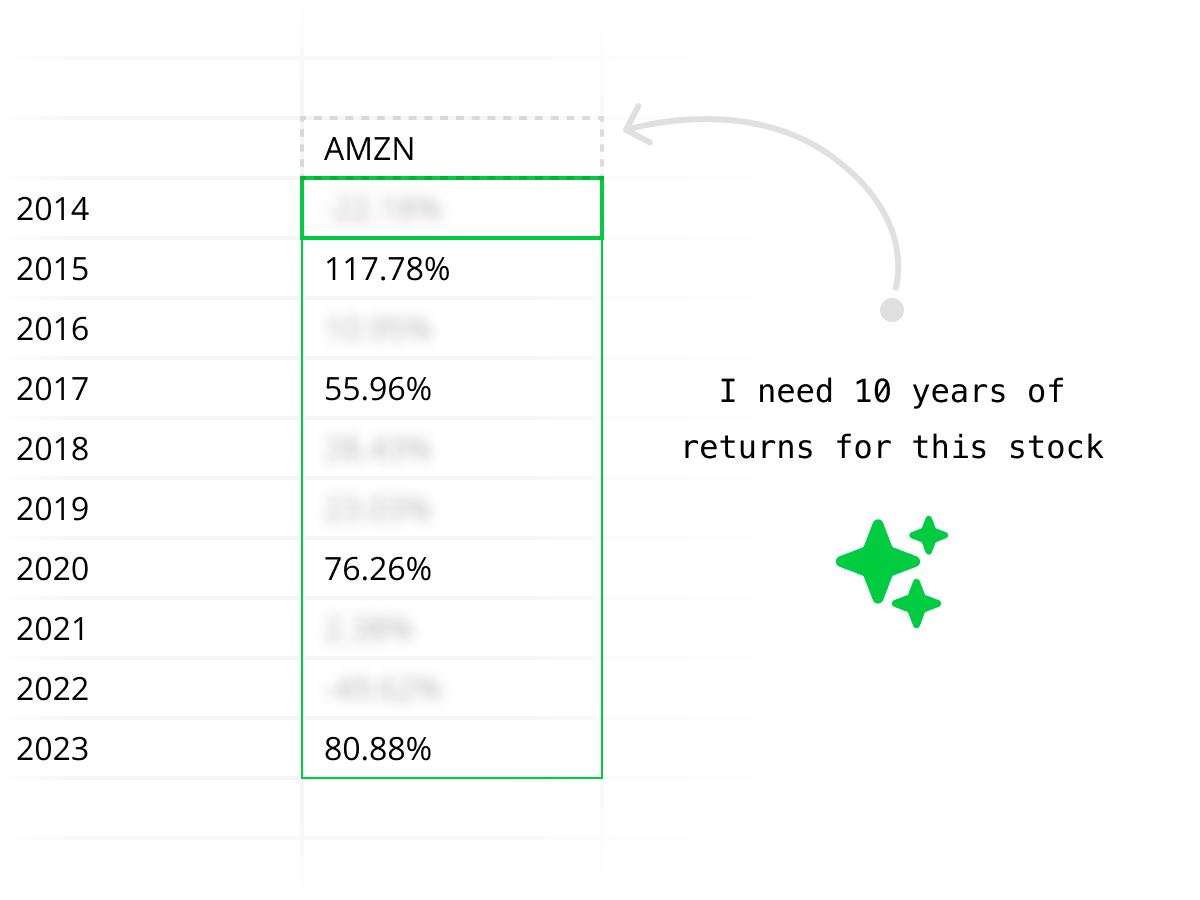
Quadratic's AI doesn't just read text — it understands how tables are organized. Column headers, row labels, merged cells, multi-page spans, and nested tables are all handled. You get clean, structured spreadsheet data, not a text dump.
Enterprise-grade security
Your PDF documents and extracted data are handled securely. Quadratic is SOC 2 and HIPAA compliant, with self-hosting available for enterprises that need full control.
Extract your next PDF table
Stop copying tables from PDFs by hand. Upload a PDF, let AI extract the tables, and get structured spreadsheet data in seconds. Free to start.
PDF table extraction FAQ
How do I extract a table from a PDF?
Upload your PDF to Quadratic's AI assistant and ask it to extract the table you need. The AI identifies table boundaries, column headers, and row structure, then outputs the data as clean spreadsheet rows and columns. You can extract a specific table by referencing the page number or describing the data you want.
Can I extract tables from a scanned PDF?
Yes. Quadratic's AI can extract tables from scanned PDF documents, not just digital PDFs. It processes the document image, identifies table structures, and outputs the extracted data into your spreadsheet with headers and rows preserved.
What if my PDF has multiple tables?
The AI can extract all tables from a PDF or just the ones you specify. Ask for "all tables" to get everything, or be specific — like "extract the revenue table on page 4." Each table is placed in your spreadsheet with its structure intact.
Does it work with multi-page tables?
Yes. Quadratic's AI handles tables that span multiple pages — a common problem with financial statements, long data exports, and reports. The AI stitches the rows together into one continuous table in your spreadsheet.
How accurate is PDF table extraction?
Quadratic's AI is designed for high accuracy on structured tabular data — preserving column alignment, data types, currencies, dates, and numbers. For complex or unusual layouts, you can guide the AI with specific instructions to improve results.
Can I extract tables from multiple PDFs at once?
Yes. Upload a batch of PDFs and ask the AI to extract tables from all of them. The data consolidates into one spreadsheet — useful for pulling comparable tables from multiple reports, invoices, or statements.
What can I do with the extracted table data?
Once a table is extracted into your spreadsheet, you can analyze it with formulas, run Python scripts, create charts, or export it as CSV or to Excel. The data is fully editable and ready for whatever workflow you need.
Is this free?
Yes. Quadratic is free to start and includes AI-powered table extraction from PDFs. No credit card, no install, no plugins — just upload your PDF and extract.
