PDF to Google Sheets
Convert any PDF to a Google Sheets-compatible spreadsheet with AI. Upload your PDF and automatically import the data into a collaborative spreadsheet — no add-ons, no copy-pasting, no reformatting.
No install required. Works in your browser. SOC 2 & HIPAA compliant.
PDF to Google Sheets in seconds
Upload a PDF and let AI extract the data into a spreadsheet with formulas, collaboration, and sharing. A smarter PDF to Google Sheets converter than traditional tools.
How to convert a PDF to Google Sheets
Learn how to convert a PDF to Google Sheets in three simple steps — no add-ons required.
Upload your PDF
Upload one or more PDFs to Quadratic's AI assistant to import PDF files into a Google Sheets-compatible spreadsheet. It reads the full document and identifies tables, line items, and structured content.
AI extracts the data
Tell the AI what to extract in plain English. It pulls the data and structures it in a Google Sheets-compatible spreadsheet — with proper headers, types, and formatting.
Analyze, share, and collaborate
Work with the extracted data using formulas, Python, and charts. Share your spreadsheet with your team and collaborate in real time — just like Google Sheets.
Convert multiple PDFs to one spreadsheet
Upload a batch of invoices, reports, or statements. AI extracts data from each PDF and consolidates it in one collaborative spreadsheet.
Better than Google Sheets PDF add-ons
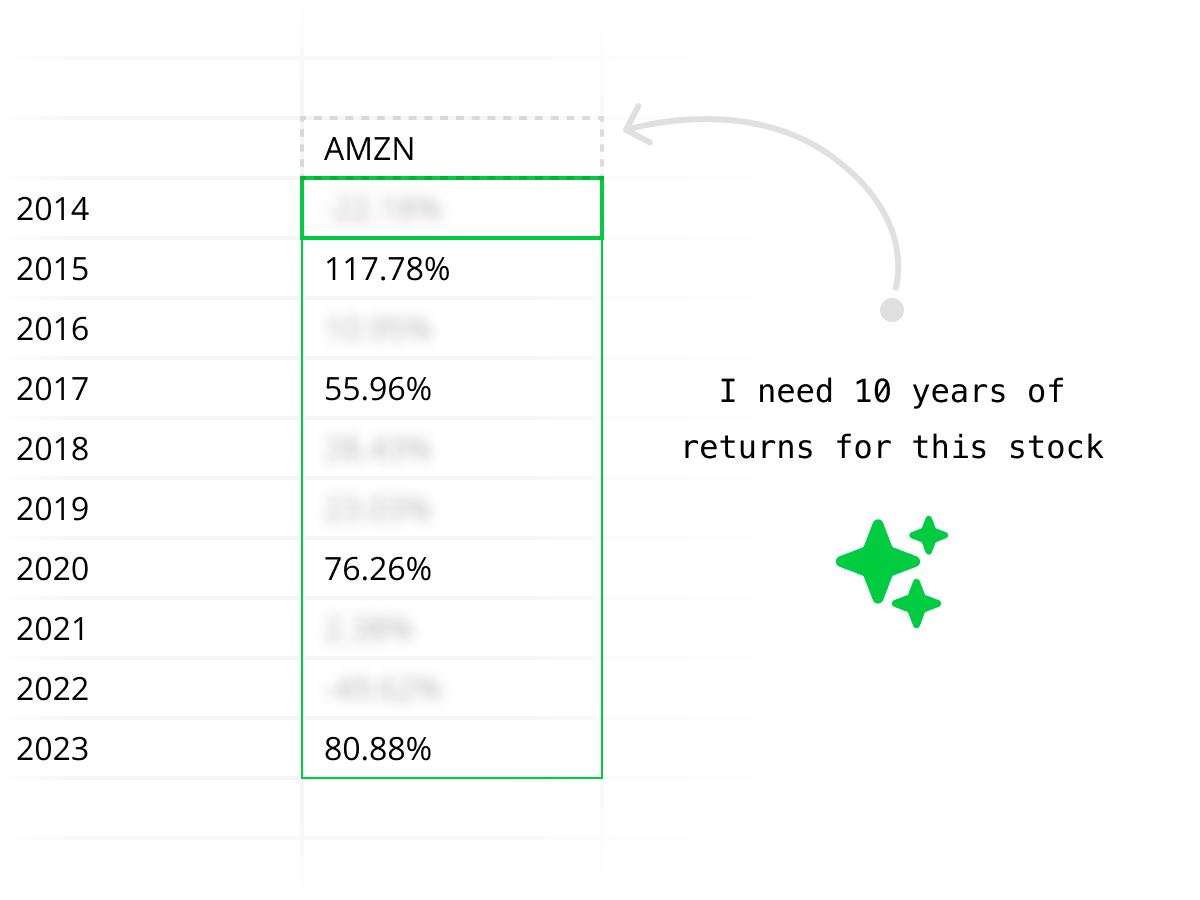
Google Sheets doesn't natively import PDFs, so you're stuck with clunky add-ons or manual copy-paste. Quadratic's AI reads your PDF, understands the table structure, and delivers clean data in a collaborative spreadsheet — no add-ons, no permissions, no broken formatting.

Enterprise-grade security
Your PDF documents and extracted data are handled securely. Quadratic is SOC 2 and HIPAA compliant, with self-hosting available for enterprises that need full control.
Quadratic vs Google Sheets PDF add-ons
Google Sheets has no built-in PDF import. Most people use third-party add-ons or manual copy-paste. Quadratic gives you AI-powered extraction with a full collaborative spreadsheet.
| Feature | Quadratic | Google Sheets + add-ons |
|---|---|---|
| PDF import | AI reads the PDF and extracts structured data into the spreadsheet | No native PDF import — requires copy-paste or third-party add-on |
| Table extraction | AI preserves headers, rows, data types, and multi-page tables | Manual copy-paste loses formatting; add-ons vary in quality |
| Selective extraction | Tell AI exactly which data to pull from the PDF | Get the whole document or nothing |
| Batch conversion | Upload multiple PDFs, extract all into one spreadsheet | One PDF at a time with manual steps |
| Analysis tools | Formulas, Python, charts, and AI in one place | Standard Google Sheets formulas and charts |
| Setup | Open browser, upload PDF, done | Find and install add-on, grant permissions, learn the add-on UI |
Convert your next PDF to Google Sheets
Stop wrestling with add-ons and broken formatting. Upload a PDF, let AI extract the data, and get a collaborative spreadsheet in seconds. Free to start.
PDF to Google Sheets FAQ
How do I convert a PDF to Google Sheets?
Upload your PDF to Quadratic's AI assistant and ask it to extract the data. The AI reads the PDF, identifies tables and structured content, and places the data in a spreadsheet that works like Google Sheets — with formulas, sharing, and collaboration. It's a faster PDF to Google Sheets converter than manually copying data or using file conversion tools.
Is this a free PDF to Google Sheets converter?
Yes. Quadratic is free to use and includes AI-powered PDF to Google Sheets conversion. Upload a PDF, extract the data, and work with it in a collaborative spreadsheet — no subscription required to get started.
Can I import a PDF directly into Google Sheets?
Google Sheets doesn't natively support PDF import. Quadratic solves this — upload your PDF, let AI extract the data, and work with it in a Google Sheets-compatible spreadsheet with formulas, sharing, and real-time collaboration. No need to manually copy-paste or use a separate PDF converter.
Does it preserve table formatting?
Yes. When you convert PDF to Google Sheets with Quadratic, the AI preserves column headers, row structure, data types, and alignment. Numbers, dates, and currencies are properly formatted so you can use spreadsheet formulas right away.
Can I convert multiple PDFs to Google Sheets at once?
Yes. Upload multiple PDFs and the AI extracts data from all of them into one spreadsheet. This is useful for consolidating invoices, financial statements, or reports into a single Google Sheets-compatible workbook.
What types of PDFs can I convert to Google Sheets?
Quadratic can convert virtually any PDF to Google Sheets — invoices, financial statements, research reports, receipts, contracts, data exports, and any document with tables. The AI handles native PDFs, scanned documents, and complex layouts.
How is this different from manually importing PDFs into Google Sheets?
Manually getting PDF data into Google Sheets usually means copy-pasting (which loses formatting), using a PDF-to-CSV converter (which often gives messy output), or installing a Google Sheets add-on. Quadratic skips all of that — AI extracts the data with structure intact and puts it directly in a collaborative spreadsheet.
Do I need a Google account?
No. Quadratic runs independently in your browser and provides a Google Sheets-compatible spreadsheet experience. You don't need a Google account, Google Workspace, or any add-ons. If you want to continue in Google Sheets, you can export the data as CSV and import it there.
