
James Amoo, Community Partner
May 26, 2026

Table of contents
- Why people convert Google Sheets to Excel
- Methods to convert Google Sheets to Excel (at a glance)
- How to convert Google Sheets to Excel using the native download
- A better workflow: import, analyze, and export using Quadratic
- Make Google Sheets to Excel conversion a repeatable workflow
- Frequently asked questions (FAQs)
Moving a spreadsheet from Google Sheets to Excel sounds like it should take one click. And technically, it does. But anyone who has actually had to convert Google Sheets to Excel for a real working file knows that the download is rarely the hard part. The hard part is what happens after, when formulas break, Excel formatting drifts, and the file you hand off looks nothing like the one you built.
This article reframes the task. Instead of treating conversion as a one-shot download, we'll walk through it as a workflow: import the sheet into a working environment, clean it up or run analysis there, and export to XLSX when the file is actually ready to deliver. We'll cover the native Google Sheets download method, what it gets right and wrong, and how to use Quadratic as the working environment for a more reliable, repeatable process.
Why people convert Google Sheets to Excel
There are a handful of reasons this conversion comes up repeatedly. You might need to share a file with collaborators who only use Excel. Your company's internal reporting standards might require XLSX deliverables. You might need to work offline, plug data into Excel-based tools or templates, or hand a file to a finance team that runs everything in Microsoft 365.
Whatever the reason, the underlying tension is the same: changing the file format is easy, but preserving the actual work inside the file is not. Understanding the core differences in how Excel and Google Sheets handle formulas, formatting, and functions makes that tension easier to navigate. A Google Sheet is more than a grid of values. It contains formulas, formatting, references, validation rules, and sometimes Google-specific functions that don't have direct Excel equivalents. When you convert a Google Sheet to Excel, you want all of that to land cleanly on the other side.
That's why it helps to think about conversion as a workflow rather than a single download. The rest of this guide walks through that workflow end-to-end.
Methods to convert Google Sheets to Excel (at a glance)
There are three common approaches. The first is the native download option built directly into Google Sheets, where the file is exported as an .xlsx workbook. It is fast, simple, and free, but the success of the conversion depends entirely on the complexity of the original spreadsheet. Formulas, formatting, charts, connected data, or advanced spreadsheet features do not always survive perfectly.
The second approach is manual copy-and-paste between applications. This can work for very small datasets or quick one-off transfers, but structure, formulas, formatting consistency, and repeatability often break down quickly, especially for larger analytical workflows.
The third approach is to use a working environment that supports both Google Sheets and Excel formats as part of a broader workflow. Instead of immediately exporting the spreadsheet and hoping everything transfers correctly, you first import the Google Sheet into a workspace where you can inspect formulas, clean data, validate formatting, run AI spreadsheet analysis, and resolve compatibility issues before exporting back to XLSX. This introduces slightly more setup upfront, but it creates a reusable process rather than a fragile one-time conversion.
Quadratic is particularly useful here because it allows you to import spreadsheet data, analyze or transform it using formulas, Python, SQL, and AI directly inside the same environment, and then export a cleaner Excel file while preserving the logic and structure behind the analysis.
How to convert Google Sheets to Excel using the native download
This is the path most people start with, and for simple spreadsheets, it is often a perfectly reasonable choice. To download a Google Sheet as an Excel file, open the sheet, click File in the top navigation, hover over Download, and select Microsoft Excel (.xlsx). Google Sheets will generate an XLSX version of the workbook and place it in your default downloads folder. From there, you can open the file directly in Excel and work with Google's translated version of the spreadsheet structure, formulas, and formatting.
For straightforward workbooks, the native export method performs surprisingly well. Standard formulas like SUM or VLOOKUP usually transfer cleanly, along with basic formatting, cell references, tables, and simple calculations. If the spreadsheet is primarily a lightweight financial reporting file or a small operational tracker, the built-in download option is fast and often sufficient. In many cases, users only need a local Excel-compatible copy of a relatively simple sheet, and the native export workflow handles that without additional tools or setup.
The problems typically begin once the spreadsheet relies on more advanced Google Sheets functionality or contains heavily formatted analytical workflows. Google-specific functions such as GOOGLEFINANCE, IMPORTRANGE, QUERY, ARRAYFORMULA, or IMPORTHTML do not have direct Excel equivalents, so they often break during conversion or resolve into static values and errors.
Formatting can drift as date structures, currency symbols, or merged ranges translate imperfectly between platforms. Charts, pivot tables, and validation rules may also lose structure or styling during export, while text-stored numbers can silently break downstream calculations inside Excel. When these issues appear, the native download method stops being a clean conversion workflow and becomes a repair exercise.
A better workflow: import, analyze, and export using Quadratic
Here's the reframing. Instead of downloading the sheet and then fixing problems inside Excel, import the sheet into a working environment, clean and analyze it there, and only export to XLSX once the file is in the shape you actually want to deliver.
Quadratic works well in that environment because it's a browser-based spreadsheet that supports Google Sheets import, native formulas, Python, and SQL in the same grid, plus Excel export. You bring the sheet in once, do the work, and export when ready. The next four sections walk through that cycle.
Step 1: Import your Google Sheet into Quadratic
Start by getting your Google Sheet into Quadratic. Depending on how you prefer to work, you can either download the Google Sheet as XLSX or CSV from Google and upload it into Quadratic, or import it directly using Quadratic’s Google Sheets import support. Once the sheet is inside the grid, it becomes a live working spreadsheet rather than a static uploaded file, which means you can immediately begin data exploration, cleaning, and analyzing the data in the same environment.
After importing, take a quick validation pass before making changes. Confirm that tabs, headers, and ranges landed where expected, check that numbers and dates were interpreted correctly instead of arriving as text, and identify any Google-specific formulas that may need to be rewritten for Excel compatibility later. A useful advantage of this workflow is that recurring imports do not require starting over each time. The same spreadsheet can be refreshed with new data while preserving the cleanup and transformation logic you already built.
Step 2: Clean the data inside Quadratic
This is the stage most Google Sheets-to-Excel guides skip, even though it is where the actual quality of the exported XLSX file gets determined. Inside Quadratic, you can clean and use AI agents for analysis before export instead of discovering issues after opening the file in Excel. Typical fixes include converting text-stored numbers back into numeric values, unmerging cosmetic cell merges, and replacing Google-only functions such as QUERY or ARRAYFORMULA with Excel-compatible logic.
Quadratic also allows you to go beyond cleanup into real data transformation and analysis. This turns the conversion process into a reusable workflow rather than a one-time file translation exercise, which is especially valuable when the same reporting process repeats monthly or quarterly.
Step 3: Use Quadratic AI for advanced analysis and visualization
Once the spreadsheet is clean, Quadratic AI can help generate deeper analysis directly inside the workbook. Instead of exporting immediately, you can ask the AI to summarize trends, identify anomalies, generate formulas, explain inherited calculations, or build charts tied directly to the live spreadsheet data.
This is also where the workflow becomes more than a file conversion process. You can use AI-generated Python and SQL to automate repetitive cleanup tasks, create dashboards from imported Google Sheets data, or generate visualizations that export alongside the workbook itself. Rather than ending with a plain converted XLSX file, you end up with a fully analyzed spreadsheet that is already presentation-ready before it reaches Excel. Let’s see how this works.
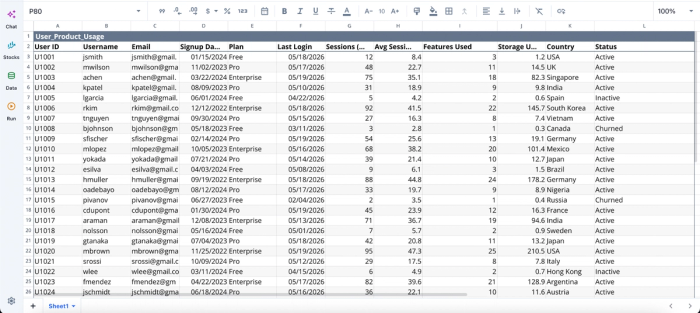
First, I import my data from Google Sheets into Quadratic:
After importing our data into Quadratic, we can immediately begin analysis. No additional setup is required. Here:
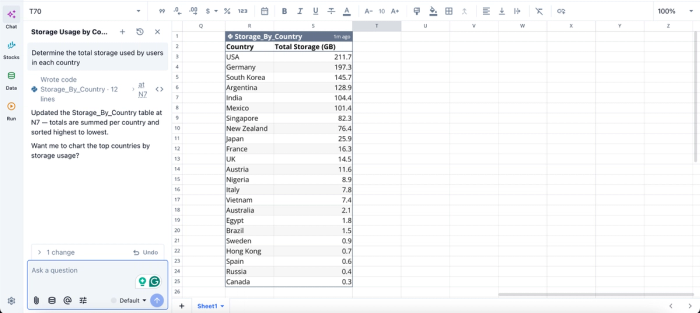
In this image, I ask Quadratic to “Determine the total storage used by users in each country.” It creates a table that shows the total storage used by each country. Visualization in Quadratic also follows this same approach; all you have to do is ask in plain English:
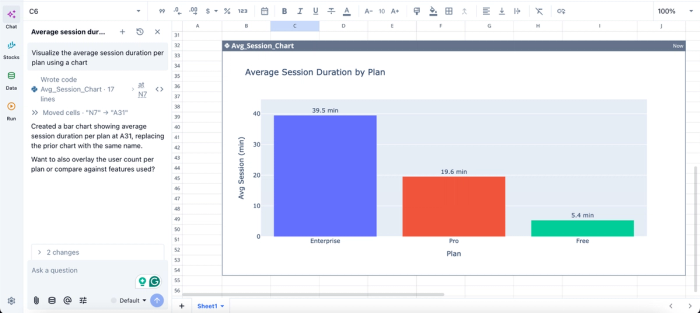
In this image, I ask Quadratic AI to “Visualize the average session duration per plan using a chart.” In seconds, it creates a visualization that shows the average session duration by plan.
Step 4: Export from Quadratic as an Excel (.xlsx) file
Once the spreadsheet looks the way you want, export it from Quadratic as an Excel (.xlsx) file. The export preserves the structure you already cleaned and refined inside the workspace, including formulas, tables, formatting, and charts. This replaces the fragile “download and hope” workflow that comes with native Google Sheets exports.
After opening the exported file in Excel, verify that formulas landed correctly, date and currency formatting remained consistent, and charts or tables rendered as expected. The important difference in this workflow is that the XLSX file is the final product of a structured cleanup, analysis, and validation process. Instead of converting a Google Sheet directly into Excel and fixing problems afterward, you shape the spreadsheet into its final form before export, which reduces recurring cleanup work over time. Analysts looking for how to convert Excel to Google Sheets can also follow this same approach.
Make Google Sheets to Excel conversion a repeatable workflow
Users looking to convert Google Sheets to Excel should realize that it isn't a single action. It's a cycle. Import the sheet, work with the data, export to XLSX. When you treat it that way, the file you deliver is the file you intended to deliver, not whatever the download happened to produce. And when the same conversion comes up next week or next month, the workflow is already in place.
For users who do this regularly, that compounding matters. In Quadratic, you can even schedule a file or selection to run automatically in the background, so the import-work-export cycle keeps producing fresh XLSX output without manual effort. Try Quadratic for free.
Frequently asked questions (FAQs)
How does Quadratic help with converting Google Sheets to Excel?
Quadratic acts as the working environment in the import-work-export cycle. You import your Google Sheet directly into Quadratic, clean up data, replace Google-specific functions with Excel-compatible equivalents, and run any analysis you need. Then you export to XLSX when the file is in the shape you actually want to deliver, eliminating the formatting drift and formula breakage that comes from the native download method.
When should I use the native Google Sheets download versus the import-work-export workflow?
Use the native download for simple sheets with standard formulas and no Google-specific functions that you're converting one time. Use the import-work-export workflow if the sheet uses GOOGLEFINANCE, IMPORTRANGE, ARRAYFORMULA, or QUERY; if you need to clean or analyze data before delivery; if the same conversion happens regularly; or if the file is going to a stakeholder who expects a polished result.
Can I automate the conversion process if I'm doing it repeatedly?
Yes. Once you've set up the import-work-export workflow in Quadratic, you can schedule a file, sheet, or selection to run automatically in the background, so the conversion produces fresh XLSX output without manual effort each time the source data updates.
