
James Amoo, Community Partner
May 26, 2026

Table of contents
So, can ChatGPT analyze Excel data? The short answer is yes. On paid plans, ChatGPT can ingest .xlsx and .csv files, run Python in a sandboxed environment, and return summaries, charts, and answers in natural language.
The more useful question is whether that workflow actually fits the kind of analysis you need to do. There's a structural difference between getting a chat answer and getting a living analysis you can validate, edit, and reuse. One disappears into a chat thread. The other becomes a workspace you can return to, share, and evolve.
This article compares the ChatGPT file-upload workflow against an AI-native spreadsheet analysis workflow judged on four criteria that matter the moment your work has to be trusted: transparency, repeatability, editability, and auditability.
How can ChatGPT analyze Excel data?
For readers who want to verify capabilities first, here's what ChatGPT can do with a spreadsheet today. You can use ChatGPT to analyze Excel data by uploading a file directly into the chat and asking questions in plain language. It will parse the file, generate Python in a hidden environment, and respond with an answer, a table, or a chart.
Common tasks people use it for include quick aggregations, exploratory data analysis, data cleaning suggestions and reformatting, and generating basic charts from a column or two.
These features are available on paid tiers with file upload and advanced data analysis enabled. So yes, you can use ChatGPT to analyze Excel data, and for one-off questions, it works reasonably well. The interesting part is what happens when the question stops being one-off.
Quadratic offers a meaningfully different workflow. Instead of treating spreadsheet analysis as a temporary conversation, Quadratic keeps the analysis directly inside the grid where the data already lives. AI-generated formulas, Python, SQL queries, charts, and transformations remain visible and editable in the spreadsheet itself rather than hidden behind a chat response.
How ChatGPT analyzes an uploaded Excel file (the workflow)
Here’s how ChatGPT analyzes Excel data in practice. You upload an .xlsx or .csv file into the chat, ask a question in natural language, and the system generates Python code behind the scenes to process the file inside a temporary sandboxed environment. The analysis runs on a copy of your spreadsheet rather than the original file itself, and the results are returned in the conversation as tables, summaries, charts, or downloadable outputs.
The important detail is that most of the analytical process remains hidden from view. The Python logic and assumptions are not naturally embedded back into the spreadsheet itself. Instead, the chat thread becomes the primary record of the work that was done. For quick exploratory questions, this works well. But for workflows that need spreadsheet automation or long-term reuse, the separation between the spreadsheet and the underlying analysis quickly creates friction.
What ChatGPT cannot do well with Excel data
The limitations appear when you move beyond one-off questions into ongoing analytical work. ChatGPT operates on temporary copies of uploaded spreadsheets rather than maintaining a live connection to the original workbook, so changes do not automatically sync back to the file you actually use. That creates friction when workflows need iteration, branching, version control, or repeated execution. Modifying an analysis often means re-prompting or reconstructing context from previous messages.
Collaboration is similarly constrained because the analysis lives inside an individual chat thread rather than inside a shared analytical workspace, and each new session effectively resets the working context even when the underlying data remains unchanged.
ChatGPT can still generate Excel files and create spreadsheets from scratch. It can produce downloadable .xlsx files and even create charts or structured reports. The challenge is that these outputs are usually static artifacts disconnected from the logic that created them. Once the file leaves the chat environment, the process behind it becomes difficult to audit. If the underlying dataset changes next week, the workflow often starts over from the beginning.
How Quadratic streamlines AI spreadsheet analysis
Quadratic is built for exactly this gap. It's a browser-based spreadsheet with native support for formulas, Python, and SQL data analytics in the same grid, plus an AI that writes those for you when you prompt it. Let’s explore how it offers a better workflow for Excel sheet generation than ChatGPT.
Connect live data sources instead of analyzing static snapshots
One major limitation of uploading spreadsheets into a chatbot is that the analysis only reflects the file at the moment it was uploaded. Once the data changes, the workflow effectively resets.
Quadratic supports direct connections to APIs, databases, and external sources, which means the spreadsheet can continuously refresh instead of remaining frozen in time. Analysts can build reusable financial reporting workflows where formulas, Python logic, charts, and summaries rerun automatically against updated data.
This changes spreadsheet AI from a one-time interaction into a persistent system. The same workbook evolves alongside the underlying business data instead of requiring repeated uploads and repeated prompting.
Generate formulas and Python in the same workflow
Traditional spreadsheet AI tools for data analysis usually stop at formula generation. That works for lightweight calculations, but more advanced analysis quickly outgrows nested spreadsheet logic.
Quadratic bridges that gap by supporting formulas, Python, and SQL in the same grid. AI can generate formulas for lookups and cell-level operations, while more complex workflows can move into Python without leaving the spreadsheet environment.
The important distinction is that these are not disconnected tools stitched together manually. The logic remains unified inside one spreadsheet-native workflow.
Use AI to clean, transform, and explain spreadsheet data
A large percentage of spreadsheet work involves cleanup and interpretation rather than final reporting. Columns contain inconsistent formatting, formulas break across rows, categories drift over time, and imported exports rarely arrive analysis-ready.
Quadratic AI helps compress that data processing phase directly inside the spreadsheet. You can ask it to normalize dates, explain Excel formulas, generate calculated fields, or restructure messy tables using plain language prompts.
Here’s an example:
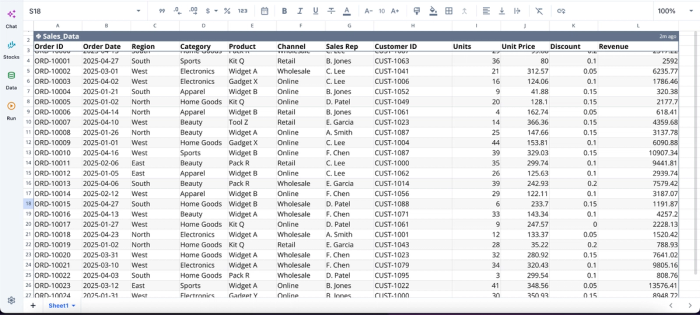
Once we have our data in Quadratic, we can immediately start analyzing:
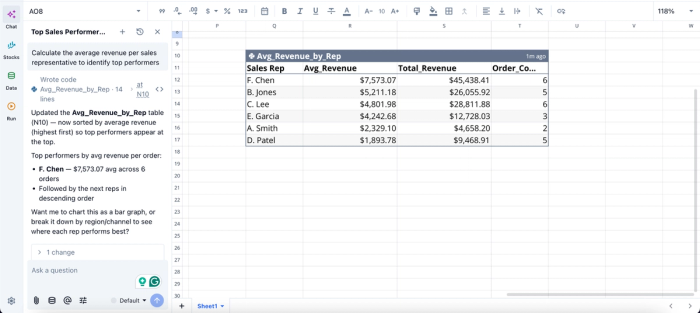
In this image, I ask Quadratic AI to “Calculate the average revenue per sales representative to identify top performers.” It instantly generates a table that shows the average revenue per representative, including the total revenue and order count for each sales rep.
Build charts and visual summaries that stay connected to the data
Most chat-based spreadsheet analysis workflows break down at visualization. A chatbot may describe a trend or generate a static chart image, but maintaining a reusable reporting workflow becomes difficult once the source data updates.
Quadratic treats visualization as part of the spreadsheet itself. AI-generated charts remain linked to the underlying ranges and update automatically as the dataset changes. Analysts can ask AI to generate different charts, surface anomalies visually, or generate narrative summaries alongside the dashboard.
This creates a much tighter analytical loop. Instead of exporting data into another visualization platform, the reporting layer stays connected to the same spreadsheet where the research and data analysis happened. Visualization in Quadratic can also be done using text prompts.
Here’s an example:
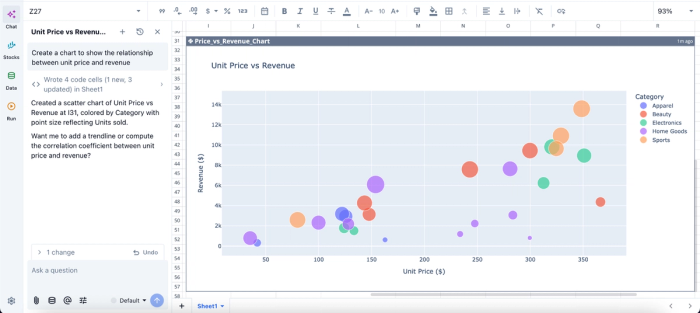
In this image, I ask Quadratic AI to “Create a chart to show the relationship between unit price and revenue.” In seconds, it creates a scatter plot that visualizes the relationship between unit price and revenue, based on your dataset.
Keep AI analysis transparent and collaborative
The biggest operational concern with AI-generated spreadsheet analysis is trust. If the reasoning only exists inside a private chat session, nobody else reviewing the workbook can see how the result was produced.
Quadratic addresses this by keeping the AI outputs directly inside the spreadsheet itself. Generated formulas remain formulas. Python remains readable. Charts stay editable. Anyone opening the workbook can inspect the logic and modify the workflow.
Combined with real-time collaboration, this makes spreadsheet AI far more practical for teams. Analysts, finance teams, operators, and managers can work from the same live workbook while reviewing the reasoning and transformations that produced it.
Side-by-side: ChatGPT file upload vs. Quadratic
Here's the comparison of ChatGPT file upload and Quadratic for Excel data analysis, using important metrics:
| Metric | ChatGPT file upload | Quadratic |
|---|---|---|
| Workflow persistence | Analysis typically happens in a temporary chat session tied to a file upload. Re-running workflows often requires re-uploading data and re-prompting. | Analysis lives directly inside the spreadsheet as reusable formulas, Python, SQL, and charts that can be rerun on updated data without rebuilding the workflow. |
| Transparency of analysis logic | Outputs are often delivered as conversational responses, making it harder to trace or audit every transformation step later. | Every AI-generated formula, Python block, SQL query, and chart remains visible and editable in the grid for full auditability. |
| Spreadsheet-native editing | Requires switching between chat and spreadsheet tools to apply or modify outputs. | AI operates directly inside the spreadsheet, so prompting, editing, debugging, and reporting happen in one workspace. |
| Live data connectivity | Primarily analyzes uploaded snapshots of data. Maintaining live workflows requires repeated uploads. | Connects directly to APIs, databases, and external data sources so dashboards and analyses stay continuously updated. |
| Support for advanced analysis | Strong at explanations and ad hoc reasoning, but advanced workflows often require exporting code into external environments. | Combines formulas, Python, SQL, and AI in the same grid, allowing lightweight calculations and advanced analytics to coexist seamlessly. |
| Visualization workflow | Can generate summaries or chart suggestions, but visual outputs are usually disconnected from live spreadsheet data. | AI-generated charts remain linked to the underlying spreadsheet ranges and refresh automatically as the data changes. |
Conclusion and next step
So, can ChatGPT analyze Excel data? Yes. The capability is real and useful for quick questions. But the structural limits matter the moment your work needs transparency, repeatability, editability, or auditability. A chat thread isn't a workspace, and a downloadable file isn't a living analysis. If your data has to be trusted or revisited, the AI belongs inside the spreadsheet, not next to it.
Quadratic allows you to upload your spreadsheet in an intuitive environment and use AI to analyze the data in a workflow where you can inspect, validate, and reuse the results.
Frequently asked questions (FAQs)
Can ChatGPT analyze data in Excel files?
Yes, ChatGPT can analyze Excel data on paid plans by uploading .xlsx or .csv files directly into the chat. It will parse the file, generate Python code in a sandboxed environment, and return answers to your questions in natural language. However, the analysis happens on a temporary copy of your file, and the results live only in your chat thread.
How does Quadratic solve the problem of analyzing Excel data differently from ChatGPT?
Quadratic is an AI-native spreadsheet where AI-generated formulas, Python, and SQL live directly in cells rather than in a chat thread. When you import your Excel file and ask the AI a question, the response is executable code that lands in the grid. You can click any cell to see exactly what produced the result and share the entire workbook with full logic intact.
Can ChatGPT create Excel files, and how do they compare to spreadsheets built in Quadratic?
ChatGPT can generate downloadable .xlsx files with formulas and formatting, but these are static artifacts disconnected from the logic that created them. If your source data changes, the file doesn't update. In Quadratic, files stay connected to their underlying data and analysis logic, so updates propagate automatically, and the entire workflow remains transparent and collaborative.
