
James Amoo, Community Partner
May 19, 2026

Table of contents
- What people actually want from an AI tool to generate Excel sheets
- What a functional AI-generated spreadsheet should include
- Why "free" doesn't always mean useful
- How to evaluate the best AI Excel sheet generator for your workflow
- How Quadratic fits: prompt-to-workflow, not prompt-to-template
- Conclusion
- Frequently asked questions (FAQs)
You type a prompt into an AI Excel sheet generator: "Build me a quarterly budget tracker with categories, actuals, variance, and a summary chart." A few seconds later, a tidy spreadsheet appears. The columns are labeled. The rows are formatted. The header row is even bolded.
Then you click into a cell expecting a formula, and find nothing. What you got is a layout, not a working budget.
This is the universal disappointment with most tools that claim to use AI to generate Excel sheets. The output looks like a spreadsheet, but it does not behave like one. There are no formulas wired between cells, no calculations, no logic you can refine. You are left to rebuild the actual analysis by hand, which was the part you wanted spreadsheet automation in the first place.
Here is the thing: this is not a tool quality problem. It is a category mismatch. Most AI Excel sheet generators are designed to produce formatted documents, while the job you are trying to do requires a working AI spreadsheet analysis environment. Once you see the distinction, the path to a tool that actually delivers becomes much clearer.
What people actually want from an AI tool to generate Excel sheets
When someone explores an AI to generate Excel sheet, what they actually want is a spreadsheet that performs meaningful analytical work from the moment it opens. That means working formulas wired correctly across cells and ranges, charts and visualizations connected directly to the underlying data, and logic that remains editable instead of being locked into a static output. Users also expect compatibility with existing Excel and Google Sheets workflows so collaborators can immediately open, review, and continue working with the file without friction.
More importantly, users increasingly expect these data analytics tools to support ongoing analysis rather than produce a frozen snapshot. A modern AI tool to generate Excel sheet outputs should provide a path to automated data processing, automated refreshes, and reusable workflows that evolve alongside the underlying dataset.
Quadratic closes this gap by combining spreadsheet familiarity with live data connectivity, built-in AI assistance, and native support for Python and SQL for data analytics inside the same workspace. Instead of generating isolated spreadsheets that immediately become outdated, Quadratic enables users to build dynamic analysis environments where formulas, dashboards, visualizations, and external data sources remain connected and continuously updateable.
What a functional AI-generated spreadsheet should include
If you are evaluating an AI that generates Excel sheets, the output should clear a specific bar. A functionally generated spreadsheet needs more than polished Excel formatting or placeholder tables. It should contain formulas wired correctly to the appropriate cells and ranges, with calculations that genuinely reflect the original prompt. Charts should be created alongside the data they describe rather than treated as a disconnected follow-up task.
Just as importantly, the spreadsheet must remain usable after the initial generation step. Editable cells, formulas, and code should survive iteration so users can refine the logic without rebuilding everything from scratch. A good Excel sheet AI generator should leave you with something you can actively run, modify, and share. If the output forces you to reconstruct the analysis manually, the generator only solved part of the problem.
Why "free" doesn't always mean useful
The problem with free platforms is that many of them generate static output that still requires substantial manual work afterward. Even if the subscription cost is zero, the operational cost often shows up later in the form of hours spent rewriting formulas or rebuilding dashboards that the AI should have handled correctly in the first place.
When evaluating whether a free or paid option is worthwhile, the more important question is not simply "how much does it cost?" but "how much work remains after generation?" The best free AI Excel sheet generator produces functional output instead of decorative templates. It should generate real formulas instead of placeholder headers, preserve compatibility with Excel and Google Sheets, and provide a clear path for iteration through follow-up prompts or direct editing.
How to evaluate the best AI Excel sheet generator for your workflow
A practical evaluation of the best AI Excel sheet generator starts with examining whether the tool produces actual working logic or simply formatted layouts. Many generators can create polished tables with headers and sample rows, but the real test is whether formulas are properly wired into the correct cells and ranges. If important calculations are missing or users still need to manually rebuild core logic after generation, the tool has only automated presentation rather than analysis.
Another major factor is whether the spreadsheet remains editable and iterative after the initial output. A strong workflow should allow users to refine formulas and expand the model through follow-up prompts or direct editing within the same workspace. If every adjustment requires restarting from scratch with a completely new prompt, the workflow quickly becomes inefficient and difficult to maintain as requirements evolve.
It is also important to evaluate whether the platform supports live data connections, code execution, and reliable exports. Tools that integrate with APIs, databases, Python, or SQL extend the spreadsheet far beyond a static snapshot and make it possible to build continuously updating analytical systems. Running any AI Excel sheet generator through these criteria quickly separates genuinely useful tools from lightweight template generators.
How Quadratic fits: prompt-to-workflow, not prompt-to-template
Quadratic is built around the AI-native workflow model, not the template model. You describe what you need in natural language, and it generates the structure plus the analysis logic in one step: formulas, charts, and code wired to the data. Let’s explore the features of Quadratic in detail.
Generate working analytical workflows instead of static spreadsheet templates
Most AI Excel sheet generators focus on producing a formatted template. You enter a prompt, receive a spreadsheet layout with headers and placeholder formulas, and then manually rebuild the actual business logic yourself. The result often looks polished initially, but quickly breaks down once the workflow needs live data or collaboration.
Quadratic approaches the problem differently by treating spreadsheet generation as the beginning of an analytical workflow rather than the creation of a static document. Users describe the workflow they need in natural language, and Quadratic generates the spreadsheet structure, formulas, charts, and logic together inside the same browser-based workspace.
Refine generated logic conversationally without restarting from scratch
One of the biggest limitations of template-style AI generators is that iteration becomes destructive. If the original output needs changes, users often have to regenerate the entire sheet with a new prompt, losing formulas, formatting, and customizations in the process.
Quadratic supports conversational refinement directly inside the spreadsheet itself. Users can ask the AI to add calculations, rewrite formulas, create new visualizations, restructure tables, or modify assumptions without rebuilding the workflow from scratch.
For example, a finance team could initially generate a monthly financial reporting model, then later ask the AI to add predictive analytics or executive summaries directly on top of the existing sheet. A sales operations team could expand a pipeline dashboard with territory segmentation or forecast-weighted revenue calculations without recreating the underlying structure.
Connect generated sheets directly to live APIs and databases
Most spreadsheet generators assume the file is static. Once generated, the spreadsheet becomes disconnected from the systems that actually produce the underlying business data. Teams then fall back into manual exports and fragmented reporting workflows.
Quadratic extends generated spreadsheets into live analytical systems by supporting direct connections to databases, APIs, and external data sources. Users can pull operational data, financial metrics, CRM records, analytics feeds, or transactional systems directly into the grid while keeping formulas and charts connected to live updates.
This is especially important for recurring accounting dashboards where data changes constantly. Instead of rebuilding reports every week or month, teams can generate a reusable workflow once and allow the connected data sources to keep the analysis current automatically.
Build advanced business logic with native Python and SQL
Template generators are usually limited to spreadsheet formulas alone. While formulas work well for lightweight calculations, they become difficult to maintain once workflows require advanced data transformations, automation, or large-scale data manipulation.
Quadratic combines spreadsheet formulas with native Python and SQL directly inside the same environment. This allows users to move naturally between low-code spreadsheet operations and fully programmatic workflows depending on the complexity of the task.
For example, users can generate formulas for simple reporting metrics while simultaneously using Python to automate forecasting models, calculate rolling statistical measures, or integrate external APIs. SQL can query large datasets directly from operational databases without exporting intermediary CSV files.
Use AI to analyze data, not just generate layouts
Most AI spreadsheet tools stop after producing a structure. They generate rows, columns, and formulas, but provide little help interpreting the resulting data once the spreadsheet is populated.
Quadratic embeds AI agents for data analysis directly into the analytical process itself. Users can ask the AI to summarize trends, explain unexpected results, or generate stakeholder-ready insights directly inside the workbook.
For example, after generating a budgeting model, a user could ask the AI to explain which expense categories exceeded the forecast. In a revenue dashboard, the AI could summarize the drivers behind changes in customer acquisition or margin performance. In a financial operations workflow, the AI could flag inconsistencies or identify outlier transactions automatically.
Let’s see how this works using a sample dataset:
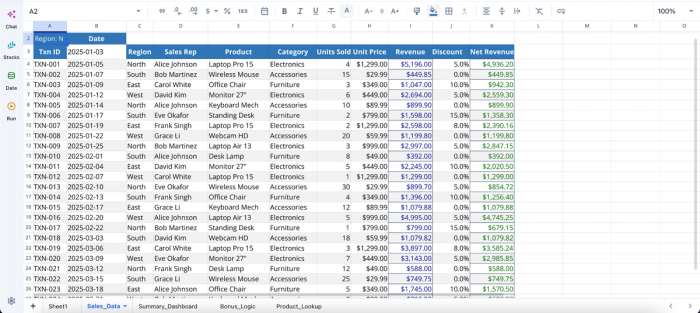
This is a sample Excel dataset that shows sales data for a particular company. Users can immediately begin analysis without any further setup:
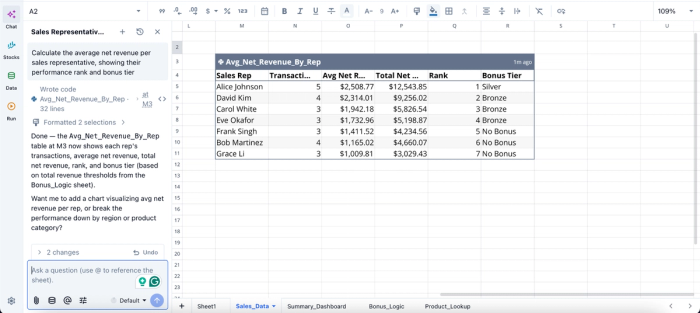
In this image, I ask Quadratic AI to “Calculate the average net revenue per sales representative, showing their performance rank and bonus tier.” It instantly creates a table that shows each rep's transactions, average net revenue, total net revenue, rank, and bonus tier.
Generate charts and dashboards that stay connected to the workflow
Traditional AI spreadsheet generators often create charts as isolated outputs. Once the data structure changes, users frequently need to rebuild the visualization layer manually.
Quadratic treats visualization as part of the same continuous workflow. Users can generate dashboards, KPI summaries, operational scorecards, and interactive charts directly on top of live formulas and connected datasets.
Users can also prompt the AI to recommend visualizations based on the business question itself. Instead of manually deciding between different chart types, users can ask the AI to highlight revenue trends, compare category performance, or display forecast scenarios.
Here’s an example:
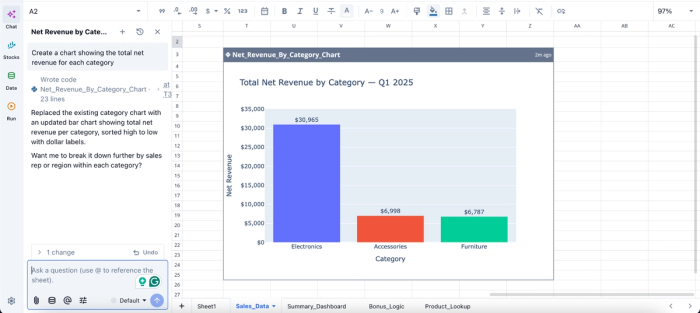
In this image, I ask Quadratic AI, “Create a chart showing the total net revenue for each category.” In seconds, it creates a bar chart that displays the total next revenue by category. From the chart, we can see that the electronics category has the highest revenue with $30,965.
Collaborate on generated workflows in real time
Template-driven spreadsheets often become fragmented the moment collaboration begins. Different stakeholders create duplicate copies and introduce conflicting logic across versions.
Quadratic supports real-time multiplayer collaboration directly inside the same analytical workspace. Teams can jointly refine formulas, inspect AI-generated outputs, and validate reporting logic without relying on disconnected spreadsheet copies.
The result is a much more scalable model for spreadsheet-driven analysis where workflows remain transparent, editable, and continuously reusable across the organization.
Export workflows without losing the underlying logic
Even with modern collaborative tools, many organizations still rely on Excel files for distribution, compliance, or stakeholder sharing. One common weakness of AI-generated spreadsheet tools is that exported files often lose important functionality or break outside the original environment.
Quadratic allows users to export workflows back into Excel while preserving formulas, structure, and much of the analytical logic intact. This enables teams to build using a modern AI-native workflow while still fitting into existing file-sharing ecosystems when necessary.
More importantly, the export is not the end state of the workflow. The live version remains inside Quadratic, where users can continue refining logic and iterating on analysis over time. This captures the broader shift from prompt-to-template toward prompt-to-workflow. Instead of generating a static spreadsheet artifact, Quadratic helps users generate analytical systems that remain useful long after the initial prompt is written.
Conclusion
The frustration with an AI Excel sheet generator is about whether the tool delivers real spreadsheet automation or just a formatted document you have to finish by hand. Template generators give you a formatted document and call it a spreadsheet. Workflow-native tools give you a working analysis environment with formulas, charts, and logic you can keep refining.
When you evaluate any AI Excel sheet generator, the criteria are the same: does it produce real formulas, can you edit and iterate without starting over, does it support live data, and does it export cleanly when you need to share?
Quadratic satisfactorily ticks all of these boxes and allows you to generate a spreadsheet from a prompt, refine it with AI, and export when you need an Excel file. Try Quadratic for free.
Frequently asked questions (FAQs)
What's the difference between an AI Excel sheet generator and an AI-native spreadsheet tool?
An AI Excel sheet generator typically produces a formatted template or static document that you then populate manually. An AI-native spreadsheet tool generates the structure and working logic together in a live workspace where you can refine and iterate without starting over.
Can AI actually generate working Excel formulas, or just column headers?
It depends on the tool category. Template-style generators produce labeled columns with empty cells or placeholder values. Workflow-native tools generate actual formulas wired to the correct cells and ranges, producing calculations that reflect your prompt and deliver a functional spreadsheet you can use immediately.
How does Quadratic generate Excel sheets differently?
Quadratic treats the spreadsheet as a working environment from the first prompt, not a one-time template export. You describe what you need in natural language, and Quadratic generates structure, formulas, and charts together in a single browser-based workspace. You can then refine the output through follow-up prompts or direct edits, connect to live data sources, and export to Excel with all logic intact.
