James Amoo, Community Partner
May 26, 2026

Table of contents
- What Claude can actually do with spreadsheets today
- The hard way: the copy-paste loop most Claude users are stuck in
- The right way: give Claude live access to a spreadsheet via MCP
- How Quadratic MCP streamlines AI spreadsheet analysis
- Step-by-step: building a spreadsheet with Claude through Quadratic MCP
- Start using Claude the right way
- Frequently asked questions (FAQs)
Can Claude make spreadsheets? Yes. Claude can write and explain formulas, generate downloadable CSV and Excel files, draft financial models, and analyze tables you paste into the chat. If your question is whether Claude spreadsheets are possible at all, the answer is a clear yes.
The more useful question is whether you're using Claude for spreadsheets the right way. Most people aren't. The default Claude AI spreadsheet workflow looks like this: paste data into chat, get a formula or a result back, copy it into your real spreadsheet, repeat. It works for one-off data exploration, but it falls apart the moment your work is recurring or shared with a team.
This post lays out the better path: connecting Claude directly to a live spreadsheet through MCP, so Claude stops being a formula suggester in a chat window and starts acting on real cells in a real sheet.
What Claude can actually do with spreadsheets today
Out of the box, Claude is a capable spreadsheet assistant for text-driven tasks. It understands Excel and Google Sheets syntax, can reason about ranges and references, and can generate structured outputs that users can transfer into a workbook. It can also analyze data ranges and recommend cleanups, pivots, summaries, or data transformations as part of a lightweight Claude code spreadsheet analysis workflow.
The important limitation is that Claude primarily operates as a chat interface rather than a live spreadsheet environment. By default, it returns text responses or downloadable files instead of editing the spreadsheet you actively work in. Every formula or structural change still has to be transferred manually into the workbook itself. That creates friction for workflows that require continuous iteration.
Quadratic approaches the problem differently by integrating AI directly into the spreadsheet surface itself, allowing formulas, Python, SQL, charts, and AI-generated logic to live inside the same persistent workspace rather than remaining trapped in a conversation thread or exported file.
The hard way: the copy-paste loop most Claude users are stuck in
Most people using Claude for spreadsheet work eventually fall into the same workflow pattern without explicitly planning for it. They copy part of a spreadsheet, paste it into Claude with a question, receive a formula, and then manually transfer the result back into the workbook. When something looks off, they repeat the process with additional context or another pasted range. On the surface, this feels efficient because the AI produces answers quickly, but the workflow itself remains fragmented and heavily manual.
The problems compound over time. Claude cannot continuously see the live state of the spreadsheet, so context degrades between interactions. The data being analyzed is effectively frozen at the moment it was pasted, meaning the output can already be stale data by the time decisions are made. When the same report or analysis needs to be refreshed next month or next quarter, the entire process often starts over from scratch. If the underlying data lives in databases, APIs, or warehouses, users must repeatedly export snapshots before Claude can even interact with the information.
Generating downloadable spreadsheet files only partially improves the situation because each iteration creates another disconnected artifact. Workflows quickly devolve into chains of files named v2, v3, final_v4, or final_final_actual. The underlying analysis logic remains separated from the live spreadsheet environment, and refreshing the analysis against updated data becomes cumbersome.
The right way: give Claude live access to a spreadsheet via MCP
The fix is the Model Context Protocol, or MCP. In plain English, MCP is an open standard that allows AI assistants to connect directly to external systems instead of operating purely through chat-based text exchanges. Rather than generating formulas or summaries that you manually transfer into a spreadsheet, an MCP-connected assistant can read from and write directly to the underlying workspace itself.
When Claude is connected to a spreadsheet through MCP, the interaction model changes completely. Claude stops behaving like a detached assistant sitting outside your workflow and starts functioning more like a copilot operating inside the spreadsheet. You describe what you want, Claude performs the action directly in the grid, and the results appear immediately in the live workbook.
Live, bidirectional spreadsheet access is what turns AI assistance from a one-shot response engine into a real analytical workflow. In practice, this means Claude can create new sheets and tabs from prompts, inspect existing ranges and tables to understand the current state of the workbook, and iteratively refine charts or dashboards based on conversational feedback.
This shift removes much of the operational friction that makes chat-based spreadsheet workflows cumbersome. There is no longer a need to copy formulas out of a conversation, download and re-upload multiple spreadsheet versions, or rebuild context every time the analysis evolves.
How Quadratic MCP streamlines AI spreadsheet analysis
Quadratic offers a hosted MCP server that connects Claude to a live Quadratic spreadsheet through OAuth. There's no local setup, no script to run, and no developer work required. You authorize the connection once, and Claude can start reading and writing to your sheet. Even without a connection to Claude, Quadratic natively allows analysts to leverage advanced AI capabilities. Let’s talk more about this.
Work against live operational data instead of static uploads
Most spreadsheet AI workflows rely on pasted CSVs or uploaded snapshots that immediately become outdated. Real business workflows rarely operate that way. Analysts constantly pull updated data from APIs, databases, analytics tools, and operational systems.
Quadratic supports direct live connections to sources like Postgres, Snowflake, APIs, and analytics platforms directly inside the spreadsheet grid. This allows your spreadsheet workflow to become persistent instead of temporary. A sales model can refresh CRM data automatically, a finance report can pull updated transactions, and a forecasting workflow can rerun against new operational inputs without rebuilding the analysis from scratch each financial reporting cycle.
Build reusable analytical systems with Python, SQL, and formulas
Most spreadsheet workflows become fragile once the logic grows beyond basic formulas. Teams end up splitting work across notebooks and spreadsheet tabs, creating operational overhead and breaking reproducibility.
Quadratic consolidates those layers into one environment by supporting formulas, Python, and SQL data analytics natively in the same spreadsheet. Claude can generate spreadsheet formulas for quick calculations, write Python for multi-step analysis and forecasting, or execute database queries against connected datasets directly in the grid.
The result is a workflow where data processing, modeling, and reporting happen together instead of across disconnected tools. Analysts can move seamlessly between spreadsheet logic and code without abandoning the spreadsheet environment that most business workflows already depend on.
Generate transparent and auditable AI logic
One of the biggest concerns with AI-generated spreadsheet work is that the reasoning often disappears into chat history. Someone reviewing the workbook later sees the outputs but cannot easily inspect how the calculations or transformations were produced.
Quadratic addresses this by making every AI-generated output visible and editable inside the sheet itself. Formulas remain formulas. Python remains readable Python code. SQL queries stay attached to the analysis they generated. Anyone opening the workbook can inspect the logic and rerun the workflow without relying on undocumented chat conversations.
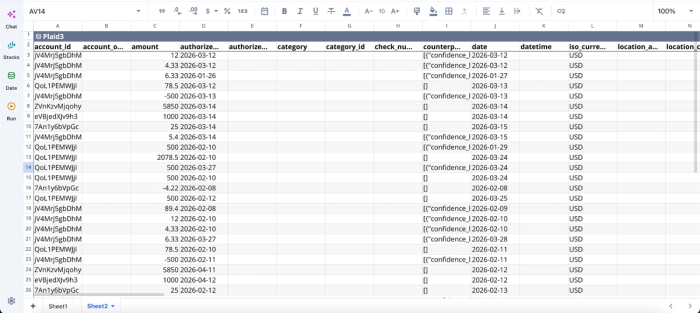
Here’s how you can perform analysis using Quadratic (using its built-in AI assistance). First, connect to my finance data via Quadratic’s Plaid integration:
Next, I begin analysis using Quadratic’s built-in AI feature:
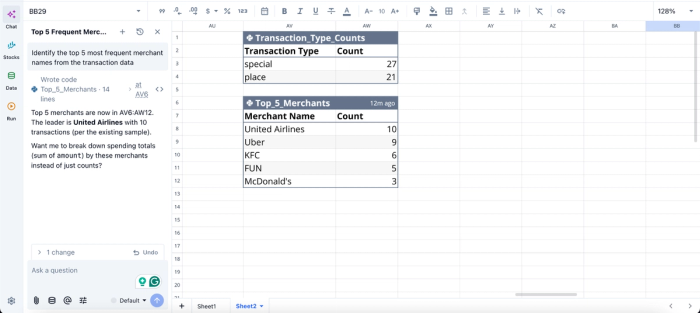
In this image, I ask Quadratic AI to “Identify the top 5 most frequent merchant names from the transaction data.” It instantly generates a table that shows the top 5 merchants in order.
Generate dashboards and visual analysis directly in the grid
Spreadsheet workflows do not stop at calculations. Teams still need charts, summaries, dashboards, and stakeholder-ready reporting that evolve as the data changes.
Quadratic allows Claude to generate visualizations directly inside the spreadsheet workspace. Charts remain linked to the live underlying data, which means refreshing the dataset automatically updates the reporting layer as well. Analysts can generate summaries, visualize trends, and build operational dashboards without exporting the analysis into external BI tools.
This keeps the reporting workflow tightly connected to the underlying spreadsheet logic. The dashboard is no longer a disconnected presentation layer sitting downstream from the analysis. It becomes part of the same live analytical environment.
Here’s an example:
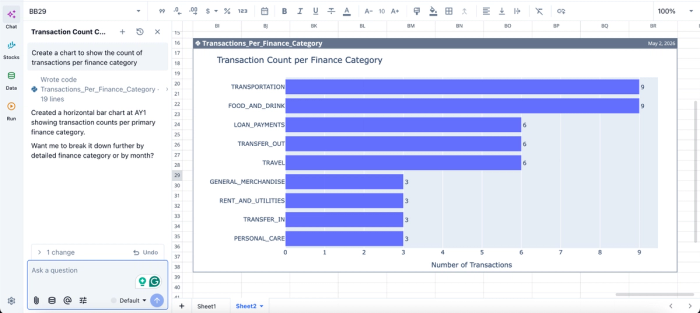
In this image, I simply ask Quadratic AI to “Create a chart to show the count of transactions per finance category.” It instantly generates an interactive chart that shows the transaction count per finance category.
Collaborate on AI-assisted workflows in real time
Traditional spreadsheet automation often creates isolated workflows that only the original author fully understands. Logic becomes buried in macros, external scripts, hidden tabs, or undocumented transformations spread across multiple systems.
Quadratic’s browser-based collaboration model makes the spreadsheet itself a shared analytical workspace. Teams can work simultaneously in the same environment while reviewing formulas, Python scripts, AI-generated summaries, dashboards, and connected datasets together.
Step-by-step: building a spreadsheet with Claude through Quadratic MCP
Here's what the workflow looks like end-to-end. Picture a finance analyst building a SaaS revenue model.
1. Connect Claude to Quadratic via MCP
Authorize the Quadratic MCP server in Claude using the OAuth flow. Once connected, confirm Claude can see and act on your target Quadratic sheet. This is a one-time setup.
2. Ask Claude to create the spreadsheet structure
In chat, type something like: "Create a monthly SaaS revenue model with columns for MRR, churn, new ARR, and net retention, with 12 months of rows."
Claude writes the headers, formulas, and example rows directly into the sheet. You watch it appear in the grid. No copy-paste.
3. Pull in real data
Now connect a real source. Ask Claude to pull last quarter's subscription data from your Postgres database, or to load a CSV you've already imported. Claude writes the SQL or Python, runs it in the grid, and populates the sheet with actual numbers.
This is where the live data connection matters. The model is grounded in your real systems.
4. Iterate with formulas, Python, and SQL in chat
Refine as you go. "Change churn to a rolling 3-month average." "Add a Python cell that projects MRR forward six months using a simple growth model." "Recalculate net retention excluding the enterprise segment."
Each request becomes an edit in the live sheet. Claude reads the current state before each change, so context never gets stale.
5. Build charts and finalize
Ask Claude to add visualizations: "Chart MRR by month with a forecast line." "Add a small multiples view by customer segment." Claude builds the chart in Quadratic and adjusts it based on your feedback. When you're done, share the file or export to Excel, but the source of truth stays live, so refreshing the analysis later is a single prompt away.
Start using Claude the right way
The honest answer to "can Claude make spreadsheets?" isn't just yes. It's “Yes, but most people do not use it the right way”. The copy-paste loop turns a capable model into a slow and error-prone middleman. Connecting Claude directly to a live spreadsheet through MCP turns it into a copilot that actually does the work.
If you spend real time in spreadsheets, this is the upgrade worth making. Connect Claude to Quadratic MCP and start creating and editing real spreadsheets from your Claude chats. Try Quadratic for free.
Frequently asked questions (FAQs)
Can Claude make downloadable spreadsheets?
Yes. Claude can generate CSV or Excel files directly from a chat. The trade-off is that each download is a static snapshot. For live editing, refreshable data, and iterative analysis, an MCP-connected sheet is the better path.
Can Claude edit an existing Excel or Google Sheets file?
Not directly by default. Claude can read pasted content and produce new files, but it doesn't reach into your existing Excel or Google Sheets workbook on its own. The MCP-based alternative is to work in a live Quadratic sheet, where Claude can read and write cells in real time. Quadratic supports importing from Excel and Google Sheets, so you can bring existing work in and continue it there.
How does Quadratic MCP help with Claude spreadsheet analysis?
Quadratic offers a hosted MCP server that connects Claude to a live spreadsheet through OAuth, eliminating the need for local setup or developer work. This allows Claude to read and write directly to your sheet, and access live data connections to databases, APIs, and tools like Snowflake or Google Analytics.
Is Claude good for spreadsheet analysis?
Claude is strong at formulas and explaining what an analysis means. The quality of Claude spreadsheet analysis improves significantly when Claude has live data access, because it can inspect actual values and verify its own work rather than reasoning about a static paste.
