
James Amoo, Community Partner
May 19, 2026

An Excel formula generator can save you minutes of fiddling with parentheses and argument order. But speed isn't the same as understanding, and a formula you can't read is a liability waiting to surface during the next quarterly close.
Quadratic bridges this gap by shifting the focus from “generating formulas quickly” to building systems that remain understandable over time. Instead of treating formulas as isolated outputs, you can combine spreadsheet logic with Python and SQL for data analysis in the same environment.
This piece walks through what a formula generator for Excel actually does, where they fall short, and how to build a workflow that produces formulas you and your team can actually maintain.
What an Excel formula generator actually does
An Excel formula generator is a tool that turns a plain-English description of what you want into working spreadsheet syntax. You describe the calculation, and the generator returns a formula you can paste into a cell.
The category spans a wide range of options. There are standalone web tools that focus exclusively on formula output, general-purpose AI assistants that handle formulas alongside other tasks, and AI-native spreadsheets where generation happens in the grid itself. A Google Sheets formula generator works the same way for Sheets users, and most AI formula generator tools target both platforms.
The promise is straightforward: speed and syntax accuracy. You skip the documentation lookups and the off-by-one nesting errors. The implicit limitation is just as straightforward. Most generators return syntax and nothing else. There is no context about why the formula is structured the way it is, no guidance on how it will behave in edge cases, and no path forward when it eventually breaks.
Where formula generators fall short
The category does one thing well: it produces correct syntax quickly. The shortcomings show up in everything that happens after the paste.
The copy-paste gap
Most generators live outside the spreadsheet. You write your prompt in a chat window or a separate web app, copy the result, switch tabs, and paste. Whatever explanation the tool offers stays trapped in the chat history, disconnected from the cell where the formula now lives. The next person to open the file sees only the formula.
Most generators operate outside Excel in a chat window or separate tool, which means the reasoning behind the formula never lives alongside the data. Once pasted, the explanation is effectively lost, leaving only the final string of functions in the cell. When something breaks or looks suspicious, teams often end up re-generating formulas instead of understanding or repairing the existing one, which creates drift between intent and implementation over time.
No debugging path when it breaks
Generated formulas fail silently on edge cases that the prompt didn't mention. A blank cell, an unexpected text value, a date stored as a string. When the formula misbehaves, users typically return to the generator and re-prompt rather than learning what the formula actually does. The cycle repeats every time the data shape shifts, emphasizing the need for AI spreadsheet analysis.
This also exposes a structural limitation: generators optimize for producing complete answers, not maintainable systems. They will happily create deeply nested formulas because Excel allows it, even when that structure becomes unmaintainable in practice. As complexity increases, the formula becomes harder to reason about, and small changes to data shape can cause disproportionate breakage.
Complexity ceiling
An Excel AI formula generator will happily produce a 200-character nested formula. The fact that it can does not mean it should. Some logic genuinely doesn't belong in a single cell, and a tool optimized to output formulas has no incentive to tell you when you've crossed that line.
At that point, the issue is no longer syntax but data analytics strategy. The real constraint is not whether a formula can be generated, but whether it can be understood six months later by someone who didn’t write it. Once logic reaches that level of complexity, it usually signals the need to move beyond formula-centric design entirely.
Why explanation matters more than syntax
Formulas are read more often than they are written. Future you, your teammates, the auditor reviewing the model, and the new analyst inheriting the workbook. Each of them has to understand what a formula does before they can trust or modify it.
An explained formula becomes a learning artifact. The next person who opens the file gets both the calculation and the reasoning, which means they can extend it confidently. An unexplained formula becomes technical debt. Every edit risks breaking something that no one fully understands, and the safe response over time is to wrap the formula in another layer rather than fix it.
This is the readability principle that experienced spreadsheet builders converge on. Excel offers native tools that help, like LET for naming intermediate values and LAMBDA for defining reusable functions. Both improve readability, but neither closes the explanation gap. They make the formula structurally cleaner without telling the reader why it exists or what assumptions it depends on.
A better workflow: generate, explain, and maintain in Quadratic
Quadratic fully streamlines this process by offering a single environment for formula generation, AI-powered data analysis, and seamless creation of interactive dashboards. Let’s explore the features of Quadratic in detail.
Generate formulas directly from a real spreadsheet context
An Excel formulas generator operates outside the spreadsheet itself. You describe your problem in a separate browser tab, copy the generated syntax, paste it into Excel, and then troubleshoot errors manually when the formula does not match your actual workbook structure. The workflow is disconnected from the data, which makes data processing difficult to validate.
Quadratic removes this disconnect by its AI formula generator directly inside the spreadsheet environment. Users can describe calculations in plain English and generate formulas directly in the grid alongside the real dataset. Instead of generating isolated syntax, Quadratic turns formula creation into an integrated modeling workflow where the request, formula, explanation, and output all live in the same workspace.
Explain inherited formulas without reverse-engineering cell by cell
One of the biggest operational problems in spreadsheets is not writing formulas, but understanding formulas someone else already wrote. Long nested statements using IF, INDEX MATCH, SUMPRODUCT, XLOOKUP, or layered conditional logic quickly become difficult to audit, especially in inherited files with little documentation.
Quadratic allows users to select an existing formula and ask the AI to explain it step by step in plain language. Rather than simply displaying syntax, the AI breaks calculations into logical stages and highlights how each clause contributes to the final output.
This is particularly useful for onboarding into legacy operational models, auditing financial reports, or understanding how business data analysis has evolved. Teams no longer have to rely on institutional memory or manually trace references across dozens of tabs.
Replace unreadable formulas with maintainable Python workflows
At a certain point, spreadsheet formulas stop being maintainable. Deeply nested logic, repeated conditions, and chained calculations become difficult to test, audit, or modify safely. Quadratic addresses this by allowing users to replace brittle formulas with native Python and SQL directly inside the spreadsheet grid.
Instead of compressing operational logic into unreadable formulas, users can rewrite data transformation logic using structured Python workflows that are easier to read, test, and extend. Loops, data cleaning routines, and advanced data modeling become significantly more transparent compared to sprawling spreadsheet syntax.
This creates a much cleaner operational model for complex workflows such as predictive analytics, transaction categorization, and forecasting pipelines.
Streamline formula generation with AI-assisted analysis
Quadratic streamlines formula generation by allowing users to ask contextual questions directly inside the sheet. Instead of manually writing formulas or leveraging an external tool, users can simply describe their intent, and Quadratic AI generates the formula based on the context of their dataset.
This is especially valuable in recurring reporting workflows where small logic errors can silently propagate into executive dashboards or operational metrics.
Let’s see how this works. First, I import my dataset from Excel:
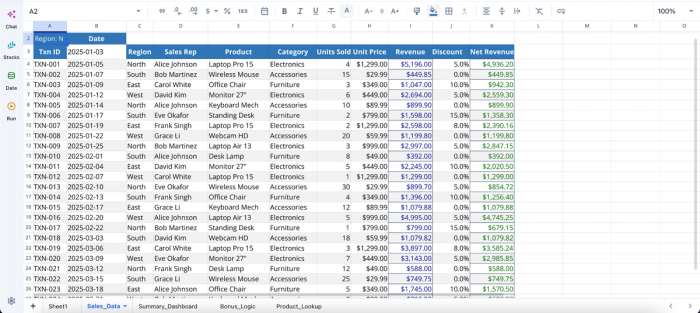
After successfully importing my Excel data to Quadratic, I can immediately begin generating insights using text prompts:
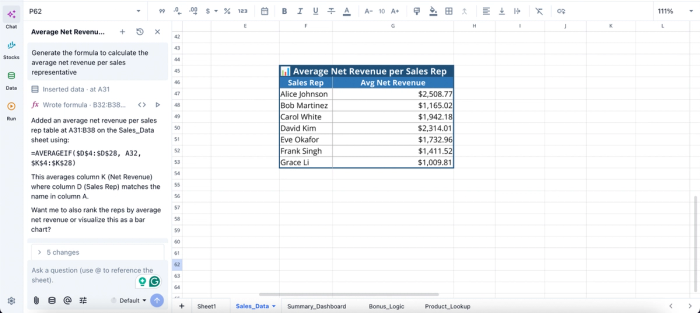
In this image, I ask Quadratic AI to “Generate the formula to calculate the average net revenue per sales representative.” First, it generates the formula as requested, then applies it to our dataset and gives the output as a new table in the spreadsheet grid.
Build visual dashboards directly from spreadsheet logic
Generating formulas is only one stage of the workflow. Most spreadsheets eventually feed reporting layers or accounting dashboards. Quadratic allows users to transform spreadsheet outputs into interactive visualizations without exporting data into separate BI tools. Users can create different charts and Python-powered visualizations directly on top of the spreadsheet logic.
This is particularly useful for operational finance teams and reporting workflows where users need to explain not just the calculations themselves, but also the trends and outcomes behind them. The spreadsheet becomes both the computational engine and the presentation layer in one unified environment.
Visualization in Quadratic can also be done by using text prompts:
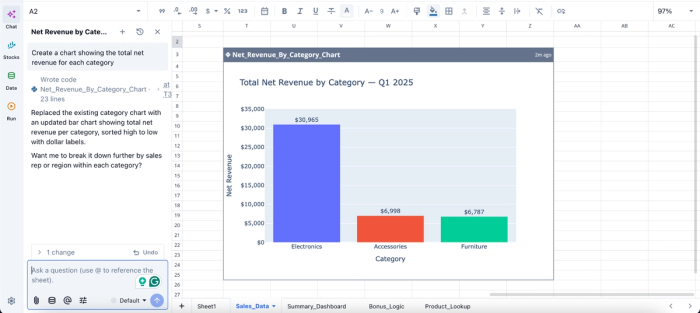
In this image, I ask Quadratic AI, “Create a chart showing the total net revenue for each category.” In seconds, it creates a bar chart that displays the total next revenue by category. From the chart, we can see that the electronics category has the highest revenue with $30,965.
Turn spreadsheet maintenance into a collaborative process
Most spreadsheet workflows fail because logic becomes isolated inside one person’s head. A formula may technically work, but nobody understands why it exists or how changing it affects downstream calculations. Over time, the spreadsheet becomes increasingly risky to maintain.
Quadratic improves collaboration by keeping formulas, explanations, Python scripts, notes, and visualizations together in one collaborative analytics platform. Teams can review logic collaboratively and audit workflows without relying on disconnected documentation.
This transforms spreadsheet maintenance from an individual troubleshooting exercise into a transparent team workflow. Instead of merely generating formulas faster, Quadratic helps organizations build spreadsheet automation systems that remain understandable and maintainable long after the original workbook creator is gone.
Conclusion
Generators solve the speed problem, and that is genuinely useful. They do not solve the understanding problem, and that is where most spreadsheets quietly accumulate risk. The real win is generation plus explanation plus a clean exit path when complexity grows beyond what a formula should hold.
Judge an Excel formula generator on what it leaves behind in your spreadsheet, not just what it outputs. A formula you can read, audit, and replace when needed is worth more than ten formulas you can only paste.
With Quadratic, you can generate spreadsheet formulas from plain English, explain them, and leverage AI for robust data analysis and visualization, all within the same environment. Try Quadratic for free.
Frequently asked questions (FAQs)
Why does an AI formula generator sometimes fail on real data?
A free AI Excel formula generator produces syntax based on your prompt alone, without seeing your actual data structure, column types, or edge cases. When a formula encounters unexpected values, it can fail silently because the generator never anticipated those scenarios. This is why explanation and debugging matter more than speed; understanding what a formula does helps you anticipate and handle edge cases before they break your model.
How does Quadratic's approach to formula generation differ from a standalone tool?
Quadratic generates formulas directly inside the spreadsheet, so the AI can see your actual data, column structure, and existing logic before producing output. You type a request in the sheet itself, get a working formula in context, and receive an explanation alongside it.
When should I replace a formula with Python instead of using a formula generator?
If your formula has more than two levels of nesting, repeats the same calculation multiple times, or requires IFERROR to swallow errors, it has likely outgrown what a single cell should contain. With Quadratic, you can switch to Python in the same spreadsheet and write readable, testable logic that handles loops, conditionals, and branching in a way nested formulas obscure.
Can I use a formula generator to understand formulas I didn't write?
Yes, but only if the tool offers formula explanation alongside generation. Pasting a formula you don't understand into a standalone generator and asking it to explain helps, but the explanation lives in a separate chat window, disconnected from the cell. A better approach is using a tool like Quadratic, where you can paste a formula directly and ask for a step-by-step breakdown in the context of your dataset.
