James Amoo, Community Partner
Jun 1, 2026

Table of contents
Can Gemini make spreadsheets? The short answer is yes, but the experience you actually get depends entirely on what's connected on the other end. On its own, Gemini can describe a spreadsheet and explain how to structure your data. Connected to a real spreadsheet backend, Gemini can produce executed output: cells written, formulas inserted, and analysis run against your actual data.
That distinction is the whole point of this post. There's a meaningful gap between a Gemini spreadsheet that exists as text in a chat window and one that lives as working cells you can edit, share, and rerun. To close that gap, you need to adopt a data analytics strategy that connects the model and the sheet.
In the walkthroughs below, we'll cover what you can do with Gemini natively, where it falls short, and how to supercharge Gemini for robust spreadsheet analysis using Quadratic MCP. We’ll also see how Quadratic offers a solid data infrastructure and analytics strategy for generating insights.
What Gemini can do with spreadsheets natively
Out of the box, Gemini is a capable spreadsheet assistant in the same way a knowledgeable coworker is. Ask a question, and it answers. The important detail is the format of that output. When you ask Gemini to create spreadsheets in chat, what you get back is text: a formula string, a markdown table, a list of steps, or a code snippet. You then copy that into a sheet yourself.
Inside Google Workspace, the Gemini side panel in Sheets tightens this loop somewhat. It can suggest content and help with summarization while you work. But the user is still the orchestrator. You're prompting, reviewing, and pasting. Can Google Gemini create spreadsheets end-to-end this way? It can get you started and accelerate individual steps, but multi-step creation across arbitrary structures still depends on you to execute.
What Gemini can't do alone (and why)
The limits become apparent the moment a task exceeds a single suggestion. In chat-only mode, Gemini struggles with workflows that require persistent interaction with an actual spreadsheet. Inserting formulas into specific ranges and writing outputs back into named ranges are all difficult when the model only produces text responses. The same problem appears when analyses need to chain together across steps. Step two often depends on the output of step one being a real spreadsheet object, not text sitting in a chat window. Maintaining continuity across sessions becomes equally fragile because the workflow itself does not persist beyond the conversation.
Can Gemini analyze spreadsheets in this mode? Yes, especially for smaller pasted samples or one-off questions. But the limitations become obvious as soon as the work needs to be repeatable or tied to a live spreadsheet state. A language model can suggest a formula, describe a transformation, or outline an analysis, but without a connected execution layer, it cannot reliably perform those operations against a live workbook. Every answer still depends on the user manually copying formulas and rebuilding context each time the data changes.
Quadratic becomes significantly more practical than a standalone chat interface. It provides a live spreadsheet environment where AI can interact directly with the grid itself rather than merely describing what should happen. Instead of treating Gemini spreadsheet analysis as a sequence of disconnected suggestions, Quadratic turns it into a persistent workflow where the AI participates directly inside the spreadsheet environment.
The role division: model vs. spreadsheet backend
Once Gemini is connected to a spreadsheet backend, the workflow changes shape entirely. Instead of expecting a single tool to both reason about the task and execute it, the responsibilities become cleanly divided. Gemini handles the language and reasoning layer, which includes interpreting prompts and determining the sequence of operations required to complete the task.
The spreadsheet backend handles the operational layer: reading the current state of the workbook, writing outputs into specific ranges, inserting formulas that recalculate against live data, executing Python or SQL where necessary, and persisting the results so they remain part of the workbook after the conversation ends.
That separation is what makes MCP-connected spreadsheet workflows substantially more reliable and repeatable than chat-only interactions. The model focuses on reasoning, while the spreadsheet system focuses on execution and persistence. Instead of receiving suggestions that must be manually copied into a workbook, the workflow produces real spreadsheet objects that can be inspected, rerun, and shared.
Why MCP-connected workflows beat chat-only spreadsheet generation
Pulling the thesis together, a Gemini spreadsheet workflow connected through MCP is fundamentally different from a chat-only workflow because the analysis becomes persistent and repeatable rather than conversational and temporary. The same prompt can produce the same spreadsheet structure repeatedly, which means workflows can be rerun or scheduled instead of being manually rebuilt each time. Outputs land as real spreadsheet objects rather than text that someone has to manually translate back into the workbook. That removes an entire category of copy-paste errors while making the workflow substantially more reliable over time.
The other major difference is that state and logic persist inside the spreadsheet itself. The formulas, transformations, and generated analyses remain visible and editable, which makes the workflow auditable in a way that chat transcripts are not. This composability is what turns AI spreadsheet analysis into a real operational workflow instead of a sequence of disconnected prompts.
How Quadratic streamlines Gemini AI spreadsheet analysis
Quadratic is a natural execution environment for Gemini-driven spreadsheet work for a few reasons that line up with the walkthroughs above. It provides a live spreadsheet environment where AI can interact directly with the grid itself rather than merely describing what should happen. Let’s explore its key features that help to streamline end-to-end AI data analysis.
Build spreadsheet workflows on top of live data sources
One of the biggest limitations in AI-generated spreadsheet workflows is that they often operate on temporary snapshots. A CSV gets uploaded, analyzed once, and disconnected from the systems the data originally came from. As soon as the underlying numbers change, the workflow has to start over.
Quadratic addresses this by supporting direct connections to databases, APIs, and operational systems inside the spreadsheet itself. Gemini can work against current data rather than stale data. A finance model can refresh accounting dashboards from a warehouse query. A marketing dashboard can run a comprehensive funnel analysis. A sales operations workbook can update itself from connected reporting systems.
Use AI to generate formulas, Python, and SQL in the same workflow
Spreadsheet complexity rarely stays inside formulas forever. At some point, business logic grows beyond nested IF statements and lookup chains into exploratory data analysis better handled by code or queries.
Quadratic supports formulas, Python, and SQL natively in the same grid, which gives Gemini much more flexibility when generating analytical workflows. A quick lookup can remain a formula. A multi-step normalization process can become Python. A warehouse aggregation can run through SQL data analytics directly against a connected database.
The important distinction is that all of these outputs remain visible in the spreadsheet. Gemini-generated logic lands directly in cells where users can inspect, modify, and rerun it. The workflow does not disappear into a hidden chatbot session or external notebook.
Turn natural language prompts into reusable analysis pipelines
The value of AI spreadsheet tooling compounds when prompts become reusable workflows rather than isolated interactions. Quadratic supports this by keeping the generated logic attached to the live spreadsheet environment itself.
A user might ask Gemini to run cohort analysis, generate a forecast model, clean imported transaction data, or create a KPI tracking dashboard. In a traditional chatbot workflow, those results often exist as temporary responses that need to be copied back into another tool. In Quadratic, the outputs remain operational inside the sheet.
That persistence changes how teams work. The same prompt-generated workflow can be rerun next month against refreshed data. Charts remain connected to updated ranges. Python cells continue executing against new records. SQL queries pull fresh operational metrics automatically.
Let’s see an example of AI spreadsheet analysis in Quadratic using a sample dataset:
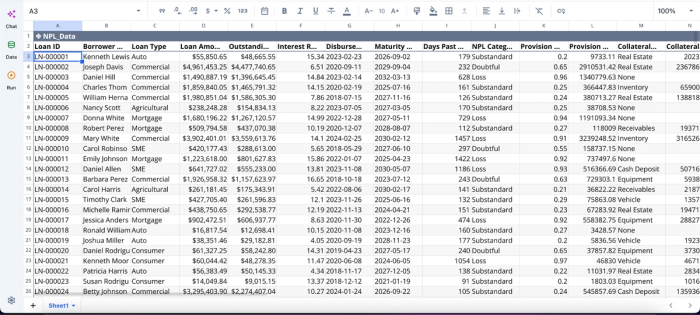
Once you get your data into Quadratic, you can immediately begin analysis using text prompts:
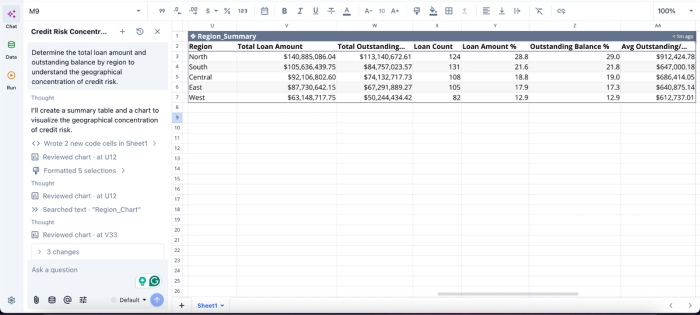
In this image, I ask Quadratic AI to “Determine the total loan amount and outstanding balance by region to understand the geographical concentration of credit risk.” It instantly generates a table that shows the total loan amount for each region, alongside the outstanding amount, loan count, and other related metrics.
Generate dashboards and visualizations directly in the spreadsheet
Visualization is where many AI spreadsheet workflows begin fragmenting into separate data visualization tools. Data gets analyzed in one environment, then exported into another platform for charting or dashboard creation.
Quadratic keeps visualization inside the same workspace. Gemini can generate charts directly in the spreadsheet grid, modify them conversationally, and keep them linked to the underlying data sources and calculations.
This creates a much tighter dashboard workflow. An analyst can ask Gemini to summarize revenue trends, generate a chart comparing business units, refine the visualization, and attach explanatory summaries without leaving the spreadsheet environment.
Using our sample data, here’s how you can create a dynamic chart in Quadratic:
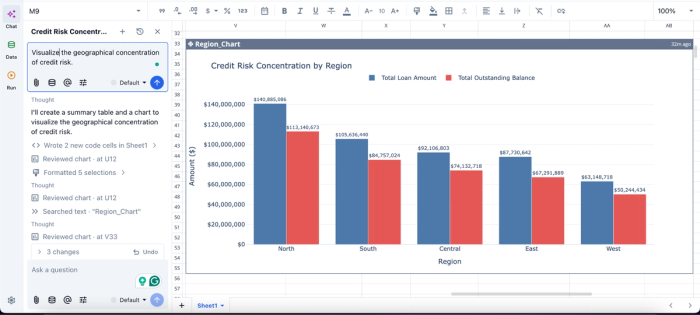
In this image, I ask Quadratic AI to “Visualize the geographical concentration of credit risk.” In seconds, it creates a chart that displays the total loan amount and total outstanding balance for each region.
Keep collaboration, prompts, and logic in one place
AI spreadsheet workflows become difficult to manage when the reasoning process is separated from the spreadsheet itself. Someone generates formulas in a chatbot, another person edits the workbook manually, and eventually, nobody remembers how the analysis actually works.
Quadratic reduces that fragmentation because the prompts, formulas, Python scripts, SQL queries, and outputs all remain inside the same collaborative analytics platform. Since the platform is browser-based with real-time collaboration, teammates can inspect the logic Gemini generated and continue evolving the workflow together.
This is especially valuable for operational and finance teams where spreadsheets are shared assets rather than personal scratchpads. The context remains attached to the spreadsheet instead of scattered across chat histories and exported files.
Conclusion
So, can Gemini make spreadsheets? Yes, and the version of that answer worth caring about is the one where Gemini is paired with a real spreadsheet backend through MCP. That pairing turns suggestions into executed cells, formulas, and analysis you can rerun, share, and build on.
Use Quadratic MCP as the spreadsheet backend for Gemini-style AI workflows that need real sheets, formulas, and analysis, all in one environment. Try Quadratic for free.
Frequently asked questions (FAQs)
Can Gemini create spreadsheets from scratch?
Yes. In chat, Gemini can produce structure suggestions, headers, seed data, and formula strings you copy into a sheet. Connected to a spreadsheet backend via MCP, it can create the sheet directly, with formulas and rows in place, so the output persists as real cells rather than text.
Can Gemini analyze spreadsheets I already have?
Yes. For small samples, you can paste data into chat and ask for a summary. For larger or live datasets, connect Gemini to the spreadsheet backend so it can read the sheet directly, run the analysis, and write results back to a new sheet.
How does Quadratic help Gemini create and analyze spreadsheets?
Quadratic's MCP server gives Gemini direct access to spreadsheet operations: reading existing data, writing rows and columns, inserting formulas, and running Python or SQL analysis against real sheet data. This means Gemini can reason about what to do while Quadratic executes it, turning suggestions into working sheets that stay in sync with your data and can be rerun or edited later.
Do I need to write code to connect Gemini to a spreadsheet?
No. A hosted MCP server handles the integration for you. You configure the endpoint in your Gemini client, authorize the connection, and start prompting. The backend takes care of reading, writing, and executing against the spreadsheet without requiring you to build or maintain custom code.
