James Amoo, Community Partner
Jun 1, 2026

Every finance team, analyst, and operator knows the scenario. An invoice arrives as a PDF. A vendor sends a quarterly report locked inside a 40-page document. A bank statement needs to feed into a reconciliation model. The data exists, but it is trapped in a format designed for printing, not analyzing. Converting a PDF to a spreadsheet sounds like a one-step problem, but anyone who has actually done it knows better.
Once you convert a PDF to a spreadsheet, you are usually left with a messy grid full of misaligned columns, numbers stored as text, duplicate headers, and OCR misreads. The real work, the part that determines whether you can trust the numbers, is cleaning and validating the extracted data. And the work after that, turning that clean data into an answer or a chart, is what actually matters to your stakeholders.
This guide treats the entire arc as one continuous job: extract, clean, analyze. We will walk through the conversion methods that work for different document types, the post-conversion data quality issues you should expect, and how to handle the whole convert PDF to spreadsheet workflow inside a single AI spreadsheet rather than bouncing between four tools.
What does the PDF to spreadsheet workflow entail
Not all PDFs are created equal, and the type of PDF you have determines how hard the conversion will be.
A text-based PDF contains selectable, machine-readable text. If you can highlight a number in your PDF reader, the underlying data is accessible, and conversion tools can usually extract it cleanly. A scanned PDF is just an image of a page, with no underlying text layer. To get data out of it, you need optical character recognition (OCR), the technology that converts images of typed or printed text into machine-readable data. Hybrid documents mix the two: a typed report with scanned pages embedded, or an exported invoice with image-based logos and stamps.
Layout is the other variable. The cleaner the table, the easier the conversion. The moment a document includes merged cells, multi-column tables, repeated page headers, footnotes inline with data rows, or tables that span page breaks, fragility creeps in. The same is true for documents with multiple tables per page or tables embedded inside paragraphs of text.
The documents that show up most often in this workflow are familiar ones. This includes invoices, bank and brokerage statements, financial reports, expense exports, regulatory filings, research datasets, and dashboards exported as PDFs. If you spend any time trying to convert PDF to Excel spreadsheet files for downstream analysis, you have probably seen all of these. Each one carries its own quirks, which is exactly why a generic PDF to Excel spreadsheet conversion rarely produces clean results on the first try.
That cleanup and restructuring phase is where Quadratic becomes especially useful. Rather than stopping at raw extraction, Quadratic provides a spreadsheet environment where users can clean, normalize, analyze, and reshape extracted PDF data using Python, SQL, formulas, and AI-assisted workflows in the same grid.
Methods to convert a PDF to a spreadsheet
There is no single best method. The right choice depends on your document, your frequency, and what you plan to do with the data afterward. Here is a quick tour of the main options.
Copy and paste
The simplest approach is to highlight a table in your PDF reader and paste it into a spreadsheet. For a small table with clean rows and no merged cells, this can work in seconds.
It breaks down quickly, though. Multi-page tables lose their structure. Merged cells flatten into a single column. Numbers often arrive concatenated or split unpredictably. Expect to spend more time cleaning the paste than you saved by skipping a real converter.
Native spreadsheet import (Excel, Google Sheets)
If you are wondering how to convert PDF file to Excel spreadsheet without any extra software, both Excel and Google Sheets offer built-in options. In Excel, the Get Data feature (powered by Power Query) can pull tables out of a PDF directly. Google Sheets users can open a PDF in Google Docs first, which extracts the text, and then move the relevant sections over.
The strengths are obvious: it is free and already on your machine. The weaknesses are equally obvious. These importers do well with text-based PDFs and well-formed tables. They struggle with complex layouts, scanned documents, and anything with merged cells or footnotes. If you are looking up how to convert PDF into Excel spreadsheet for a one-off invoice, native import is a reasonable starting point.
Dedicated PDF-to-spreadsheet converters
A whole category of online and desktop tools exists to convert PDFs to Excel files. Upload the PDF, get a spreadsheet back. The convenience is real, especially for occasional users searching for how do you convert a PDF to Excel spreadsheet without learning anything new.
The trade-offs are also real. Online converters mean uploading potentially sensitive financial data to a third-party server, which is a non-starter for many finance and legal teams. Results vary widely based on document complexity, and you often still need to clean the output. For recurring work, the manual upload-download-clean cycle gets old fast. If you only need to know how to save PDF as Excel spreadsheet once a quarter, a converter may be enough. For anything more frequent, it adds friction.
OCR and AI-based extraction
Scanned and image-based PDFs require OCR before any structure can be recovered. Traditional OCR engines do a reasonable job on high-resolution scans of simple text, but they tend to fail on tables with grid lines, low-contrast scans, or documents with mixed layouts. Common failures include collapsed columns and misread characters.
AI and LLM-based extraction has changed the picture. Modern AI tools for data analysis can infer table structure even when grid lines are missing and handle noisy or skewed scans more gracefully. For messy or recurring documents, AI-based extraction has become the practical best path, and the same AI spreadsheet analysis capabilities extend well beyond extraction into automated data processing and insight generation. They can also understand context, distinguishing a totals row from a data row, or recognizing that a footnote is not part of the table.
Cleaning extracted PDF data
Cleaning falls along a spectrum from manual to fully automated. Most real workflows mix all three approaches.
Manual cleanup with formulas
Spreadsheet formulas can fix a lot of the small stuff quickly. TRIM removes leading and trailing whitespace. CLEAN strips non-printable characters. VALUE converts numeric strings into actual numbers. SUBSTITUTE removes currency symbols and stray characters. Text-to-columns (or SPLIT) breaks merged values into separate cells. A combination of IF and ISNUMBER can flag rows that did not parse correctly.
For a one-off cleanup on a small dataset, formulas are often enough. The work is tedious but predictable.
Automated cleanup with AI prompts
For larger or messier datasets, natural-language prompts move much faster. Instead of writing five formulas to fix headers and convert text to numbers, you describe what you want: "Remove duplicate header rows, split the Amount column into number and currency, and convert all dates to ISO format." A capable coding spreadsheet can apply the changes across the entire range in one pass.
The catch is validation. Always spot-check AI-generated cleanup before trusting it downstream. Confirm row counts, reconcile totals against the original PDF, and look for silently dropped data.
Repeatable cleanup with Python or scripts
If you process the same document type every month, you do not want to re-prompt and re-clean from scratch each time. This is exactly where spreadsheet automation earns its keep. A short Pandas script can normalize columns, parse dates, strip currency symbols, and validate totals in seconds.
Repeatability matters most for finance and operations teams. A reproducible cleaning pipeline means month-end close happens the same way every month, and a new analyst can pick up where the last one left off without guessing.
How Quadratic fits the full PDF-to-analysis workflow
Quadratic was built around the idea that you should not have to leave your spreadsheet to do real analytical work. That extends to PDFs. Native PDF import brings the document directly into the spreadsheet, so there is no separate converter step and no detour through another tool. Let’s explore the capabilities of Quadratic in detail.
Import PDFs directly into the spreadsheet environment
Most PDF-to-spreadsheet workflows begin with friction. A document gets uploaded into a converter, exported into Excel or CSV, re-uploaded into another tool for cleanup, and finally moved into a reporting environment for analysis. Every transition creates another opportunity for formatting drift or stale data.
Quadratic simplifies that process by bringing PDFs directly into the spreadsheet environment itself. The document becomes part of the analytical workspace immediately, which means extraction, cleanup, modeling, and reporting all happen in one place rather than across disconnected applications.
This is especially valuable for recurring operational workflows. A finance team processing monthly bank statements can move directly from PDF ingestion to reconciliation. An operations group handling vendor invoices can extract tables and begin validation immediately. A reporting analyst working with quarterly filings can transform raw document data into structured analysis without leaving the spreadsheet.
Layer Python and SQL onto the extracted document data
Simple cleanup is only one part of document workflows. Many teams ultimately need to enrich extracted PDF data with external systems or automate recurring transformations.
Quadratic combines formulas, Python, and SQL in the same spreadsheet environment, which allows extracted PDF data to flow directly into deeper analytical pipelines. Python can handle reshaping, validation, or predictive analytics. SQL can join extracted records against connected databases. Spreadsheet formulas can manage business-specific calculations and assumptions.
A finance workflow might extract transactions from bank statement PDFs, reconcile them against ERP data through SQL, and calculate forecasting metrics with Python. A procurement team could import invoice PDFsa nd enrich the results with supplier database information in the same workbook.
Use AI to clean messy extracted tables in place
Raw PDF extraction is rarely analysis-ready. Headers repeat unpredictably, and date formats shift between pages. The real work usually begins after the extraction step.
Quadratic's AI agents for data analysis help streamline this cleanup phase directly inside the spreadsheet. Users can describe transformations in natural language and apply them to the extracted data in place. Duplicate headers can be removed, merged rows split correctly, inconsistent date formats normalized, and suspicious values flagged without manually rebuilding the dataset row by row.
This creates a much faster operational flow for document-heavy teams. A compliance analyst can standardize extracted regulatory reports across multiple PDFs. A finance department can normalize inconsistent invoice formats from different vendors. A logistics team can clean shipping manifests before downstream analysis begins.
Let’s see how this works:
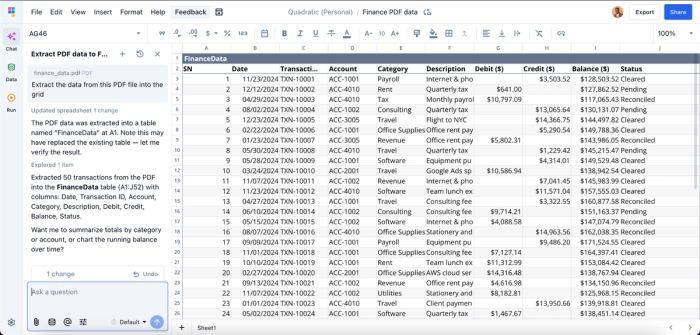
In this image, I simply attached my PDF to Quadratic’s built-in AI chat panel and asked it to “Extract the data from this PDF file into the grid.” It instantly extracted the PDF data (which is exactly what I have in my PDF file) into the grid.
Once the PDF data is extracted to the grid, I can immediately begin analysis using simple text prompts:
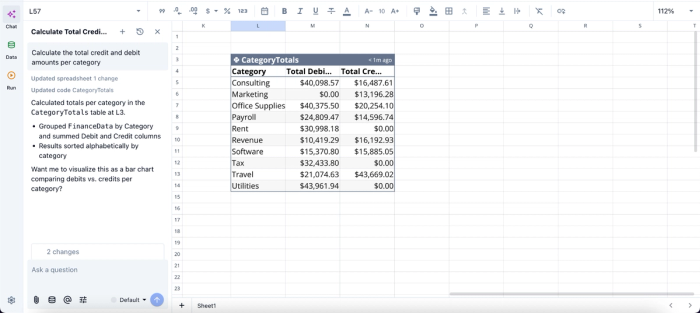
In this image, I ask Quadratic AI to “Calculate the total credit and debit amounts per category.” It instantly scans the data in the grid (remember this is from the PDF file that was extracted earlier) and generates a table that shows the debit and credit for each category.
Build charts and dashboards directly from cleaned PDF data
Traditional PDF extraction workflows often separate data exploration from reporting. Extracted tables get cleaned in one application and eventually visualized somewhere else entirely.
Quadratic keeps reporting attached directly to the cleaned data. Charts, dashboards, KPI summaries, and operational scorecards can all reference the extracted and transformed PDF tables directly inside the same spreadsheet.
Visualization in Quadratic can also be done using text prompts:
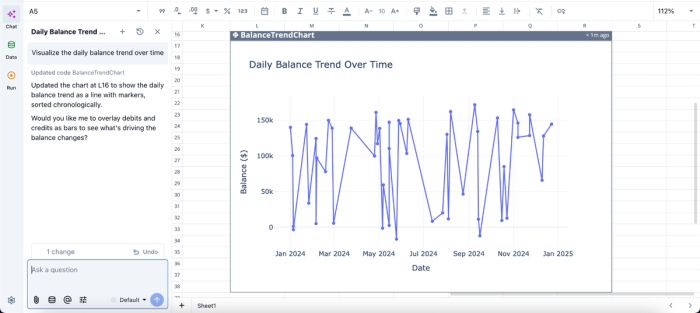
In this image, I ask Quadratic AI to “Visualize the daily balance trend over time.” It instantly creates a visualization that shows the daily balance trend over time.
Turn recurring document processing into reusable workflows
Many PDF workflows are repetitive by nature. The same invoice layouts arrive every month. The same financial statements appear every quarter. The same operational reports get processed every week.
Quadratic allows teams to convert those repetitive tasks into reusable analytical workflows. Cleanup logic, Python transformations, SQL joins, and reporting layers remain attached directly to the workbook. When new PDFs arrive, the same extraction and processing pipeline can run again against updated inputs.
This is particularly useful for finance and operations teams dealing with recurring document cycles. Instead of rebuilding cleanup steps manually every reporting period, teams can rerun the existing workflow with current files and maintain consistency across periods.
Collaborate around shared document analysis
Document extraction work frequently becomes siloed. One person handles cleanup, another manages reporting, and everyone else receives exported spreadsheets through email once the work is complete.
Quadratic improves this process through browser-based real-time collaboration. Multiple users can work inside the same spreadsheet simultaneously while reviewing extracted tables, adjusting transformations, and updating dashboards together.
That is particularly valuable for workflows involving approvals, reconciliation, or quality assurance. Teams can inspect the extracted rows, review AI-generated cleanup steps, and trace calculations directly inside the same workspace.
Turn your next PDF into clean, analysis-ready data
The PDF to spreadsheet job is really three jobs: extract the data, clean it so you can trust it, and analyze it so it actually answers a question. Most workflows lose time and accuracy at the seams between those steps, bouncing between converters, spreadsheets, and BI tools. The fix is to collapse the seams. Do everything in one place, with AI assisting at each stage.
Import a PDF into Quadratic and turn it into clean, analysis-ready spreadsheet data in minutes.
Frequently asked questions (FAQs)
How do you convert a PDF to an Excel spreadsheet quickly?
For a single, simple table, copy and paste or Excel's built-in Get Data importer is the fastest path. For anything more complex, an AI-powered spreadsheet like Quadratic that supports direct PDF import will usually be faster overall because it combines extraction and cleanup in one step, eliminating handoffs between tools.
What's the best way to convert a scanned PDF to a spreadsheet?
Scanned PDFs require OCR, and AI-based OCR generally outperforms traditional OCR on tables, low-contrast scans, and complex layouts. Import the PDF into an AI spreadsheet, let it run extraction, and then prompt it to fix any misreads or structural issues you spot in the result.
How does Quadratic help with converting PDF to spreadsheet workflows?
Quadratic combines native PDF import, AI-powered cleanup, and analysis all in one place, so you never leave the spreadsheet. After importing a PDF, you can prompt the AI to fix duplicate headers, split merged cells, normalize dates, and strip currency symbols in a single pass.
