James Amoo, Community Partner
May 26, 2026

Table of contents
- What an AI spreadsheet generator actually does
- The capability spectrum: from template-filler to full analysis environment
- How to choose: decision criteria most reviews skip
- Live data and code: where generation becomes a workflow
- Quadratic: best AI spreadsheet generator
- Conclusion: pick the tier that matches the work
- Frequently asked questions (FAQs)
Anyone who has stared at an empty spreadsheet, cursor blinking in cell A1, knows the friction. You have a goal in mind, but getting from intent to a working file takes far longer than it should. An AI spreadsheet generator promises to close that gap, letting you describe what you want and watch the structure, formulas, and charts appear.
An important thing to know is that not every tool that claims to generate spreadsheets produces the same kind of output. Some hand you a polished but static file. Others build a living workflow you can edit, extend, and connect to real data. The difference matters enormously, especially if you need numbers you can trust.
In this guide, we’ll lay out the capability spectrum across the category, the criteria most reviews skip, and how to pick a tool that matches the durability and trust requirements of your work.
What an AI spreadsheet generator actually does
At its simplest, an AI spreadsheet generator turns a natural-language prompt into a spreadsheet output. You type something like "build me a quarterly marketing budget with categories, projected spend, and variance columns," and the tool returns a structured sheet. Underneath that simple promise, however, the actual capabilities vary widely.
Excel and Google Sheets compatibility is now a baseline expectation for any AI that can generate spreadsheets rather than a meaningful differentiator on its own. The more important question is what happens after the spreadsheet appears, because that is where an AI Excel spreadsheet generator can range from a simple one-shot template tool to a fully interactive analytical workspace.
Quadratic extends beyond basic spreadsheet generation by combining AI with a coding spreadsheet environment where formulas, Python, SQL, charts, and live data connections coexist in the same grid. Instead of generating a static file that immediately requires manual cleanup, Quadratic allows users to inspect, edit, and continuously iterate on the generated logic, turning AI-generated spreadsheets into transparent and maintainable analytical systems.
The capability spectrum: from template-filler to full analysis environment
The clearest way to evaluate this category is to view it as a spectrum of capability tiers. The tier you choose determines what you can actually do downstream, because everything from editing a formula to refreshing data depends on what the AI generated and whether you are allowed to change it.
Tier 1: Template generators
Tier 1 tools take a prompt and return a static structure: a budget template, a project tracker, a content calendar, a simple schedule. The logic is fixed. You typically download an .xlsx or copy the result into your own sheet.
These are great for one-off documents or anyone who needs a starting structure they will fill in by hand. They are less useful when the underlying logic needs to evolve or when you want to plug in real data.
Tier 2: Formula and chart assistants
Tier 2 includes the assistants that live inside Excel or Google Sheets and help with specific tasks. An AI spreadsheet formula generator, for instance, translates a plain-English description into the exact syntax for VLOOKUP, INDEX/MATCH, ARRAYFORMULA, or nested IF statements. A chart helper picks a visualization and applies it to a selection.
This tier is ideal when you already know what you want, but not the syntax. The limitation is scope: assistance is local to a cell, range, or chart. An Excel spreadsheet AI generator at this tier helps you write a formula faster, but it will not orchestrate a whole workflow for you.
Tier 3: Data-aware spreadsheet generators
Tier 3 tools accept uploaded data and generate a spreadsheet built around that data, though even analyzing CSV data still requires manual effort to maintain the connection over time. The result might include light analysis, summary tables, or pivot-style views.
These tools go further than templates because the output reflects your actual numbers. Still, the artifact is usually static. Once you download or share it, the connection to the source data is broken, and updates require regenerating from scratch.
Tier 4: Full analysis environments
Tier 4 is where generation becomes a workflow rather than an artifact. These environments generate the complete stack and keep every output editable and inspectable. You can rewrite a formula, adjust a chart, refine a Python script, or swap a data source without leaving the file.
This is the right tier for analysts, finance teams, and anyone whose work needs to be trusted and revised over time.
How to choose: decision criteria most reviews skip
Most listicles ranking the best AI spreadsheet generator focus on surface features: number of templates, supported formats, and polish of the UI. The criteria that actually predict whether a tool will hold up under real use are harder to spot on a marketing page. Here are some criteria to consider:
- Editability: Can you modify what the AI generated, or are you locked into its output? If a formula is wrong, can you fix it inline?
- Inspectability: Can you see and verify the formulas, code, or logic the AI used? Hidden logic is a red flag. Quadratic stands tall in this regard as it provides logic that is fully transparent and auditable.
- Live data connectivity: Does the tool pull from real sources or only static input?
- Extensibility: Can you extend outputs with code such as Python or SQL when formulas are not enough?
- Compatibility: Does it work with Excel and Google Sheets when you need to share or hand off?
- Cost and accessibility: Is there an AI spreadsheet generator free tier worth using? A free AI spreadsheet generator can be a great way to evaluate fit before committing, but check the limits on editability, data size, and export.
Live data and code: where generation becomes a workflow
A spreadsheet generated from a prompt is useful. A spreadsheet generated from a prompt and connected to live data is a workflow.
When generation is tied to real sources, the output becomes a living asset. The numbers refresh as the source updates, the structure persists across reporting cycles, and spreadsheet automation means you stop regenerating the same analysis every week.
Code extensibility through Python or SQL is the other half. Formulas are powerful but bounded. Some analyses are simply easier in code. When you can use AI to generate spreadsheets that include both formulas and code in the same canvas, you avoid the usual handoff between a spreadsheet and a separate data analysis tool.
Quadratic: best AI spreadsheet generator
Quadratic approaches this problem differently by treating spreadsheet generation as the starting point of a continuous analytical workflow. Instead of generating a static output, it creates a fully editable environment where formulas, charts, Python scripts, SQL queries, and AI-generated explanations all live inside the same browser-based workspace. Let’s explore the features of Quadratic in detail.
Build spreadsheets on top of live business and financial data
One of the largest limitations of traditional AI spreadsheet generators is that they rely on static examples rather than real operational data. A generated sales dashboard may look polished initially, but it becomes outdated the moment the underlying numbers change.
Quadratic solves this by integrating live data connections directly into the spreadsheet workflow. Users can connect APIs, databases, and external systems directly into the grid, then generate analysis on top of continuously updating datasets. Instead of generating a one-time revenue tracker, for example, teams can create dashboards that automatically refresh as new transactions, financial metrics, or operational records arrive.
Extend beyond formulas with native Python and SQL
Traditional spreadsheet logic eventually reaches a complexity ceiling. Long nested formulas become difficult to audit and debug, especially when workflows involve data cleaning and large-scale data transformations.
Quadratic removes that ceiling by supporting native Python and SQL for data analytics directly inside the spreadsheet environment. Users can replace brittle formulas with readable Python scripts, run SQL queries against connected datasets, and combine code with spreadsheet-native logic in the same grid.
Keep spreadsheet workflows transparent and auditable
It’s difficult to find an AI spreadsheet generator that is transparent and auditable. If users cannot inspect the generated logic, they cannot confidently validate outputs or hand the workbook to another stakeholder.
Quadratic addresses this by keeping every layer inspectable. Users can open any cell to see the formula, Python code, SQL query, or AI-generated transformation behind the output. Nothing is hidden behind proprietary abstractions or locked workflows.
This transparency is especially important for financial reporting, forecasting, and analytics workflows where auditability matters. Teams can trace calculations back to their source and maintain institutional knowledge even when the original builder leaves the project.
Use AI to analyze, explain, and refine spreadsheet logic
Many AI spreadsheet tools focus heavily on generation but provide little support once the workbook becomes more complex. As formulas expand and workflows evolve, maintainability becomes the real challenge.
Quadratic embeds AI agents for data analysis directly into the analysis process. Users can ask the AI to explain formulas, summarize workbook logic, identify inconsistent calculations, detect suspicious values, or recommend cleaner structures for existing spreadsheets. Instead of treating AI as a one-time content generator, Quadratic treats it as an ongoing analytical assistant operating within the file itself.
This becomes especially valuable when inheriting spreadsheets from other teams or maintaining operational models over time. Quadratic AI can explain dependencies across tabs, surface brittle logic, and help teams gradually modernize complicated workbooks without rebuilding everything from scratch.
Here’s an example using a sample finance data:
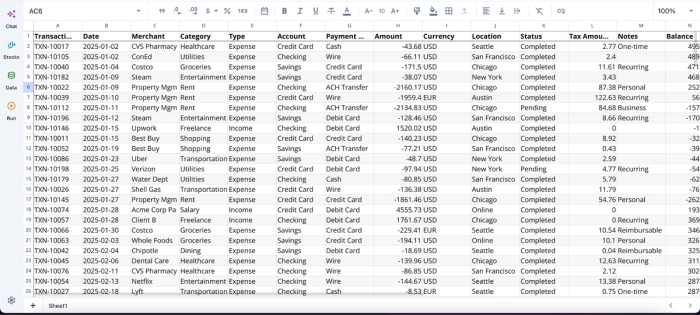
Once you have our data in the grid (either by import or direct connection), you can immediately begin AI spreadsheet analysis. Here:
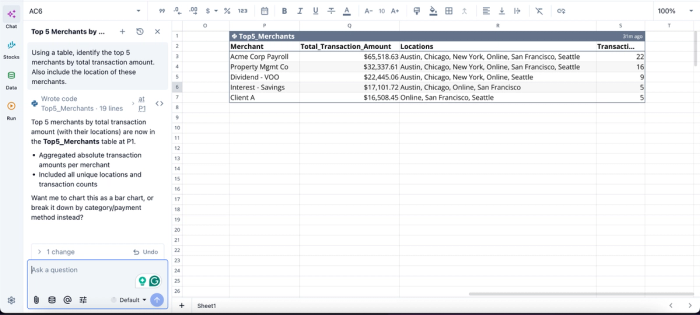
In this image, I prompt Quadratic AI, “Using a table, identify the top 5 merchants by total transaction amount. Also include the location of these merchants.” It instantly generates a table that shows the top 5 merchants, including the total transaction amount, locations, and number of transactions.
Generate charts, summaries, and dashboards in the same workflow
Most AI spreadsheet generators treat visualization as the final output layer. A chart gets generated after the calculations are complete, but the chart itself remains disconnected from the reasoning and transformation steps that produced it.
Quadratic unifies the entire workflow. Users can ask AI to build dashboards, recommend different chart types, generate stakeholder summaries, and visualize trends directly alongside the underlying calculations.
For example, a finance team can generate accounting dashboards where live revenue data updates automatically, Python recalculates forecasts, and AI rewrites the executive summary based on the newest numbers. The workflow becomes continuous rather than fragmented across separate BI tools.
Here’s an example:
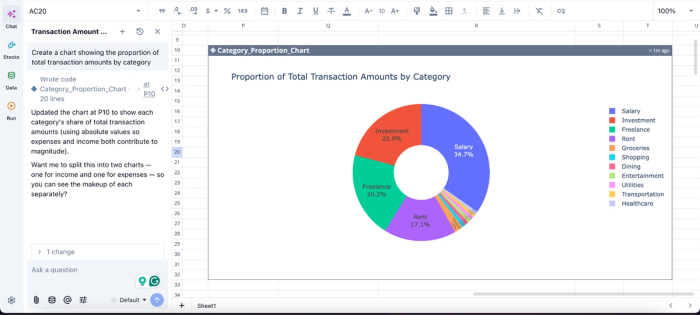
In this image, I ask Quadratic AI to “Create a chart showing the proportion of total transaction amounts by category.” In seconds, it creates a pie chart that displays the total transaction amounts by category. Users do not need to write complex code or export to external BI tools; Quadratic AI creates dynamic and highly interactive visualizations from simple text prompts.
Collaborate on evolving analytical workflows in real time
Traditional spreadsheet generation workflows are often single-user experiences. Someone generates a file, exports it, emails it around, and collaboration happens through disconnected versions and comments.
Quadratic supports real-time multiplayer collaboration directly inside the analytical workspace. Teams can review formulas together, edit Python scripts collaboratively, comment on dashboards, and refine generated outputs simultaneously in the browser.
Conclusion: pick the tier that matches the work
The AI spreadsheet generator category is wider than it looks. At one end are template-fillers that hand you a static file. At the other end are full analysis environments where generation, editing, live data, and code share one canvas. The criteria that separate them determine whether the output you generate today is still useful next week.
If you need a starting structure, almost any tool will do. If you need a workflow you can trust, verify, and evolve, choose accordingly. With Quadratic, you can generate your next spreadsheet with AI, then customize the formulas, code, and charts in the same file.
Frequently asked questions (FAQs)
Can I edit and inspect what the AI generates?
It depends entirely on the tier you choose. Template generators usually give you an editable file, but the underlying logic is fixed. Formula assistants produce editable expressions in your existing sheet. Full analysis environments like Quadratic let you edit every output directly in the same file, and every element remains fully inspectable so you can verify the logic before trusting the results.
How does Quadratic help with AI spreadsheet generation?
Quadratic sits at the highest tier of the spectrum, combining AI generation with full editability and inspectability in a single browser-based environment. When you generate a spreadsheet in Quadratic with AI, the formulas, charts, and Python code that appear remain fully editable inline. Nothing is locked or hidden, and you can connect to live data sources like databases and APIs, so the spreadsheet refreshes as your source data changes.
Do I need to know how to code to use an AI spreadsheet generator?
No. Most AI spreadsheet generators are designed for non-technical users and work entirely through natural-language prompts. Environments that support Python or SQL add power for advanced users without requiring coding knowledge from everyone else. The AI can write the code; you can read it, edit it if you want, or leave it alone.
