James Amoo, Community Partner
Jun 1, 2026

Table of contents
- What ChatGPT can produce on its own
- Why these workarounds feel clunky: the architectural problem
- MCP: the missing bridge between AI and real tools
- Quadratic MCP for AI spreadsheet analysis
- Example workflow: from prompt to executable analysis
- Conclusion: the real answer to "can ChatGPT create Excel spreadsheets?"
- Frequently asked questions (FAQs)
Can ChatGPT create spreadsheets? Yes, but the answer depends entirely on what you mean by "create." If you want a table of numbers pasted into a chat window, or a downloadable file you can open in Excel, ChatGPT handles that today. If you want it to build, edit, and update a live, working spreadsheet that your team actually uses, the experience falls apart fast.
That gap is not a prompting problem. No clever instruction will make ChatGPT reliably write to your real cells, because by default, it has no live connection to a real spreadsheet. The limitation is architectural: ChatGPT can describe a spreadsheet, but it cannot reach into one.
This article unpacks why that is, and how a newer protocol called MCP (Model Context Protocol) closes the gap. With MCP, ChatGPT can create a spreadsheet for you in the literal sense: writing formulas into actual cells, running code against real data, and producing charts inside the sheet itself.
What ChatGPT can produce on its own
Out of the box, ChatGPT is good at producing spreadsheet-shaped artifacts. It can draft budgets, build forecast structures, lay out project schedules, and propose data tables for almost any business scenario. The question of whether ChatGPT can create an Excel spreadsheet has a real answer: it can produce something that looks like one, in a few different formats.
The three most common methods are tables in chat, generated files, and copy-paste workflows. Each is useful for a narrow set of tasks, and each has the same underlying limitation.
Method 1: Asking ChatGPT for a table in chat
The fastest path is to ask ChatGPT for a markdown or plain-text table directly in the conversation. This works well for small one-offs: a quick comparison matrix, a simple budget outline, a list of formulas to consider.
The limit is obvious once you try to use the output. It is text, not a live spreadsheet. There are no working formulas and no place to plug in fresh data.
Method 2: Generating a downloadable Excel or CSV file
Using code interpreter (advanced data analysis), ChatGPT can generate a real .xlsx or .csv file you can download and open. This is the answer most people land on when they ask whether ChatGPT can create Excel spreadsheets directly.
The limit is that the file is a static snapshot. The moment ChatGPT hands you the download, the connection is severed. If you want to change the model, refresh the data, or fix a formula, you are back in the chat asking for a new file, then re-downloading, then re-opening. The AI never sees what you actually have in front of you.
Method 3: Copy-paste into Excel or Google Sheets
The most common workaround on the web is the copy-paste loop: ask ChatGPT for content, paste it into Excel or Google Sheets, then patch up the formulas and formatting by hand. Many guides on how to summarize a spreadsheet ultimately recommend exactly this.
It works, but it is friction-heavy. Formulas often break in translation, references shift, and there is no round-trip: changes you make in the sheet never propagate back to the chat. Every iteration is a fresh upload and a fresh round of cleanup.
Why these workarounds feel clunky: the architectural problem
The reason all three methods feel like a hack is not that prompts are bad. It is that ChatGPT, by itself, has no architectural relationship to your spreadsheet. It is stateless with respect to your sheet, meaning it does not have a live handle on cells, ranges, named values, or formulas. It cannot observe what is currently in the workbook or track what has changed since the last interaction. File generation is also inherently one-shot: the exported .xlsx is the end of the interaction, not the beginning of an ongoing working session. Once you download it, the model no longer has any connection to it.
There is also no authenticated channel between the model and your data. Without a structured connection layer, ChatGPT cannot read live data from a spreadsheet or database, cannot write results back into a shared source of truth, and cannot react dynamically to changes in the underlying dataset. Every interaction becomes indirect: you export, copy, prompt, re-import, and reinterpret. That loop is why workflows feel repetitive and fragile, even when the underlying model is capable.
With Quadratic MCP integration for ChatGPT and other AI clients, the model can interact with a live spreadsheet instead of a disconnected file upload. ChatGPT can read the current state of the sheet, write formulas or outputs back into cells, execute Python or SQL against connected data, and preserve the workflow across iterations instead of restarting from zero every time.
MCP: the missing bridge between AI and real tools
MCP, or Model Context Protocol, is an open standard for letting AI models interact with external tools and data through a structured channel. Instead of the AI generating a file and handing it off, MCP lets the AI invoke tools directly.
The contrast with file generation is the whole point. A generated .xlsx is a one-time export. An MCP connection is a live channel the model can use over and over within a conversation, with the current state of the spreadsheet always available.
MCP also includes a real security layer. Connections are typically authenticated via OAuth, with scoped permissions you can review and revoke. That makes it a production-grade integration rather than a brittle script with a pasted API key.
For spreadsheet automation specifically, this changes the relationship entirely. The model can read the current state of a sheet, write directly to actual cells, and react to the results of formulas or queries it just ran. Conversation and computation happen in the same loop.
Quadratic MCP for AI spreadsheet analysis
Quadratic is an AI-native spreadsheet that combines a familiar grid with native Python, SQL, and formulas in one browser-based canvas. It also publishes an official Quadratic MCP server, which is what makes it directly usable from ChatGPT. In addition to its MCP capability, Quadratic also provides comprehensive tooling that enables users to scale through major processes in the data analytics lifecycle. Let’s explore the features of Quadratic in detail:
Build spreadsheets that stay connected to live data
Traditional AI spreadsheet workflows usually begin with uploaded files and end with exported outputs. The model analyzes a static snapshot, and once the data changes, the entire process has to be repeated manually.
Quadratic is designed around live data workflows instead. Through native integrations with APIs, databases, warehouses, and external systems, ChatGPT can work against current operational data rather than isolated exports.
A finance analyst could ask ChatGPT to pull the latest transaction data from an accounting dashboard, generate the best reporting for that cycle, and create a financial data visualization directly in the spreadsheet. A marketing team could refresh campaign metrics from APIs and regenerate funnel analysis without rebuilding formulas. A product operations workflow could query a Postgres database through SQL database analytics and write the results back into a reporting sheet.
Use formulas, Python, and SQL in the same analytical workspace
Spreadsheet workflows rarely stay simple for long. Basic formulas eventually collide with data transformations that are easier to express in code, queries that belong in SQL, or analytical logic that would be unreadable as nested spreadsheet expressions.
Quadratic supports formulas, Python, and SQL data analytics natively inside the same browser-based grid, which dramatically expands what ChatGPT can orchestrate through MCP. A quick lookup can remain a spreadsheet formula. A forecasting pipeline can become Python. A database aggregation can be executed through SQL directly inside the workbook.
The important detail is that every output remains inspectable. ChatGPT-generated formulas appear as editable formulas. Python scripts remain visible in cells. SQL queries stay attached to the sheet where the analysis happened.
Turn prompts into repeatable analytical workflows
Without persistence, AI-generated spreadsheets quickly become dead artifacts. The initial prompt may save time, but maintaining the workbook over weeks or months still requires manual rebuilding.
Quadratic MCP changes this by preserving the entire workflow inside the spreadsheet itself. The formulas, code, transformations, visualizations, and AI-generated structures all remain attached to the live workbook.
This creates a very different operational model. A user can prompt ChatGPT to build a forecasting model today, refresh it against new inputs later, refine the calculations next month, and continue evolving the same analytical system over time.
Users can also imitate this exact workflow in Quadratic. Let’s see an example of AI spreadsheet analysis right within Quadratic. First, I import my data:
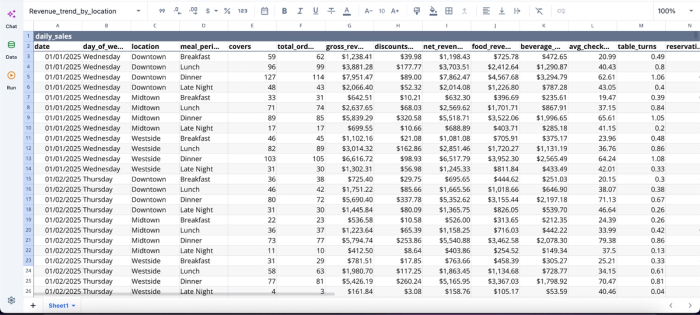
Once you have your data in Quadratic, you can immediately begin analysis:
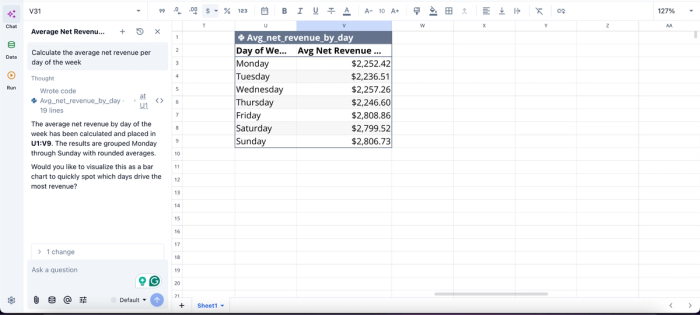
In this image, I ask Quadratic AI to “Calculate the average net revenue per day of the week.” It instantly creates a table that shows the average revenue generated, all based on your data. No need for complex formulas or code, just text prompts in plain English.
Generate dashboards and visualizations conversationally
Most spreadsheet visualization workflows still involve moving data into separate charting or BI tools. The spreadsheet becomes the staging layer rather than the analytical surface itself.
Quadratic keeps visualization inside the same environment. Through MCP, ChatGPT can generate charts directly into the spreadsheet canvas, modify them iteratively, and keep them connected to the underlying data ranges and calculations.
This enables a much more conversational dashboard workflow. A user can ask ChatGPT to summarize revenue trends, generate a visualization comparing regions, refine the chart styling, and create an executive summary without ever leaving the spreadsheet environment.
The charts remain linked to live data and programmable logic; updates to the source propagate through the entire dashboard automatically. The workflow becomes continuous rather than export-driven.
Quadratic also supports AI-generated data visualization right within the spreadsheet environment. Here’s an example:
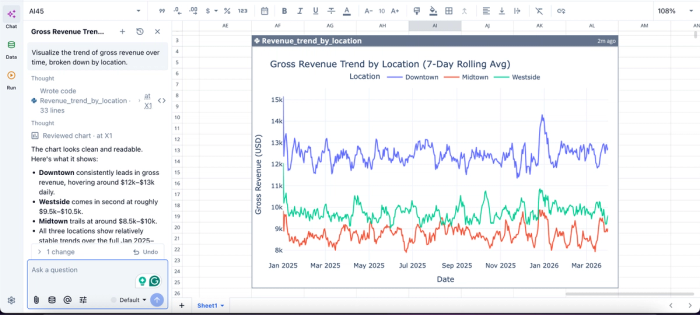
In this image, I ask Quadratic AI to “Visualize the trend of gross revenue over time, broken down by location.” It instantly creates a visualization that shows the gross revenue by location. At a glance, we can see that Downtown generates the most revenue, followed by Westside, with Midtown coming in third.
Collaboration happens in the same environment as the AI work
One of the hidden weaknesses of chatbot-based spreadsheet workflows is fragmentation. The reasoning process lives in a private chat, while the spreadsheet exists somewhere else entirely. Eventually, the workbook loses its context.
Quadratic keeps the prompts, outputs, formulas, code, and visualizations in one collaborative analytics platform. Since the platform is browser-based with real-time multiplayer collaboration, multiple people can inspect and extend the same AI-assisted workflow together.
A teammate can open a sheet and immediately see the formulas ChatGPT inserted, the Python logic that cleaned the data, the SQL query that pulled the warehouse metrics, and the charts generated from the results. The operational context stays attached to the spreadsheet rather than disappearing into disconnected chat histories.
Example workflow: from prompt to executable analysis
To make this concrete, here is what a single end-to-end workflow looks like with ChatGPT connected to Quadratic MCP. Imagine you are a finance analyst building a quarterly revenue forecast.
Step 1: Ask ChatGPT to build the spreadsheet structure
You start with a prompt like: "Create a quarterly revenue forecast with monthly breakdowns by product line and growth assumptions for each quarter."
Through MCP, ChatGPT writes the headers, row labels, and seed values directly into Quadratic cells. When the response finishes, you have a structured sheet, not a description of one.
Step 2: Add live formulas and calculations
You follow up: "Add growth rate assumptions of 8 percent quarter over quarter for the enterprise line and 12 percent for the SMB line, and calculate projected revenue per month."
ChatGPT inserts real formulas into the right cells. They calculate immediately. There is no copy-paste, no dialect translation between markdown and Excel syntax, and no chance of references shifting when you paste.
Step 3: Pull in live data with Python or SQL
Next: "Pull last year's actual revenue from our Postgres database to use as a baseline." ChatGPT writes a SQL query that runs against the connected database and lands the results in the sheet. Or, if the analysis calls for it, it generates Python that executes inside Quadratic and works directly with the real data.
This is the part that has no equivalent in a chat-only workflow. Code runs against the live data inside the sheet, not in a disconnected sandbox where it has to be uploaded each time.
Step 4: Generate charts inside the sheet
Finally: "Create a line chart comparing forecast to actuals by month." ChatGPT places the visualization directly on the Quadratic canvas, next to the data it visualizes. As inputs change, the chart updates with them. Nothing is locked inside an image in a chat thread.
Conclusion: the real answer to "can ChatGPT create Excel spreadsheets?"
So, can ChatGPT create spreadsheets? Yes, but only meaningfully when it has a live channel into one. On its own, it can describe spreadsheets, draft them in chat, and export static files. None of that is a real working sheet, and no amount of prompt engineering changes can change that, because the limitation is architectural rather than linguistic.
MCP, and specifically Quadratic MCP, is what turns "kind of" into "yes." It gives ChatGPT a persistent, OAuth-secured connection to actual cells, formulas, code, and charts, so natural-language prompts produce real, executable analysis instead of artifacts you have to reassemble somewhere else.
When you connect ChatGPT to Quadratic MCP, you start building real spreadsheets from your prompts. Try Quadratic for free.
Frequently asked questions (FAQs)
Can ChatGPT create a spreadsheet for me?
ChatGPT can describe spreadsheets and generate static files, but on its own, it cannot create a live, working spreadsheet that updates as your data changes. The limitation is architectural This is why every workaround feels like upload, guess, fix, and repeat.
How does Quadratic MCP help me use ChatGPT to create an Excel spreadsheet?
Quadratic publishes an official MCP server that connects ChatGPT to your Quadratic spreadsheets through a single OAuth setup. Once connected, ChatGPT can create formulas directly in actual cells, run Python or SQL against live data, and generate charts inside the sheet. This is what turns "kind of" into "yes" when you ask whether ChatGPT can create an Excel spreadsheet for you.
When should I use ChatGPT with MCP instead of just downloading a file?
Use MCP when your work is iterative, depends on live data, or needs to be shared and updated by a team. A quick one-off table or budget outline works fine as a plain text export, but if you would normally regenerate the file more than once or paste anything into another tool, you are in MCP territory. The deeper your task and the more it changes over time, the more the architectural difference matters.
Is it secure to connect ChatGPT to my spreadsheets through MCP?
Yes. Quadratic MCP uses OAuth 2.0 authentication with scoped permissions you can review and revoke at any time. There are no API keys to paste into prompts, no credentials sitting in chat history, and no shared tokens floating around. For organizations with stricter requirements, Quadratic also offers SOC 2 and HIPAA-compliant security, optional self-hosting, and zero-day data retention for AI interactions.
