
James Amoo, Community Partner
May 26, 2026

Table of contents
- Before you merge: prep work that prevents silent errors
- Stacking vs. joining: the decision most guides skip
- How to merge Excel files into one file: the method spectrum
- A repeatable workflow: merging Excel files in Quadratic
- Choosing the right approach for your situation
- Merge Excel files once, and keep them merged
- Frequently asked questions (FAQs)
It usually starts the same way. Monthly financial reports land in a shared drive. Regional teams send their exports. A vendor drops a new file every Friday. Someone has to merge Excel files into one clean dataset before the analysis can begin, and that someone is probably you.
The first time, it is not so bad. You open each file, copy the rows, paste them into a master sheet, fix a few headers, and move on. The trouble starts on the second run. A column has been renamed. One file has an extra sheet. Dates are formatted differently. A teammate added a "Notes" field that nobody told you about. This kind of structural inconsistency across source files is an instance of schema drift. Suddenly, your tidy merge is silently dropping rows or duplicating them, and you have no record of what changed.
This post walks through the full spectrum of methods for combining Excel files, where each one breaks down, and how to set up a repeatable workflow that survives schema drift, recurring updates, and the audit questions that always come later.
Before you merge: prep work that prevents silent errors
Most merge failures are not actually caused by the merge itself. They originate earlier in the workflow when inconsistent files quietly introduce errors that only become visible after the data has already been combined. Before using any merge or data blending tool on a messy Excel sheet, the source files need to be normalized into a consistent structure.
Data transformation also becomes increasingly important when dealing with large groups of spreadsheets collected from different teams or systems. In practice, most users are trying to figure out how to merge different Excel files rather than perfectly identical ones. That means reconciling conflicting conventions before the files ever touch the same worksheet. Just as importantly, you need clarity on the type of merge you are performing. Stacking rows from files with shared schemas is fundamentally different from joining datasets that contain different attributes tied to the same entities.
Quadratic streamlines the data processing phase by allowing users to inspect, clean, and normalize spreadsheet data directly inside a coding spreadsheet environment before any merge occurs. Using built-in Python, SQL, and AI-assisted analysis, teams can automatically standardize headers and validate merge keys across multiple Excel files in the same workspace.
Stacking vs. joining: the decision most guides skip
This is the question most tutorials skip past, and it is the source of the most expensive mistakes.
Stacking, also called appending or unioning, means putting rows from multiple files on top of each other because they share the same schema. Twelve monthly sales files with identical columns become one annual file. The row count of the result equals the sum of the row counts of the inputs.
Joining means combining files that describe different attributes about the same entities, matched on a key. A customer list joined to an orders list on customer_id gives you a single table with customer details next to their orders. The row count depends on the join type and the cardinality of the relationship.
Here is a quick way to keep them straight:
| Pattern | Use when | Example | Result shape |
|---|---|---|---|
| Stack (append) | Files share a schema | Monthly sales exports | More rows, same columns |
| Join (merge on key) | Files describe different attributes of the same entities | Customers + orders | Same rows, more columns |
Mixing these up is the most common silent failure in Excel merges. People reach for a stacking tool when they actually need a join, end up with a duplicated mess, and dedupe their way into a dataset that looks correct but is missing relationships.
How to merge Excel files into one file: the method spectrum
There is no single right way to figure out how to merge multiple Excel files into one Excel file. The right method depends on how many files you have, how consistent their schemas are, and how often you need to repeat the merge. Here is the spectrum and what each approach is actually good for.
Manual copy-paste (1–3 files, one-time)
For a handful of files you will never touch again, copy-paste is fine. Open each file, select the data, paste it into the master sheet, and you are done in five minutes.
It becomes dangerous the moment any of the following are true: the merge will repeat, the files have more than a few thousand rows, or the schemas vary at all. Manual paste produces invisible row drops when selections miss the bottom, duplicated headers when you forget to deselect them, and no record of what was merged or when.
Move or copy sheets between workbooks
Excel's Move or Copy command shifts entire sheets from one workbook to another. It is useful for consolidating tabs into a single workbook for review, but it does not stack data into one table. You end up with twelve sheets in one file, not one sheet with twelve months of data. Use it when the goal is colocation, not combination.
Formulas: VSTACK, links, and references
Modern Excel includes VSTACK, which appends arrays vertically and is genuinely useful for stacking ranges that already live in the same workbook. External links and references can connect spreadsheets in Excel and pull data live from other files, but they are fragile. Move or rename a source file, and the references break, often without a clear error.
Formula-based approaches work best when the source files are stable, in known locations, and unlikely to grow in number.
Python and pandas
For large or complex merges, Python with pandas is the scalable option. The library's official documentation covers how to merge, join, concatenate, and compare DataFrames.
The trade-off has historically been that Python lives outside the spreadsheet. Your data starts in Excel, gets pulled into a notebook, and the results have to be exported back. Logic, context, and outputs end up scattered across tools.
A repeatable workflow: merging Excel files in Quadratic
Quadratic is a browser-based spreadsheet that supports Python, formulas, and AI in the same grid as your data, which covers the logic of how to merge several Excel files into one sheet. Let’s explore the features of Quadratic.
Connect recurring file merges to live operational workflows
Many Excel merge processes exist because organizations repeatedly export operational data from disconnected systems. Sales teams combine CRM exports. Finance teams consolidate departmental budgets. Operations teams aggregate vendor reports. Quadratic supports direct connections to APIs, databases, and external sources, helping teams reduce reliance on static file-based workflows over time.
Instead of treating spreadsheet merges as isolated monthly tasks, organizations can gradually evolve them into connected analytical pipelines. Files can still serve as inputs where necessary, but the surrounding workflow becomes more automated and scalable.
This approach is particularly useful for teams transitioning away from manual spreadsheet operations without abandoning the spreadsheet interface analysts already understand.
Merge and normalize files with native Python and SQL
Merging spreadsheets becomes significantly more reliable when the logic is explicit and reusable instead of hidden behind manual steps. Quadratic supports native Python and SQL directly inside the spreadsheet grid, allowing users to merge files while keeping the logic visible and editable alongside the data itself.
You can use Python to concatenate monthly exports, merge datasets on shared keys, or standardize schemas before analysis. A workflow that would normally require external scripts or fragile VBA macros can instead live directly inside the spreadsheet environment where analysts already work, providing robust alternatives to VBA.
Teams can also inspect how duplicates were handled or how mismatched columns were normalized without reverse-engineering external pipelines. When new files arrive next month, rerunning the same logic updates the merged dataset automatically.
Schedule refreshes and maintain a reusable workflow
A merge process becomes truly scalable when it stops depending on someone remembering the exact sequence of manual steps every reporting cycle. Quadratic supports scheduled tasks and rerunnable workflows so merged datasets can stay current without constant rebuilding.
When updated files are added to the workflow, the merge logic and dashboards can refresh automatically. The result is a repeatable operational system rather than a fragile spreadsheet ritual dependent on one analyst’s memory.
Use AI to identify schema mismatches and cleanup issues
One of the most time-consuming parts of merging Excel files is resolving inconsistencies between datasets. Headers drift over time, column types change unexpectedly, date formats break, and seemingly identical fields contain subtle variations that quietly corrupt downstream analysis.
Quadratic’s built-in AI agents for data analysis help surface these issues before they become reporting problems. The AI can inspect imported sheets, identify mismatched columns, and recommend how to clean up Excel spreadsheet data directly in the workflow. Instead of manually scanning thousands of rows for structural problems, analysts receive a clear diagnostic layer explaining what needs attention.
This changes the merge process from reactive troubleshooting into proactive validation. Rather than discovering broken formulas after the merge is complete or needing an Excel formula explainer, teams can resolve inconsistencies at the data exploration stage and maintain cleaner downstream reporting pipelines.
After cleanup, users can also leverage an AI spreadsheet analyzer for advanced analysis. Let’s see an example. First, I import my Excel file into Quadratic:
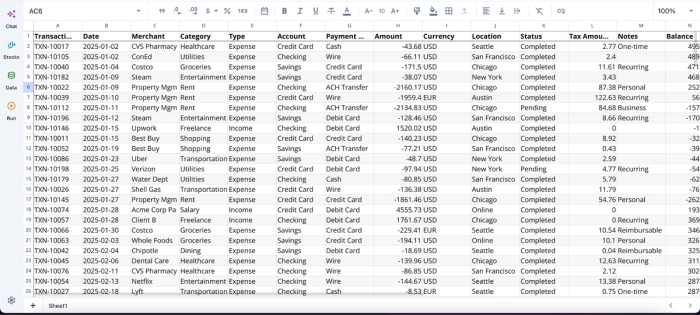
Once you have our data in the grid, you can immediately begin AI spreadsheet analysis. Here:
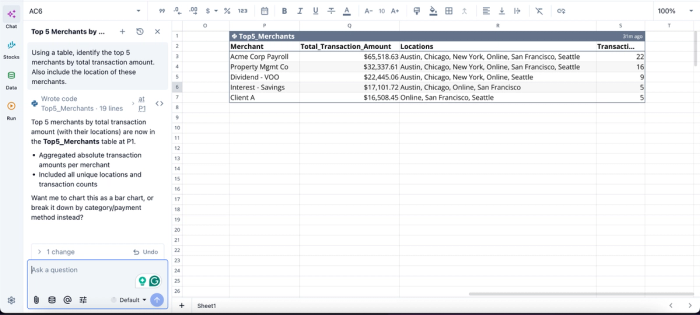
In this image, I prompt Quadratic AI, “Using a table, identify the top 5 merchants by total transaction amount. Also include the location of these merchants.” It instantly generates a table that shows the top 5 merchants, including the total transaction amount, locations, and number of transactions.
Build analysis-ready dashboards directly from merged data
In many workflows, merging files is only the first step. The real goal is building Excel dashboards or operational reports from the combined dataset. Quadratic keeps that entire process inside the same environment, so the merged output flows directly into charts, KPI tracking, and forecasting models without requiring exports into separate BI tools.
Once the files are merged, users can immediately visualize trends or generate recurring management reports. When source files update, the downstream visuals and calculations update as well. This eliminates the common workflow bottleneck where analysts spend more time rebuilding reports after every refresh than actually interpreting the results.
Here’s an example:
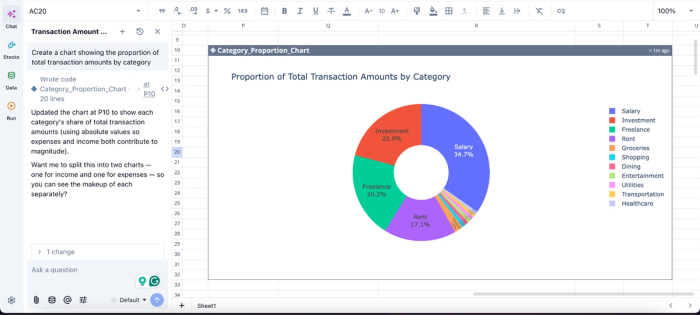
In this image, I ask Quadratic AI to “Create a chart showing the proportion of total transaction amounts by category.” In seconds, this Excel AI graph generator creates a pie chart that displays the total transaction amounts by category. Users do not need to write complex code or export to external BI tools; Quadratic AI creates dynamic and highly interactive visualizations from simple text prompts.
Collaborate on shared data consolidation workflows
Excel merge workflows often become organizational bottlenecks because only one person fully understands how the files fit together. Knowledge lives in undocumented macros, hidden tabs, or personal desktop workflows that are difficult for others to review or maintain.
Quadratic replaces that fragmentation with a collaborative analytics platform where the merge logic and contextual notes all remain accessible to the entire team. Analysts can review transformations together, finance teams can validate assumptions before reports are finalized, and operations teams can trace data lineage without hunting through disconnected files.
This collaborative reduces operational risk while making recurring consolidation workflows significantly easier to scale across teams.
Choosing the right approach for your situation
So how can I merge Excel files in a way that fits my situation? Match the method to the shape of the work.
| Situation | Best method |
|---|---|
| 1–3 files, one-time, identical schemas | Manual copy-paste or VSTACK |
| Consolidating tabs into one workbook | Move or Copy sheets |
| Aggregating values by label | Excel Consolidate |
| Recurring merges, same schema, single folder | Power Query |
| Recurring merges with schema drift, joins, or audit needs | Quadratic AI spreadsheet analysis |
| Large files or complex transformations | Quadratic AI spreadsheet analysis |
The decision flow is simpler than the table suggests. If the merge happens once, use the lightest tool that works. If it repeats, invest in a workflow that can handle the second run. If schemas drift or audit matters, choose an environment where logic, data, and QA stay together.
Merge Excel files once, and keep them merged
The point of this exercise is not to merge Excel files. It is to keep them merged as data evolves. Manual methods solve the first run. Power Query solves the easy recurring cases. Schema drift, joins, and audit requirements push the work into an environment where merge logic, source data, and validation can live in one place.
The durable concepts are the same regardless of tool: prep your files so they can be combined, decide whether you are stacking or joining, run a real QA pass after every merge, and keep an audit trail that answers "what changed?" without a forensic exercise.
Quadratic allows you to seamlessly import multiple Excel files into a single intuitive environment, merge them, and use AI to perform advanced analysis and visualization. Try Quadratic for free.
Frequently asked questions (FAQs)
How does Quadratic help you merge multiple Excel files into one sheet reliably?
Quadratic lets you drag and drop your Excel files directly into the same workspace where your merge logic lives, so the source files, Python code, and QA checks all stay together. You write a single Python cell to handle the combination, and when source files update or new ones arrive, you re-run the cell to produce an updated merge.
What should you check after merging to catch silent errors?
After you merge Excel files, reconcile row counts to ensure the total equals the sum of source rows, check for unexpected nulls in key columns, detect duplicates on natural keys, and spot-check a random handful of rows against the source files. Automated checks catch structural issues while manual spot-checks catch semantic ones. In Quadratic, these checks live as formulas or Python cells right next to the merged data, so they re-run with every refresh.
When should you use Power Query versus a Python-based approach?
Power Query is the standard answer for repeatable merges in Excel when you have dozens of files in a single folder and consistent schemas. Python with pandas is better for large or complex merges, joins, or situations where schema drift is common, and you need an audit trail of what changed. If you need both the scalability of Python and the familiarity of a spreadsheet, moving the process into Quadratic gives you Python's power without leaving the grid.
