
James Amoo, Community Partner
May 26, 2026

The phrase "XLSX AI" usually conjures a familiar image: drag a spreadsheet into a chatbot, ask a question, and read whatever comes back. That pattern works for quick lookups, but it falls apart the moment you need to do real work. If you have an .xlsx file you want to clean, analyze, or transform, you do not just need an answer. You need a workflow.
This article reframes XLSX AI as a repeatable and editable workspace rather than a one-shot conversation, and walks through what that looks like in practice using an AI-native spreadsheet.
What does XLSX AI entail
XLSX AI is shorthand for using artificial intelligence to read, explain, clean, analyze, visualize, or transform .xlsx files. In current tools, the dominant pattern is chat-based: you upload a spreadsheet, type a question, and get a single response. That can be useful, but it is not the same as a workflow. A workflow is something you can edit, audit, rerun, and share.
This distinction becomes especially important once spreadsheets move beyond simple summaries into ongoing research and data analysis. Analysts, finance teams, and operators need workflows where formulas, code, assumptions, and data transformations remain visible after the AI generates them.
That is where platforms like Quadratic differ from purely chat-based XLSX AI tools. Instead of returning isolated answers, Quadratic allows users to work directly inside a coding spreadsheet where AI-generated formulas, Python, SQL, and visualizations remain editable and connected to the underlying data.
The five things XLSX AI should do
When someone explores an AI tool for data analysis, they almost always want one of five things. Understanding these helps clarify what a good XLSX AI experience should support.
Generating and explaining formulas
AI is genuinely useful for translating plain English into Excel formulas and for explaining Excel formulas back into plain English. The classic pain point: a workbook inherited from someone who left the company, full of nested IFs and VLOOKUPs nobody can decode. AI can read those formulas and explain what they do, which is often the first step toward fixing or replacing them.
Cleaning messy spreadsheet data
Real spreadsheets are messy. Duplicates, inconsistent date formats, stray whitespace, missing values, and mixed data types in the same column. AI can suggest or execute data cleaning steps, but the more important question is whether those steps are auditable. Did the AI drop the right rows? Did it fill missing values in a way that makes sense? You need to be able to see the work, not just trust it.
Identifying trends and summarizing data
Once the data is clean, the next job is data exploration: summary statistics, group-bys, outliers, and correlations between columns. This is where XLSX analysis gets genuinely valuable, because AI can scan a sheet and surface patterns faster than a human eyeballing rows.
Visualizing data automatically
Leveraging different charts turns analysis into something a stakeholder can absorb in seconds. Auto-generating visualizations from a column or range is a natural fit for AI, but the quality depends entirely on whether the AI understands the structure of the data. A bar chart of the wrong dimension is worse than no chart at all.
Fitting AI into an existing spreadsheet workflow
Most people do not want to abandon Excel. They want an AI Excel sheet generator alongside their existing files, with the ability to keep working in a spreadsheet format that their team already understands. This last point is where the typical chat-upload tool starts to break down.
Why uploading an XLSX file to a chatbot falls short
The chat-upload pattern is convenient, but its limitations become obvious the moment you try to move beyond a one-off question, which is exactly why a ChatGPT alternative built around your data and workflows can make a meaningful difference.
Most chatbot-based XLSX analysis systems are designed for isolated interactions rather than exploratory data analysis. The response lives inside a conversation window, disconnected from the spreadsheet itself, so you cannot click into a cell or trace how a number was calculated. Once the conversation ends, the logic behind the analysis effectively disappears with it.
The final problem is the lack of a clean round trip between the uploaded spreadsheet and the generated output. You upload an .xlsx file, but the result often comes back as fragmented text, or a poorly reconstructed download that no longer preserves the original workbook structure.
How Quadratic streamlines XLSX AI analysis
Quadratic is built around exactly this workflow. It imports .xlsx files while preserving their tabular structure, so it functions as both an XLSX reader and an XLSX file viewer the moment your file lands in the grid.
Connect imported spreadsheets to live data sources
Most XLSX workflows are limited by static data snapshots. A workbook may represent last week's export, last month's financial reporting, or a manually assembled operational report that becomes outdated the moment the source system changes.
Quadratic allows imported XLSX files to coexist with live databases, APIs, and connected operational systems inside the same workspace. Users can merge historical spreadsheet models with live operational data and continuously refresh the analysis without rebuilding the workflow from scratch.
For example, a finance team could import an existing budgeting workbook, connect it to live ERP data, and use AI-generated formulas or Python to reconcile projected versus actual spend automatically. A marketing analyst could combine funnel analysis with live API performance metrics to build continuously updating dashboards.
Clean and transform spreadsheet data with Python directly in the grid
Traditional spreadsheet cleanup workflows often break down once the data becomes messy enough to exceed formulas comfortably. Mixed data types, inconsistent formatting, and stale data frequently push users into external scripts or separate ETL tools.
Quadratic solves this by combining spreadsheets with native Python and SQL execution inside the same workspace. Users can prompt the AI to generate Python scripts that clean, normalize, reshape, and transform spreadsheet data directly in the grid.
For example, an imported XLSX export containing inconsistent customer names and fragmented transaction categories can be standardized with AI-generated Python while keeping every transformation step visible and editable.
Keep every AI-generated action visible and auditable
A major weakness of many AI spreadsheet tools is that the reasoning disappears once the conversation ends. Users receive an answer but lose visibility into how the result was generated or how to reproduce it later.
Quadratic is built around visible workflows. Every AI-generated formula, Python script or summary appears directly in the spreadsheet cells where it can be inspected, modified, and rerun.
That transparency becomes especially important in operational and financial workflows where trust matters. Analysts can verify formulas before reporting results. Teams can review transformation logic collaboratively. Future contributors can understand how the workbook evolved without digging through old chat logs or undocumented scripts.
Use embedded AI to explain spreadsheets in context
One of the hardest parts of inheriting XLSX files is reconstructing intent. Large workbooks often contain undocumented formulas and calculations that nobody fully remembers how to maintain, leaving the Excel spreadsheet explained only by guesswork.
Quadratic embeds AI agents for data analysis directly inside the spreadsheet itself, allowing users to ask questions about the workbook in context. Instead of generating explanations in a detached chat panel, the AI works directly against the live spreadsheet structure already loaded into the grid.
Users can ask the AI to generate formulas, summarize sheets, identify dependencies across tabs, or surface suspicious values. Since Quadratic AI can see the actual workbook structure and data, the explanations become grounded in the real file rather than generic spreadsheet advice.
Here’s an example. First, I import my data into Quadratic:
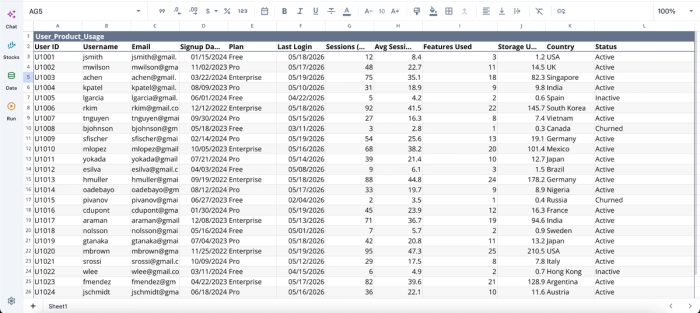
As soon as I import my data, I can immediately begin analysis within the environment:
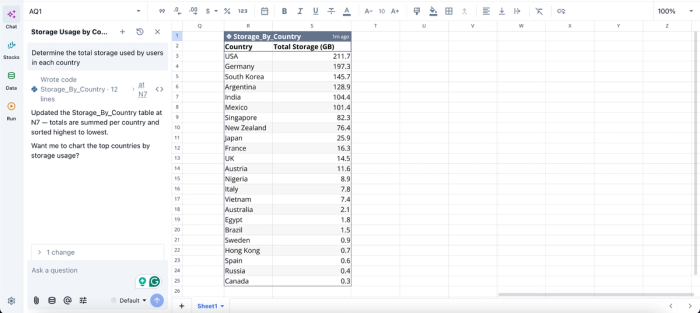
In this image, I ask Quadratic AI to “Determine the total storage used by users in each country.” It instantly creates a table that shows the total storage for each country ranked in descending order. No need for complex formulas or code, analysis in Quadratic is done using simple text prompts.
Build live dashboards directly on top of imported XLSX data
In many organizations, spreadsheets serve as the operational backbone for forecasting software workflows. But static Excel dashboards quickly become outdated because the underlying workbook logic is difficult to refresh and maintain consistently.
Quadratic extends XLSX files into dynamic analytical systems by allowing users to generate charts, dashboards, summaries, and visualizations directly on top of imported spreadsheet data. AI can recommend visualizations, summarize trends, and generate dashboards directly inside the same environment where the workbook lives.
This creates a much more scalable reporting model than the traditional cycle of exporting spreadsheets into disconnected BI tools or presentation software.
Here’s an example:
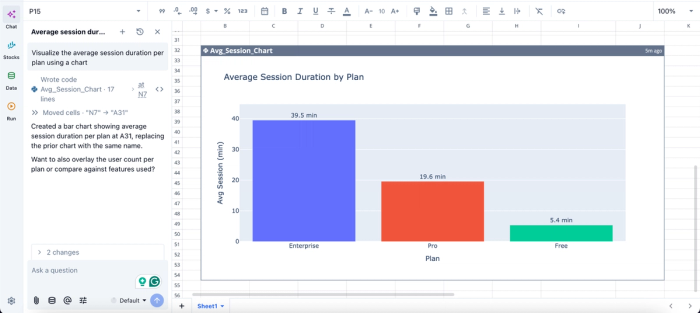
In this image, I ask Quadratic AI to “Visualize the average session duration per plan using a chart.” It instantly creates a bar chart that visualizes the average session for each plan. From the chart, we can see that the enterprise plan has the most session time with an average of 39.5 minutes.
Collaborate on XLSX workflows without fragmenting the process
Traditional spreadsheet collaboration usually creates fragmentation. Multiple versions of the same workbook circulate across email threads, edits become difficult to reconcile, and the reasoning behind transformations gets trapped inside private conversations.
Quadratic centralizes the workflow into one collaborative analytics platform. Teams can import spreadsheets and refine AI-assisted analysis together in real time. Context also does not disappear into disconnected chatbot sessions or undocumented cleanup steps.
Export back to XLSX without losing the workflow
Even when teams modernize their workflows, Excel compatibility still matters operationally. Financial systems, vendor reporting processes, audits, and client deliverables often still depend on .xlsx files.
Quadratic supports this reality by allowing users to export completed work back into XLSX format with formulas and structure preserved. Teams can modernize the analytical workflow internally while still delivering outputs that fit existing Excel-based ecosystems.
That round trip matters. Importing XLSX files, enriching them with AI, Python, live data, and visualizations, then exporting them back into familiar spreadsheet formats turns Quadratic into more than an XLSX viewer, AI assistant, or Excel assistant. It becomes a full analytical workspace for building repeatable spreadsheet workflows that remain transparent, collaborative, and reusable long after the first upload.
Conclusion
Chat uploads give you answers. An auditable XLSX AI workflow gives you results powered by AI. If you are doing anything beyond a one-off question, the difference compounds quickly: editable logic, auditable steps, easy reruns on new data, and outputs that flow back into the formats your team already uses.
With Quadratic, you can upload your XLSX file, use AI to analyze and visualize it, and export the result when you need Excel format again. Try Quadratic for free.
Frequently asked questions (FAQs)
Is my data safe when I upload an XLSX file to an AI tool?
Data handling varies widely across platforms. Before uploading anything sensitive, check the tool's policies on data retention, model training, and storage. For regulated or confidential data, look for tools that offer enterprise controls such as zero data retention or compliance certifications.
How does Quadratic turn an XLSX file into a repeatable workflow?
Quadratic imports your .xlsx while preserving sheets, columns, and structure, then functions as both an XLSX reader and XLSX file viewer in the same workspace. AI sits inline in the grid rather than in a disconnected chat, so every action produces visible results you can audit and rerun on new data. When analysis is complete, you export back to .xlsx so the result fits into Excel, email, or any system your team already uses.
Do I need to know Python to do XLSX analysis with AI?
No. Natural language is enough for most tasks like cleaning, summarizing, charting, and basic analysis. Python becomes useful when you need advanced transformations or reusable scripts, and AI can generate that code for you to review and edit directly in the spreadsheet.
